JSON Formatter Online: Format and Validate JSON in Seconds
 Kendall Chris
Mar 24 /
6 months ago
Kendall Chris
Mar 24 /
6 months ago

You just called an API endpoint and the response came back as one long, unbroken string: {"firstName":"John","lastName":"Doe","address":{"city":"London"},"active":true}. No indentation. No line breaks. No idea where the structure begins or ends. For a payload with dozens of nested fields, this becomes completely unworkable within seconds.
A free JSON Formatter turns that unreadable blob into clean, indented, syntax-highlighted code in under a second. This guide explains what JSON formatting does, how to use the tool step by step with every input option, the syntax rules every valid JSON document must follow, the seven most common errors and exactly how to fix them, and when to beautify versus when to minify for production. No sign-up. No download. No limits.
What Is a JSON Formatter?
A JSON formatter also called a JSON beautifier or JSON pretty printer is an online tool that takes raw, compressed, or minified JSON data and reformats it with proper indentation, line breaks, and whitespace to make it human-readable. It does not change the data, only the structure of how it is presented. Most modern formatters also validate the JSON syntax simultaneously, surfacing errors with the exact line number and a plain-English description of what went wrong.
JSON Formatter vs. Validator vs. Beautifier vs. Minifier
These four terms are often used interchangeably, but each describes a distinct operation:
- JSON Formatter: Restructures the layout, adds indentation and line breaks. The data is unchanged.
- JSON Validator: Checks the syntax, confirms the JSON is structurally valid with no missing commas, unquoted keys, or bracket mismatches.
- JSON Beautifier: A synonym for JSON formatter. It turns a single compressed line into a readable, multi-line structure.
- JSON Minifier: The opposite, strips all whitespace and line breaks to produce the smallest possible string. Used in production to reduce file size and bandwidth.
Most modern tools, including ours do all four in a single interface.
Format, validate, beautify, and minify. Switch between operations without
re-pasting your JSON.
What Is JSON?
JSON stands for JavaScript Object Notation. It is a lightweight, text-based data interchange format that structures data as key-value pairs, arrays, and nested objects. Despite the JavaScript in its name, JSON is language-independent. It is supported natively by Python, JavaScript, Java, Go, Ruby, PHP, and virtually every other modern programming language. Almost every API built in the last 15 years returns data in JSON format. You can read the full specification at JSON.org, the authoritative reference created by Douglas Crockford, who popularised the format.
How to Format JSON Online for Free: Step by Step
You can format, validate, and beautify any JSON in under 10 seconds using our free JSON Formatter. Here is exactly how the tool works, field by field.
Step-by-Step: Using SEO Site Checker's JSON Formatter
Step 1: Open the JSON Formatter tool
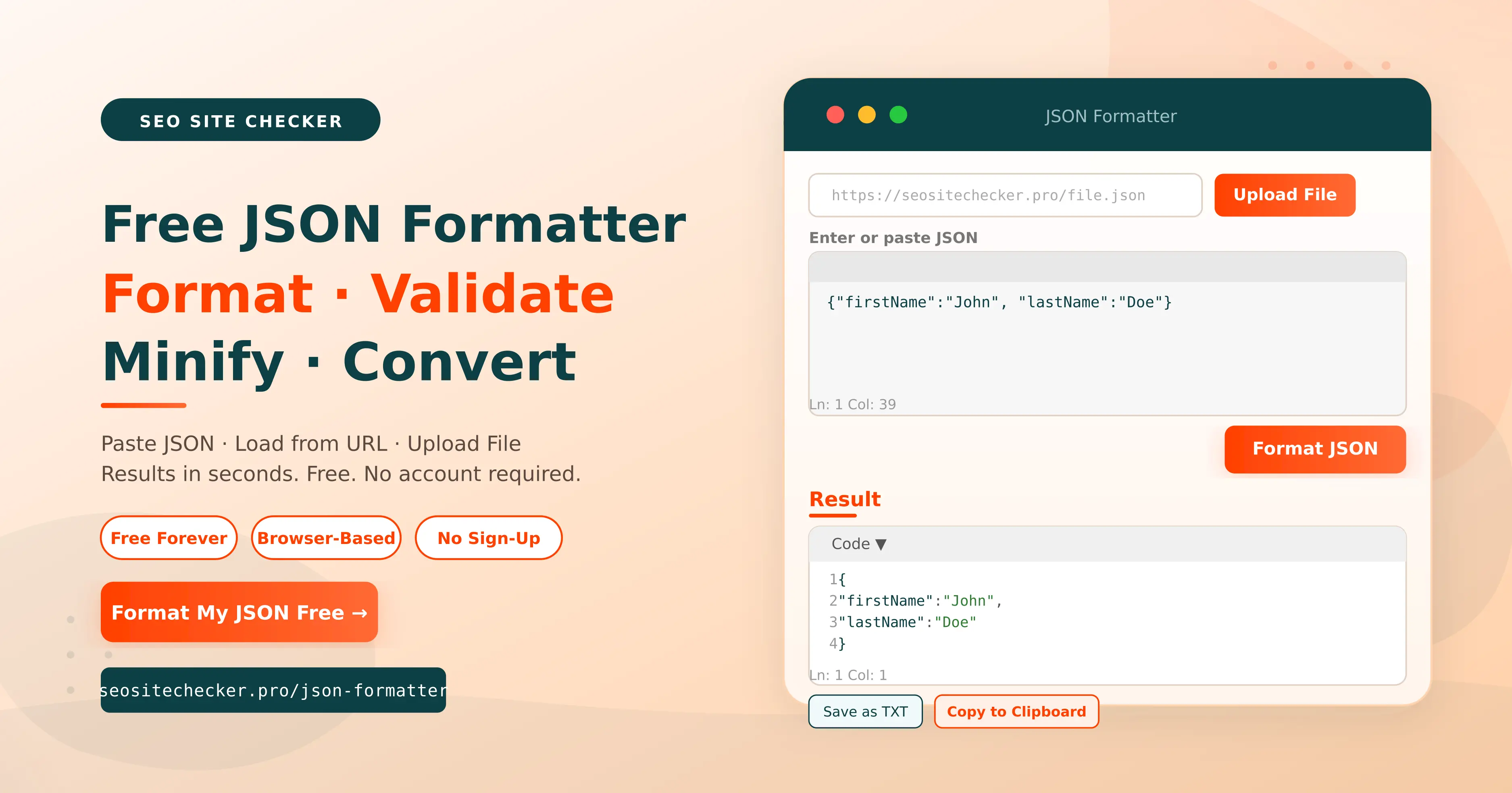
Go to seositechecker.pro/json-formatter in your browser. The tool opens immediately with no login, account, or installation required.
Step 2: Load your JSON: three ways
The tool gives you three ways to load your JSON depending on where it is coming from:
Load from URL: Paste the URL of any publicly accessible JSON endpoint into the Load from URL field at the top. The tool fetches and loads the content automatically.
Upload File: Click the orange Upload File button on the right of the URL bar to load a .json file directly from your device. The file contents appear in the input area immediately.
Paste directly: Type or paste raw JSON into the "Enter or paste JSON" text area. This is the fastest method for API responses or copied snippets. The Ln: 1 Col: 39 counter in the bottom-left corner updates in real time as you type.
Step 3: Click "Format JSON"
Once your JSON is in the input area, click the orange "Format JSON" button at the bottom-right corner of the input panel. The tool processes your JSON instantly.
Step 4: Read your formatted output in the Result section
Your formatted JSON appears in the Result section directly below. The output is displayed in a Code view, the Code ▼ dropdown at the top of the result panel lets you switch display options. The formatted code is syntax-highlighted with proper indentation. Each key-value pair is on its own numbered line, and data types are colour-coded for instant scanning. Line and column counters (Ln: 1 Col: 1) appear at the bottom-left of the result panel.
Example: input and output:
Input (raw): {"firstName":"John", "lastName":"Doe"}
Output (formatted):
1 {
2 "firstName": "John",
3 "lastName": "Doe"
4 }
The Result panel shows line numbers on the left edge of the code view.
Step 5: Check for validation errors
If your JSON contains a syntax error, the formatter highlights the problem in the output. The error message shows the exact line and column number, for example, "Unexpected token at line 2, column 14". Fix the error directly in the input area and click "Format JSON" again to re-validate immediately.
Step 6: Save or copy your results
Two export buttons appear at the bottom of the Result section:
Save as TXT: Downloads your formatted JSON as a plain text file to your device.
Copy to Clipboard: Copies the full formatted output to your clipboard in one click — ready to paste into your code editor, API client, or documentation.
No account needed. No credit card. No usage limits.
All processing happens in your browser, your JSON data never leaves your device.
Can I Load JSON from a URL?
Yes. The Load from URL field accepts any publicly accessible JSON endpoint. Paste the full URL — for example, a REST API address and the tool fetches and loads the response into the input area automatically. This is particularly useful for debugging live API responses without manually copying large payloads.
JSON Syntax Rules: What Makes JSON Valid?
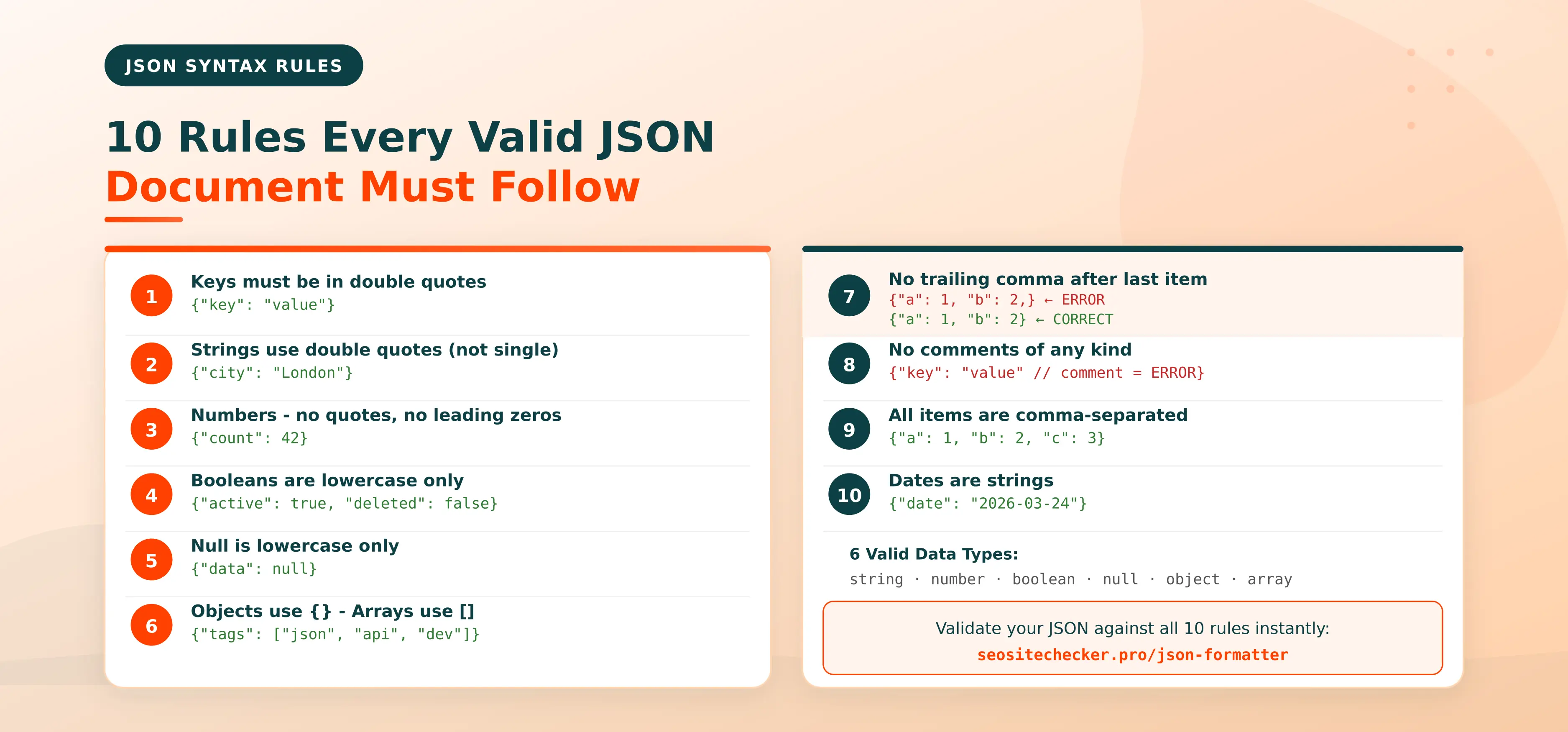
Valid JSON must follow a strict set of rules defined in the ECMA-404 JSON standard. Even a single missing comma, an unquoted key, or a single-quote character breaks the entire document and prevents it from being parsed. Here are the ten rules every JSON document must satisfy.
The 10 Core JSON Syntax Rules
- Data is structured as name/value (key-value) pairs: {"name": "Alice", "age": 30}
- Keys MUST be enclosed in double quotes.
Wrong: {name: "Alice"}
Fix: {"name": "Alice"}
- String values must use double quotes - not single quotes.
Wrong: {'city': 'London'}
Fix: {"city": "London"}
- Numbers use no quotes and must not have leading zeros.
Wrong: {"count": "42"} or {"count": 042}
Fix: {"count": 42}
- Booleans are lowercase: true or false - never True or False.
- Null is lowercase: null - never Null or NULL.
- Objects wrap in curly braces {}. Arrays wrap in square brackets [].
- Items are comma-separated. The LAST item must NOT have a trailing comma.
Wrong: {"a": 1, "b": 2,}
Fix: {"a": 1, "b": 2}
- JSON does not support comments of any kind.
Wrong: {"timeout": 30 // seconds}
Fix: {"timeout": 30}
- Dates must be represented as strings: {"date": "2026-03-24"}
JSON Data Types: Quick Reference
| Data Type | Example | Notes |
| String | "Hello, world" | Must be double-quoted |
| Number | 42 / 3.14 / -7 | Integer or float, no quotes |
| Boolean | true / false | Lowercase only |
| Null | null | Lowercase only |
| Object | {"key": "value"} | Wrapped in curly braces {} |
| Array | [1, 2, 3] | Wrapped in square brackets [] |
Common JSON Errors and How to Fix Them
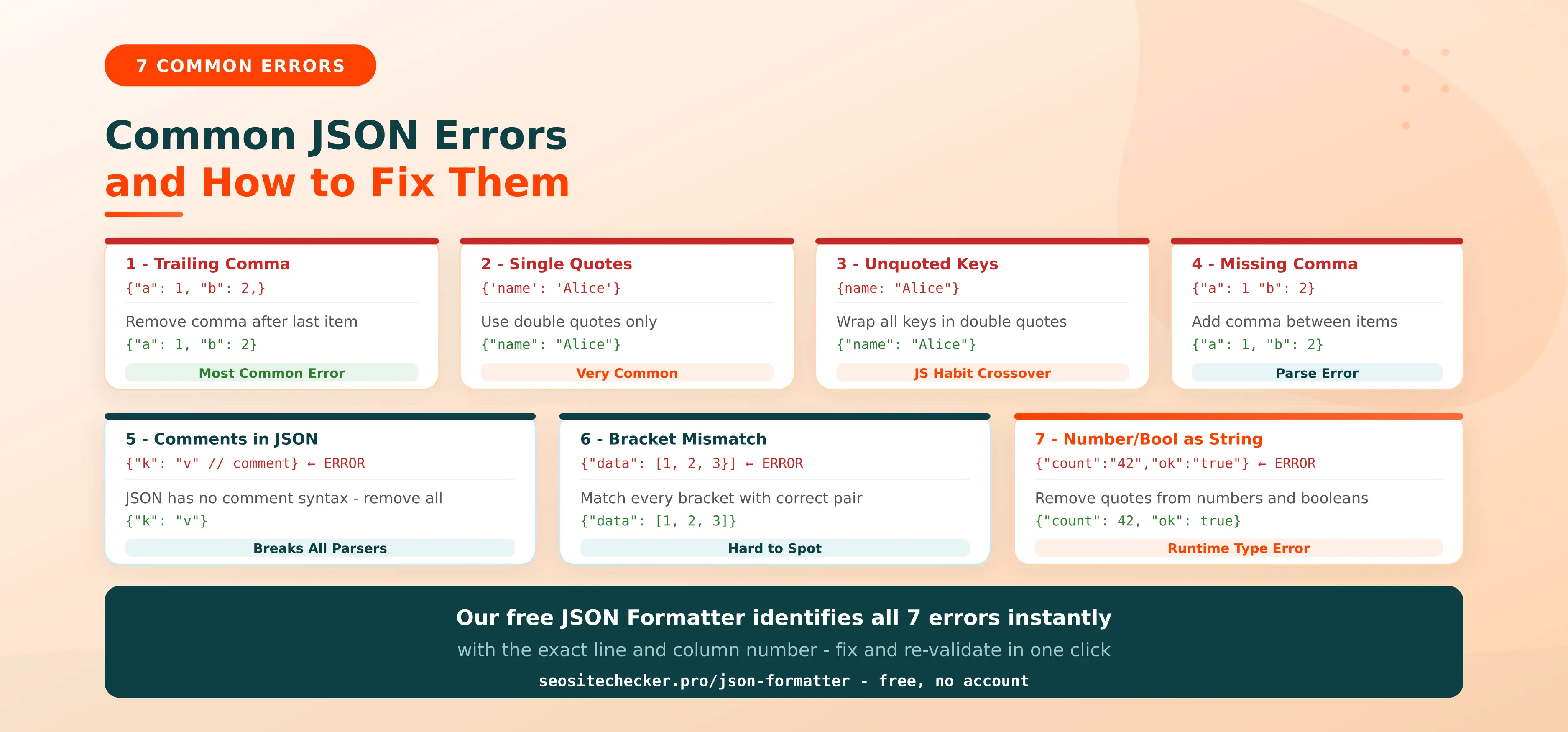
Most JSON errors fall into a handful of predictable categories. Our free JSON Formatter identifies every one of these instantly with the exact line number and a description of what went wrong.
Error 1: Trailing Comma
One of the most common mistakes, adding a comma after the last item in an object or array.
Wrong: {"firstName": "John", "lastName": "Doe",}
Fix: {"firstName": "John", "lastName": "Doe"}
Error 2: Single Quotes Instead of Double Quotes
JSON requires double quotes for all strings and keys. Single quotes are valid in JavaScript but invalid in JSON.
Wrong: {'name': 'Alice'}
Fix: {"name": "Alice"}
Error 3: Unquoted Object Keys
In JavaScript, object keys can be unquoted. In JSON, every key must be a double-quoted string.
Wrong: {name: "Alice", age: 30}
Fix: {"name": "Alice", "age": 30}
Error 4: Missing Comma Between Items
A comma must separate every item. Forgetting one causes a parse error on the line where it should appear.
Wrong: {"a": 1 "b": 2}
Fix: {"a": 1, "b": 2}
Error 5: Comments in JSON
Unlike JavaScript, JSON supports no comments - no // and no /* */. Any comment causes an immediate parse failure.
Wrong: {"timeout": 30 // seconds}
Fix: {"timeout": 30}
Error 6: Mismatched Brackets or Braces
Every { needs a closing }, and every [ needs a closing ]. A mismatch causes a cascading error that is difficult to trace without a formatter.
Wrong: {"data": [1, 2, 3}]
Fix: {"data": [1, 2, 3]}
Error 7: Numbers or Booleans Stored as Strings
Storing a number or boolean as a string does not always break parsing, but it causes runtime type errors in applications expecting the correct type.
Wrong: {"count": "42", "active": "true"}
Fix: {"count": 42, "active": true}
Fix any of these errors in the input area, then click "Format JSON" again.
The validator re-runs instantly and confirms whether the fix resolved the issue.
No page reload required.
JSON Beautify vs. JSON Minify: When to Use Each
Our JSON Formatter supports two opposite operations: beautify (expand for readability) and minify (compress for deployment). Knowing when to use each is fundamental to working with JSON professionally.
JSON Beautify: Format for Human Readability
Beautifying adds indentation and line breaks to make the JSON structure immediately visible. Our formatter produces 4-space indentation by default, the Code ▼ dropdown in the Result panel lets you adjust this if needed.
Use beautify when:
- Debugging an API response - see the full nested structure instantly
- Reviewing a configuration file (package.json, tsconfig.json, .babelrc)
- Preparing documentation, code examples, or pull request descriptions
- Learning or teaching JSON - the tree structure becomes visually clear
JSON Minify: Compress for Production
Minifying strips all whitespace, line breaks, and indentation, producing the smallest possible JSON string. A minified document is identical in data to the formatted version but 20-40% smaller in file size.
Use minify when:
- Shipping JSON as an API response (smaller payload = faster transfer)
- Deploying configuration to a production environment
- Storing JSON in a database to reduce storage size
- Embedding JSON in a web page or mobile app bundle
| Feature | Beautify (Format) | Minify (Compress) |
| Purpose | Human readability | Machine transmission |
| File size | Larger | Smaller (20-40% less) |
| Use stage | Development | Production |
| Indentation | 4 spaces (default) | None - single line |
| API payloads | Debugging only | Use in production responses |
How to Validate JSON Online: What the Validator Checks
Formatting makes JSON readable. Validation makes it correct. An invalid JSON document crashes any application that tries to parse it. Breaking API calls, causing build failures, and producing errors that are often difficult to trace without a proper validator.
What the Validator Checks
- Bracket and brace pairing: Every { has a matching }. Every [ has a matching ].
- Double-quoted strings and keys: No single quotes, no unquoted keys.
- No trailing commas: The last item in every object and array has no trailing comma.
- No comments: No // or /* */ anywhere in the document.
- Valid data types: All six types (string, number, boolean, null, array, object) are correctly formed.
- Valid escape sequences: String escapes like \n, \t, and \" are correctly formed.
- Correct nesting: Objects and arrays are properly nested and closed in the correct order.
JSON Schema Validation
Standard JSON validation checks syntax, whether the document is structurally valid. JSON Schema validation goes further: it checks whether data matches a defined structure. A schema can enforce that "age" is always a number, "email" always a non-empty string, and "status" always one of a fixed set of allowed values. JSON Schema validation is essential for API contract testing, automated data pipeline validation, and form input validation in web applications.
RFC 8259 vs. ECMA-404: Which Standard to Validate Against?
Two formal specifications define JSON: the RFC 8259 (IETF) and ECMA-404 (ECMA International). Both define the same core syntax. RFC 8259 is the recommended standard for internet-facing APIs — it specifies UTF-8 encoding as the default and has the widest compatibility across tools and parsers. For most practical purposes, the two standards are interchangeable.
What Our Free JSON Formatter Can Do
Our tool is a complete JSON toolkit in a single browser-based interface. Every feature is free — no premium plan, no usage cap, no account required.
- Format / Beautify: Adds indentation and line breaks to make any JSON immediately readable.
- Validate: Syntax checking with line-specific error messages shows the exact line and column of every error.
- Minify / Compress: Strips all whitespace for the smallest possible production-ready JSON string.
- Syntax Highlighting: The Result panel colour-codes by data type for instant visual scanning.
- Line and Column Counter: Both the input and Result panels display Ln: 1 Col: 1 counters for precise error navigation.
- Code ▼ dropdown: Display configuration options in the Result panel header.
- Load from URL: Fetch and format any public JSON endpoint without manual copy-paste.
- Upload File: Orange "Upload File" button loads and formats a .json file from your device.
- Save as TXT: Download formatted JSON as a plain text file with one click.
- Copy to Clipboard: Copy the full formatted output instantly, ready to paste anywhere.
- Convert JSON to XML: Instant cross-format conversion.
- Convert JSON to CSV: Export tabular data from JSON arrays for spreadsheets and analytics.
- Convert JSON to YAML: Switch to YAML for Docker, Kubernetes, and CI/CD configurations.
- Browser-based processing: All formatting happens locally. Your JSON data never reaches our servers.
Explore all our free developer tools includes JSON Formatter, XML Formatter, and more in the Development Tools category.
JSON vs. XML: Why JSON Became the Standard Data Format
Before JSON, XML was the internet's primary data interchange format. SOAP APIs, configuration files, and data feeds all relied on XML. Understanding why JSON replaced XML in most contexts helps explain both why formatting JSON correctly matters so much — and why there are still occasions when you need both formats in the same workflow.
Why JSON Displaced XML for Most API Use
The shift happened because JSON solved four concrete problems that XML consistently struggled with:
Conciseness: XML requires an opening tag and a closing tag for every data element, which doubles the character count compared to equivalent JSON. A simple object that takes 2 lines in JSON can take 10 or more lines in XML.
File size: JSON is typically 30–40% smaller than equivalent XML for the same data. Smaller payloads mean faster API responses, lower bandwidth costs, and better performance on mobile networks.
Parsing speed: JSON is natively parsed by JavaScript no additional libraries needed. Every major browser and Node.js runtime can parse a JSON string with a single function call (JSON.parse()). XML requires a dedicated XML parser library in every language.
Language support: JSON is natively supported by Python, JavaScript, Java, Go, Ruby, PHP, Swift, Kotlin, and virtually every other modern programming language. This language-agnostic portability made it the natural choice for REST APIs.
Feature | JSON | XML |
Verbosity | Concise | Verbose |
File size | Smaller | Larger (30-40% more) |
Comments | Not supported | Supported |
Native data types | 6 types | All strings (requires schema) |
JS parsing | JSON.parse() native | Requires XML parser library |
API use | REST standard | SOAP / legacy systems |
If your workflow involves both JSON and XML, for example, consuming a REST API and feeding the data to a legacy SOAP system, our XML Formatter is the companion tool for working with XML documents with the same ease.
Where JSON Formatting Matters Most: 6 Real-World Use Cases
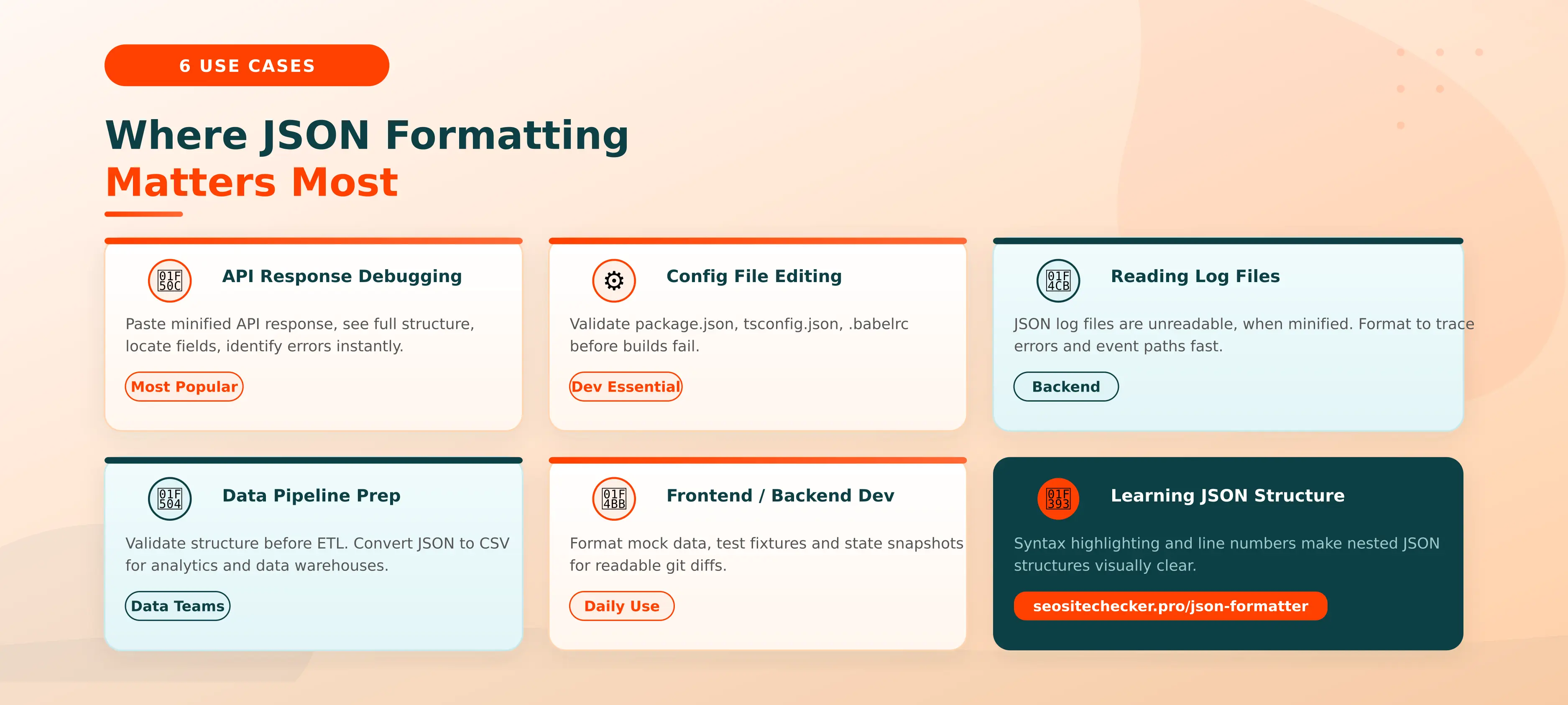
A JSON formatter is useful across a wider range of scenarios than most developers initially expect. Here are the six most common situations where a fast, free online formatter saves real time.
1. Debugging API Responses
The most common use case by far. REST API endpoints return minified JSON, everything on a single line with no whitespace. When debugging an integration, verifying a response payload, or investigating an unexpected result, paste the response into the formatter's input area and click "Format JSON". The fully indented, syntax-highlighted output in the Result panel makes the structure immediately navigable. You can see nested objects, locate missing fields, and identify type mismatches in seconds rather than minutes.
2. Editing Configuration Files
Configuration files like package.json, tsconfig.json, .babelrc, and eslintrc.json are all JSON documents that must remain syntactically valid. A single trailing comma, the most common JSON error will crash a build immediately without a clear error message in many environments. Pasting the config file content into the formatter validates it before deployment and catches problems that IDEs sometimes miss in larger files.
3. Reading and Parsing Log Files
Application logs stored as JSON (a common pattern in Node.js, Python, and Java applications) are unreadable when written to file in minified format. Paste a log entry into the formatter to immediately see the nested error context, trace IDs, timestamps, and stack trace fields, making incident investigation dramatically faster.
4. Preparing Data for Pipelines
Before processing JSON data in ETL pipelines, data warehouses, or analytics platforms, validating the structure against the expected schema prevents downstream failures. Converting the JSON to CSV using the formatter's built-in conversion is useful for feeding data into tools like Excel, Google Sheets, or Tableau that expect tabular input.
5. Frontend and Backend Development
Mock API responses, test fixtures, local state snapshots, and seed data files are all stored as JSON. Keeping them properly formatted makes version control diffs readable. A formatted JSON change shows clearly which specific field changed, whereas a minified change shows a single-line diff that is nearly impossible to review.
6. Learning and Teaching JSON Structure
A formatter with syntax highlighting and line numbering is the most effective way to understand how nested JSON structures work, far better than reading raw text. The tree-like visual structure that formatting creates makes it immediately clear how objects contain arrays, arrays contain objects, and values nest at multiple levels. This makes the formatter genuinely useful for developers learning API integration for the first time.
Converting JSON to Other Formats: XML, CSV, and YAML
Beyond formatting and validation, many JSON workflows require converting the data into a different format. Our tool supports the three most commonly needed conversions.
JSON to XML
When to use: SOAP APIs, legacy enterprise systems, CMS integrations, and XML-based data pipelines. The converter wraps each JSON key in an XML element. Arrays become repeated XML nodes with the same tag name. Nested JSON objects map to nested XML elements. The result is a valid XML document that can be consumed by any standard XML parser.
JSON to CSV
When to use: exporting data to Excel or Google Sheets, feeding results to analytics tools, generating reports from JSON API responses, or preparing data for data warehouse ingestion. JSON to CSV works best with flat JSON arrays of objects. Each object in the array becomes one row in the CSV output, with the keys becoming column headers. For deeply nested JSON, flattening the structure before conversion produces cleaner results.
JSON to YAML
When to use: Docker Compose files, Kubernetes manifests, GitHub Actions and GitLab CI/CD pipeline configurations, Ansible playbooks, and Helm chart values files. YAML is more human-readable than JSON for configuration use cases. It avoids quotation marks, curly braces, and square brackets in favour of indentation-based structure. The JSON-to-YAML conversion is particularly useful for developers moving between infrastructure-as-code tools that expect YAML and application code that produces JSON.
JSON to TypeScript Interface
When to use: automatically generating TypeScript interface definitions from API response shapes. Rather than manually writing interface User { name: string; age: number; ... } by hand after inspecting a JSON response, the converter produces a typed interface ready to import into your TypeScript project. This saves significant time when starting work with a new API.
No additional tools, libraries, or installations needed.
Is It Safe to Paste JSON Into an Online Formatter?
This is one of the most important questions for any developer considering using an online tool with production or sensitive data. The answer depends entirely on whether the formatter processes your data in the browser or sends it to a remote server.
Client-Side vs. Server-Side Processing: The Critical Distinction
Client-side (browser-based): The JSON is processed locally in your browser using JavaScript. No data is sent to any server. No network request is made. The data never leaves your device. This is how our JSON Formatter works. All formatting, validation, and conversion happens in the browser, making it completely safe to use with any JSON data including internal API responses and configuration files.
Server-side: The JSON is uploaded to a remote server, processed there, and the result is returned to your browser. The data passes over the internet and is processed by a third party. For routine use with non-sensitive test data this presents minimal risk, but it is not appropriate for JSON containing API secret keys, user personal data, payment information, or proprietary business logic.
What to Look For in a Safe Online JSON Formatter
- “All processing happens in your browser”: explicit confirmation from the tool developer
- HTTPS connection: verified by the padlock icon in your browser's address bar
- No account required: reduces data collection surface area
- No file upload to a server: only paste/input methods that stay local
When to Use a Local Tool Instead
Even with a client-side formatter, use a local tool (VS Code's built-in JSON formatter, the CLI tool jq, or your IDE's native JSON plugin) when your JSON contains:
- Production API secret keys or access tokens
- User personally identifiable information (PII) - names, emails, addresses
- Payment card or financial data
- Healthcare data subject to HIPAA compliance requirements
- Internally classified or confidential business data
Online JSON Formatter vs. IDE Extension: Which Is Better?
Both serve the same purpose. The right choice depends on the specific context.
Factor | Online Formatter | IDE Extension (VS Code etc.) |
Speed for quick checks | Instant - open browser, paste, done | Requires IDE to be open and loaded |
Ad-hoc paste | Best - no setup needed | Overkill for a quick one-off paste |
Workflow integration | Separate from development workflow | Built into your editing environment |
Offline use | Requires internet connection | Works fully offline |
Large file support | May vary by browser memory limit | Handles very large files easily |
Privacy | Client-side tools: safe | Always local - inherently safest |
Best for | Fast API debugging from any device | Daily development with large files |
For quick API response inspection, configuration file validation, or working from a machine without your development environment set up, an online formatter is the fastest option. For large files, daily workflow integration, and offline work, your IDE's built-in JSON tools are the better choice. Most developers use both depending on the task.
More Free Developer Tools
Once you've formatted your JSON, these related free tools from SEO Site Checker help you take the next steps:
- XML Formatter: Format and validate XML documents with the same ease as JSON. Useful when working with SOAP APIs, legacy systems, and XML-based data pipelines.
- JSON Formatter (tool page): Go directly to the free JSON Formatter tool - format, validate, minify, and convert JSON instantly.
- Development Tools category: Browse all free developer tools including JSON Formatter, XML Formatter, HTML Minifier, and more.
Format Your JSON for Free: Right Now
Clean, validated, readable JSON makes debugging faster, API development smoother, and configuration management easier. Whether you are handling a minified API response from a third-party service, checking a package.json file for a rogue trailing comma before a deployment, or converting a JSON dataset to CSV for analysis, a free online formatter with built-in validation is always the fastest starting point.
Our tool gives you everything you need in a single browser-based interface: format, validate, minify, syntax-highlight, upload from file, fetch from URL, save as TXT, copy to clipboard, and convert to XML, CSV, or YAML. All for free. All in your browser. All without creating an account.
-> Format My JSON Free Now - No account. No credit card. No limits.
Frequently Asked Questions
Frequently Asked Questions (FAQs) is a list of common questions and answers provided to quickly address common concerns or inquiries.
What is a JSON formatter?
A JSON formatter is a free online tool that takes raw, compressed, or minified JSON data and reformats it with indentation, line breaks, and whitespace to make it human-readable. It does not change the data, only how it is displayed. Most formatters also validate the JSON syntax at the same time, showing the exact line number and description of any error found.
How do I format JSON online for free?
Go to our free JSON Formatter, paste your raw JSON into the input area (or load from a URL or upload a file), and click the orange "Format JSON" button. The tool instantly beautifies your JSON with proper indentation, validates the syntax, and highlights any errors. No account or sign-up is required, results appear in the Result panel within a second.
What is the difference between JSON formatting and JSON validation?
JSON formatting (beautifying) restructures the layout of your JSON, adding indentation and line breaks to make it readable. JSON validation checks whether the JSON is syntactically correct, confirming no missing commas, unquoted keys, bracket mismatches, or other syntax errors exist. Our tool does both simultaneously: it shows the formatted output in the Result panel and highlights any validation errors with the exact line number.
Is it safe to use an online JSON formatter?
Yes, if the tool processes JSON client-side in your browser. Browser-based formatters never send your data to a remote server. Avoid server-side tools for JSON containing API keys, user personal data, or sensitive business logic. Our JSON Formatter at SEO Site Checker processes everything locally in your browser. Nothing is transmitted to our servers.
What is a JSON beautifier?
A JSON beautifier is another name for a JSON formatter. It "beautifies" JSON by adding proper indentation, line breaks, and whitespace, turning a single-line minified string into a readable multi-line structure. The terms JSON beautifier, JSON formatter, and JSON pretty printer are all used interchangeably and describe the same operation.
How do I minify JSON?
JSON minification removes all whitespace, line breaks, and indentation, compressing a JSON document into the smallest possible single-line string. In our free JSON Formatter, use the Minify option to compress any JSON instantly. Minified JSON is used in production API responses, bundled web applications, and database storage, anywhere where file size and transfer speed matter more than human readability.
What are the most common JSON errors?
The most common JSON errors are: trailing commas after the last item in an object or array, single quotes instead of double quotes on strings or keys, unquoted object keys, missing commas between items, comments inside JSON (not supported), and mismatched brackets or braces. Our free JSON validator identifies all of these instantly with the exact line and column number and a plain-English description of what went wrong.
Can I convert JSON to XML, CSV or YAML online?
Yes. Our free JSON Formatter supports instant conversion from JSON to XML, JSON to CSV, and JSON to YAML, all in one interface. JSON to CSV works best with flat JSON arrays of objects. JSON to XML wraps each key in an XML element. JSON to YAML converts to the human-readable YAML configuration format used in Docker, Kubernetes, and CI/CD pipelines.