Complete Guide to Open Graph Tags for Social Media Sharing
 Kendall Chris
Aug 30 /
2 months ago
Kendall Chris
Aug 30 /
2 months ago

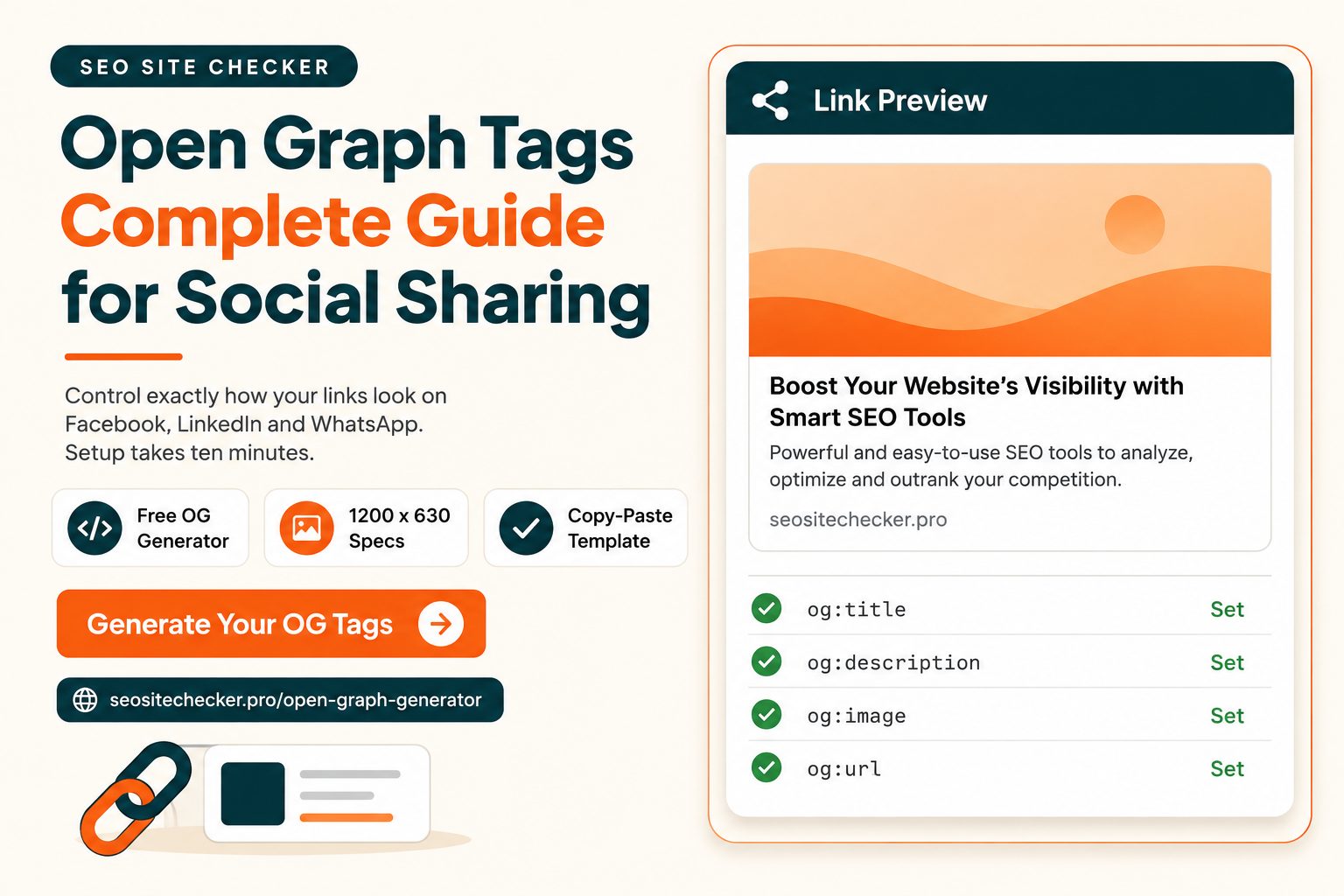
You finish a blog post you are proud of, paste the link into LinkedIn, and hit publish. The preview loads. Your headline is cut off halfway, the description is a scrap of your cookie notice, and the image is your sidebar ad. That link is now competing in a feed against posts that look polished, and it is losing.
Open Graph tags are what fix this. They are a handful of lines in your page’s code that tell Facebook, LinkedIn, X, WhatsApp, and every other platform exactly which title, description, and image to show. This open graph tags guide covers every property worth knowing, the correct image size, how to add the tags to any kind of site, and how to test the result. Setting this up takes about ten minutes per site once you know where everything goes.
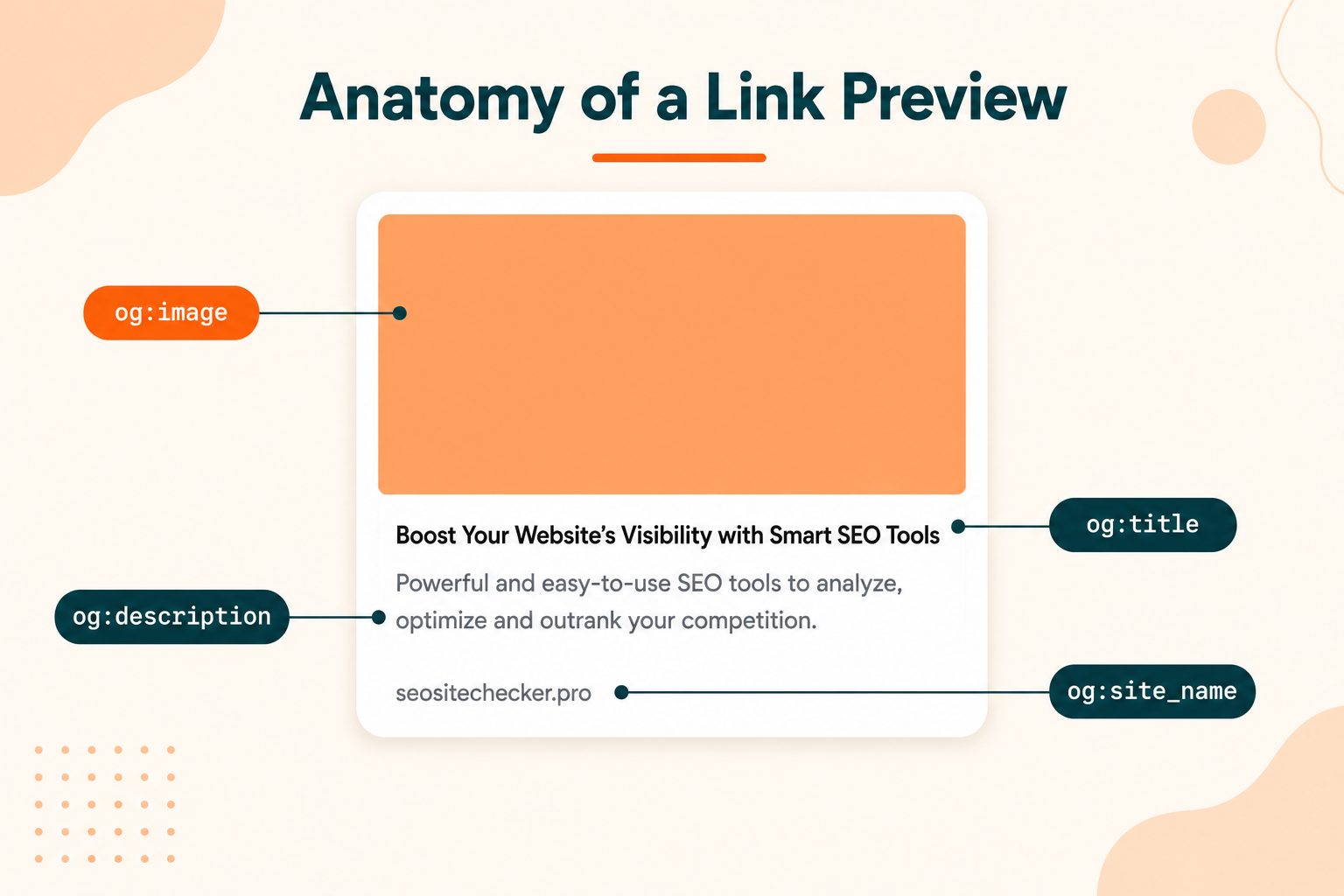
What Are Open Graph Tags?
Open Graph tags are small meta elements that sit in the head section of your web page. They describe your content to social platforms so those platforms can build a proper preview card instead of guessing.
Facebook created the Open Graph protocol in 2010 so that any web page could be described in a consistent, machine-readable way. Other platforms saw the value and adopted it. Today LinkedIn, Pinterest, WhatsApp, Slack, Discord, Telegram, and iMessage all read the same tags. That makes Open Graph a rare thing on the web, one standard that works nearly everywhere.
You can spot these tags by the og: prefix. A single tag looks like this:
<meta property="og:title" content="Complete Guide to Open Graph Tags" />
Two things to notice. Open Graph tags use the property attribute rather than the name attribute that standard meta tags use. And they are completely invisible to your visitors. Nobody browsing your site will ever see them. They exist only for the crawlers that build link previews. If you want the formal rules behind every property, the official Open Graph protocol specification is the source document that all of these platforms follow.
Why Open Graph Tags Matter for Your Website
A link with a proper preview card takes up several times more space in a feed than a bare blue link. That alone changes how many people notice it. But the real benefits go a little further.
- More clicks on every share. A card with a clear headline and a readable image gives someone a reason to stop scrolling. A naked URL gives them nothing.
- More shares of your content. People share things that look finished. A broken preview signals that a site is neglected, and readers pass on it.
- Traffic you did not pay for. Every share your readers post is distribution you got for free. Open Graph tags decide what that free placement looks like.
- Consistent branding. Your page appears the same way whether it is posted on Facebook, sent in a Slack channel, or forwarded in a WhatsApp group.
- Control instead of guesswork. Without these tags, platforms scrape whatever they can find. That usually means a random image and a fragment of text pulled from somewhere unhelpful.
How Open Graph Tags Actually Work
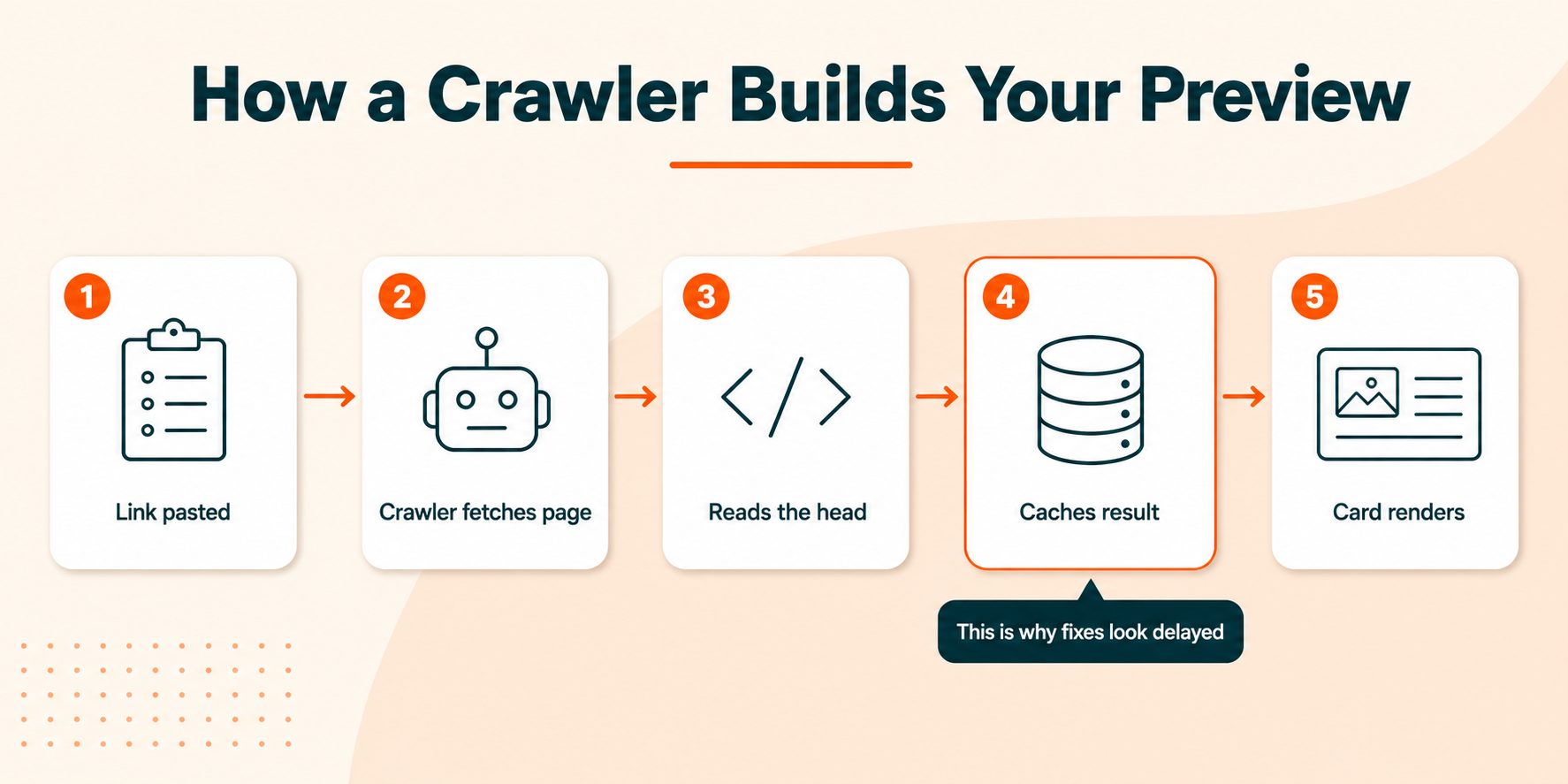
Understanding the sequence here will save you a lot of confusion later, because most preview problems come down to one step in this chain.
- Someone pastes your URL into a post box or a chat window.
- The platform sends its own crawler to fetch your page.
- The crawler reads the head section and looks for og: properties.
- It builds a preview card from what it found and stores that result.
- The card renders in the feed.
Pay attention to steps three and four. The crawler does not browse your page the way a person does. It grabs the raw HTML, reads the head, and leaves. It generally does not wait around for JavaScript to run. And once it has built a card, it keeps that version cached, sometimes for days.
This is why a page can look correct in your browser while the preview stays broken, and why fixing your tags does not always update the card right away.
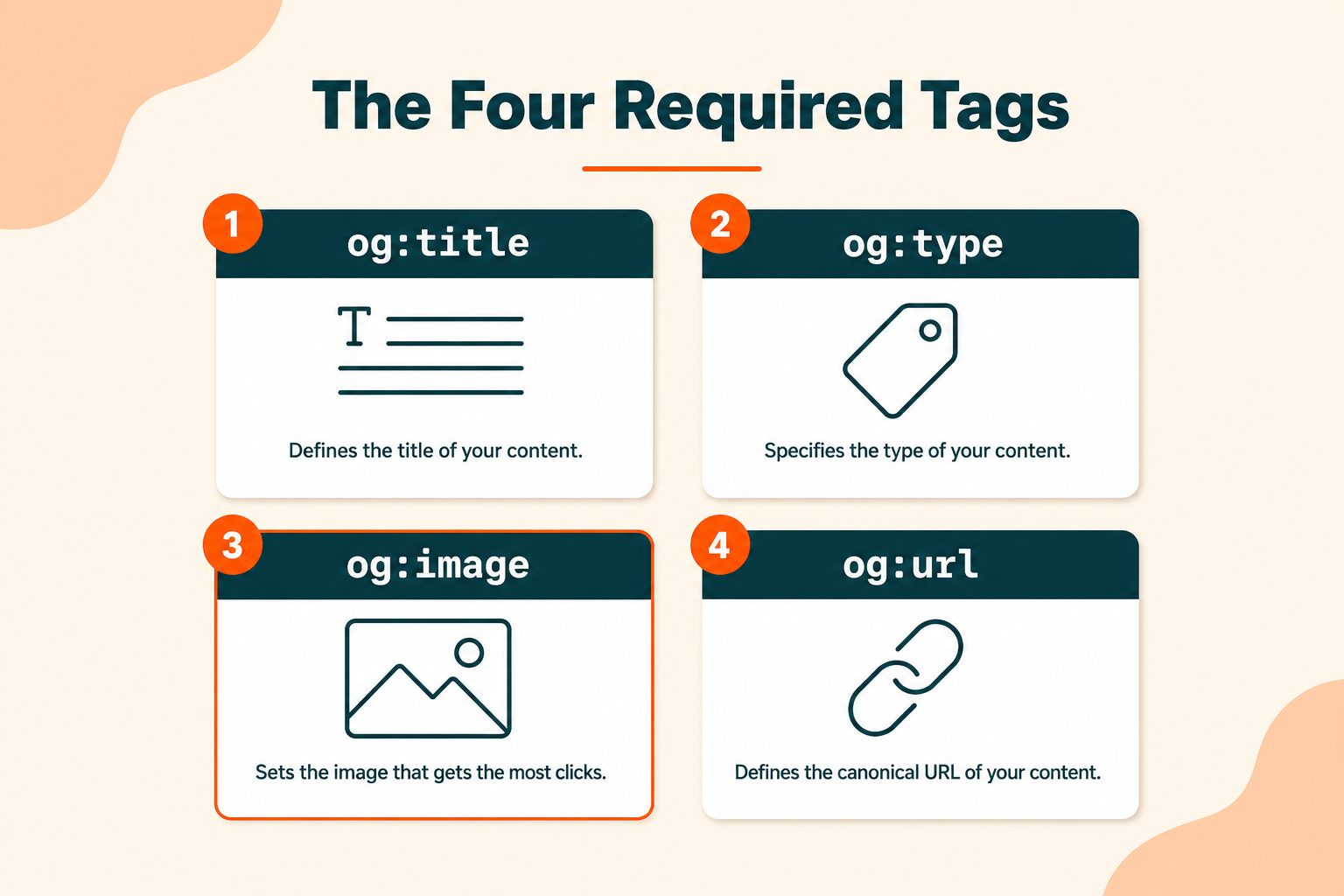
The Four Required Open Graph Tags
Four properties do most of the work. If you only ever set these, you will have a working preview on every major platform.
og:title
This is the headline on your card. It is not the same thing as your HTML title tag, and it should not be a copy of it.
Your SEO title is written for someone who typed a query and is scanning results for a match. Your Open Graph title is written for someone mid-scroll who was not looking for you at all. Those are two different jobs. Write the OG title to earn a pause, and drop the brand name suffix you use for search. For the SEO side of that pair, meta tags are among the individual checks a free SEO score checker returns beside an overall score, and all it needs is a web address.
Keep it under 60 characters. Facebook allows more, but LinkedIn and mobile feeds cut earlier.
<meta property="og:title" content="How to Fix Broken Link Previews in 10 Minutes" />
og:type
This tells the platform what kind of content it is dealing with. If you leave it out, most platforms assume website, but declare it anyway so nothing is left to chance.
Common values are website, article, profile, video.movie, and music.song. Setting the type to article also unlocks a set of extra properties covered further down.
<meta property="og:type" content="article" />
og:image
The image is the part of the card people see first, so this is the tag that most affects your click rate.
Two rules matter above all else. Use an absolute URL that starts with https, never a path like /images/preview.jpg. And make sure the file is publicly reachable, with no login requirement and nothing on your server or CDN blocking crawler traffic. Full sizing details come in a dedicated section below.
<meta property="og:image" content="https://example.com/images/og-preview.jpg" />
og:url
This is the canonical address of the page you are sharing.
It matters more than it looks. When people share your post with tracking parameters attached, each variation can be treated as a separate page, splitting your like and share counts across several versions. Setting og:url to the clean canonical address keeps all of that engagement consolidated on one URL. It should match the canonical tag you already have in place.
<meta property="og:url" content="https://example.com/blog/open-graph-tags-guide" />
Recommended Optional Open Graph Tags
These are not required, but several of them are worth adding on every page.
| Tag | What it does | When to use it |
|---|---|---|
| og:description | Sets the summary text under the headline | Every page |
| og:site_name | Displays your site’s name on the card | Every page |
| og:locale | Declares the content language, defaults to en_US | Non-English or multilingual sites |
| og:image:alt | Describes the image for screen readers | Every page with an image |
| og:image:width | Image width in pixels | Every page with an image |
| og:image:height | Image height in pixels | Every page with an image |
| og:image:type | The image MIME type, such as image/jpeg | Optional, helps some crawlers |
| og:video | Points to a video file for video previews | Video content only |
| og:audio | Points to an audio file | Podcasts and music pages |
| Lists other available languages | Multilingual sites |
og:description deserves more than a table row. Keep it to one or two sentences, around 110 characters, and lead with what the reader gets rather than what the page covers. "Cut your preview debugging from hours to minutes" works harder than "A guide to Open Graph tags." Do not paste in your meta description and call it finished, for the same reason your OG title should differ from your SEO title.
The width and height tags are quietly useful. Supplying them lets a platform reserve the right amount of space before the image finishes downloading, so the card renders correctly the very first time someone shares your link.
Type-Specific Open Graph Tags
Once you set og:type, additional properties become available for that content type.
- Articles: article:published_time, article:modified_time, article:author, article:section, article:tag
- Profiles: profile:first_name, profile:last_name, profile:username, profile:gender
- Video: video:duration, video:release_date, video:actor, video:director
- Books: book:author, book:isbn, book:release_date
Who actually needs these? If you run a blog or a news site, set the article properties on your posts. They give platforms clean publication dates and author attribution, which helps with how your content gets surfaced and grouped. If you run a five-page business site, you can skip this section entirely and lose nothing at all.
Open Graph Image Size and Format Requirements
More previews break here than anywhere else, so this section is worth reading carefully.
| Specification | Value |
|---|---|
| Recommended dimensions | 1200 x 630 pixels |
| Aspect ratio | 1.91:1 |
| Minimum size that still works | 600 x 315 pixels |
| Maximum file size | 8 MB on Facebook, aim far lower |
| Safe formats | JPG and PNG everywhere, WebP on most platforms |
| Avoid | Animated GIFs |
| Square fallback | 1200 x 1200 for WhatsApp and chat apps |
Beyond the raw numbers, a few practical points that specification pages tend to skip:
Keep important text inside the middle 80 percent of the image. Platforms crop the edges differently, and text sitting near a border will get sliced on at least one of them.
Use large, heavy type. Your card renders small on a phone screen. Thin fonts at small sizes turn to mush once the platform compresses the file.
Watch your file weight. A 4 MB image is technically allowed but slows the first render and can time out on a slow connection.
Getting the dimensions exact is straightforward. Drop your file into the free Image Resizer and set it to 1200 x 630, then run the result through the Image Compressor to bring the file size down before you upload it. Both are free and neither needs an account.
Open Graph Tags vs Twitter Cards
This is the question that trips up most people setting this up for the first time.
X uses its own set of tags in the twitter namespace. But if those tags are missing, X falls back to reading your Open Graph tags instead. So a correct OG setup will produce a working preview on X without you writing a single Twitter Card tag.
So why bother with them? Because Twitter Cards let you set a different title, description, or image specifically for X, without changing what Facebook and LinkedIn display. If your audience on X responds to a different angle than your LinkedIn audience, that separation is useful.
The core tags are:
<meta "twitter:card" content="summary_large_image" />
<meta "twitter:title" content="Your title for X" />
<meta "twitter:description" content="Your description for X" />
<meta "twitter:image" content="https://example.com/images/x-preview.jpg" />
<meta "twitter:site" content="@yourhandle" />
Note that Twitter Cards use name rather than property. That difference catches people out.
Two card types cover almost every use. The summary card produces a small square thumbnail beside the text. The summary_large_image card produces the full-width image card, which is what you want for blog posts and landing pages. X’s official documentation on Cards covers the less common types if you need them.
If you want the code generated for you, the Twitter Card Generator builds the block from a short form.
How Different Platforms Read Your Tags
Every platform reads the same tags but treats them a little differently. Here is what to expect.
| Platform | Reads | Title cuts around | Image behavior |
|---|---|---|---|
| Open Graph | 88 characters | Full width, 1.91:1 | |
| Open Graph | 70 characters | Full width, caches hard | |
| X | Twitter Cards, falls back to OG | 70 characters | Depends on card type |
| Open Graph plus Rich Pins | 100 characters | Prefers tall images | |
| Open Graph | 65 characters | Small, often square crop | |
| Slack | Open Graph | 75 characters | Inline unfurl |
| Discord | Open Graph | 75 characters | Embed block |
| iMessage | Open Graph | 60 characters | Square or compact card |
| Open Graph | 70 characters | Compact preview |
A few things worth knowing from this table. LinkedIn truncates earlier than Facebook, so write to LinkedIn’s limit and you are safe everywhere. LinkedIn also caches more aggressively than any other platform and needs its own inspector to refresh. Pinterest layers its Rich Pins system on top of Open Graph, so your OG tags do double duty there. And WhatsApp and iMessage often show a square crop, which is another reason to keep your text centered.
How to Add Open Graph Tags to Your Website
The tags go in the same place regardless of platform, inside the head element. How you get them there depends on what your site runs on.
WordPress
Most SEO plugins generate Open Graph tags for you. Look for a social or social sharing panel in the plugin settings, enable Open Graph output, and set a default share image. Individual posts usually have a per-post override where you can set a custom social image and title.
One warning. Do not run two plugins that both output Open Graph tags. Duplicate properties confuse crawlers and produce unpredictable cards. Pick one and disable OG output in the other.
Shopify, Wix, and Squarespace
These platforms generate basic tags automatically from your page and product fields. Your product title becomes og:title and your featured image becomes og:image. Check the SEO or social settings panel to override the image, since the default is often a cropped product photo that reads badly at card size.
Static HTML sites
Paste the tags directly into the head of each page, anywhere before the closing head tag. Order does not matter.
Custom and framework-built sites
Set your defaults at the layout or template level, then allow per-page overrides driven by your content data. That way every page has sane tags without anyone having to remember.
Watch out for one trap here. If your tags are injected by JavaScript after the page loads, most social crawlers will never see them, because they read the raw HTML and do not wait for scripts. Render your meta tags server-side.
Generate Your Open Graph Tags in Under a Minute
If you would rather not hand-write the block, the free Open Graph Generator on SEO Site Checker builds it for you. You fill in your page title, description, URL, image address, and content type, and it returns a complete, correctly formatted code block ready to paste into your head section.
The practical benefit is not really speed. It is accuracy. The single most common reason an Open Graph tag does nothing at all is a typo in the property name. Write og:titel instead of og:title and nothing breaks, nothing warns you, and the tag is simply ignored forever. A generator removes that failure mode and keeps your syntax identical across every page.
If you want your full meta block rather than just the Open Graph portion, the Meta Tag Generator covers your title, description, robots, viewport, and social tags in one output. Both tools are free with no account required and no usage limits.
How to Test and Debug Your Link Previews
Never assume a preview works because the code looks right. Test it.
The workflow is simple:
- Publish the page with your tags in place.
- Run the live URL through the platform’s own inspector tool.
- Force a re-scrape if the preview shown is out of date.
- Confirm the image actually loads on the card, not just in your browser tab.
Test on at least two platforms. Facebook and LinkedIn behave differently enough that passing one does not guarantee the other.
When a preview is wrong, it is almost always one of four things:
The platform cached an old version. You fixed the tags but the platform is still showing what it saved last week. Use the inspector to force a fresh scrape.
Your image URL is relative. It resolves fine in a browser because the browser knows what site you are on. The crawler does not. Use the full https address.
Something is blocking the crawler. A firewall rule, a security plugin, or a CDN setting is turning the bot away. If your page loads for you but the inspector reports an error fetching it, this is usually why. Meta’s official sharing documentation for webmasters lists the user agents you need to allow through.
Your tags are added by JavaScript. They exist in the rendered page but not in the HTML the crawler receives.
That last one is easy to confirm. Run your URL through the Online HTML Viewer and look at the raw source your server actually sends. If your og: tags are not in there, the crawler is not seeing them either. You can also check what a page is currently outputting with the Meta Tag Analyzer, which pulls the existing tags and flags what is missing.
Common Open Graph Mistakes to Avoid
- No og:image at all. The platform picks something from your page on its own, and it is usually a logo, an icon, or an ad banner.
- A relative image path. Works in your browser, fails for every crawler that visits.
- Reusing your SEO title word for word. You are wasting the one line that decides whether anyone stops scrolling.
- Duplicate tags from two plugins. When the same property appears twice, platforms handle it inconsistently and you lose control of the result.
- Wrong image proportions. A tall or square image gets cropped by each platform in a different way, often cutting your text in half.
- Skipping og:url. Your engagement counts get split across every parameter variation of the same page.
- Forgetting to update after a redesign. Old image paths break quietly. Nobody notices until someone mentions it months later.
- Typos in property names. No error, no warning, no card. Just silence.
Do Open Graph Tags Help Your SEO?
Not directly, and it is worth being clear about that because plenty of articles overstate it.
Google does not read og: properties as a ranking signal. Adding Open Graph tags will not move your position for a keyword on its own.
The connection is real but indirect. Better previews get more clicks. More clicks bring more traffic and more shares. More shares put your page in front of more people, and some of those people run websites and link to things they find useful. Links do affect rankings. So the path runs through human behavior rather than through the tags themselves.
If you want work that does move rankings directly, run your page through the free Website SEO Score Checker for a full on-page audit covering titles, headings, speed, mobile rendering, and technical issues.
Copy-and-Paste Open Graph Template
Two ready blocks you can lift directly. Replace the placeholder values and drop them into your head section.
Standard web page:
<meta property="og:title" content="Your page title, under 60 characters" />
<meta property="og:description" content="One or two sentences, around 110 characters." />
<meta property="og:type" content="website" />
<meta property="og:url" content="https://example.com/your-page" />
<meta property="og:image" content="https://example.com/images/og-image.jpg" />
<meta property="og:image:width" content="1200" />
<meta property="og:image:height" content="630" />
<meta property="og:image:alt" content="Describe what the image shows" />
<meta property="og:site_name" content="Your Site Name" />
<meta property="og:locale" content="en_US" />
Blog post, with Twitter Cards:
<meta property="og:title" content="Your post headline" />
<meta property="og:description" content="What the reader gets from this post." />
<meta property="og:type" content="article" />
<meta property="og:url" content="https://example.com/blog/your-post" />
<meta property="og:image" content="https://example.com/images/post-og.jpg" />
<meta property="og:image:width" content="1200" />
<meta property="og:image:height" content="630" />
<meta property="og:site_name" content="Your Site Name" />
<meta property="article:published_time" content="2026-08-30T09:00:00+00:00" />
<meta property="article:author" content="Author Name" />
<meta property="article:section" content="SEO" />
<meta "twitter:card" content="summary_large_image" />
<meta "twitter:title" content="Your post headline" />
<meta "twitter:description" content="What the reader gets from this post." />
<meta "twitter:image" content="https://example.com/images/post-og.jpg" />
<meta "twitter:site" content="@yourhandle" />
Before you publish, check:
- Image is 1200 x 630 and loads at a full https address
- Title is under 60 characters
- Description is one or two sentences
- og:url matches your canonical tag
- No duplicate og: properties anywhere in the head
- Preview tested on at least two platforms
Wrapping Up
The whole thing comes down to less than you might expect. Four required tags, one image sized to 1200 x 630, and one round of testing on two platforms will handle roughly 90 percent of what any website needs. Everything past that is refinement.
Use the checklist above as your working reference, and re-test your previews after any redesign or image path change. Broken cards fail silently, so a two-minute check twice a year is worth the effort.
Frequently Asked Questions
Frequently Asked Questions (FAQs) is a list of common questions and answers provided to quickly address common concerns or inquiries.
What are Open Graph tags used for?
They control how your page appears when someone shares its link on social media or in a chat app. They set the title, description, and image shown in the preview card.
Are Open Graph tags necessary for every website?
Any site whose links get shared benefits from them. If your pages are ever posted on social media, sent in Slack, or forwarded in WhatsApp, the tags are worth adding.
Do Open Graph tags affect SEO rankings?
Not directly. Google does not use them as a ranking signal. They help indirectly by increasing click-through rates and shares, which can lead to more traffic and more links.
What is the difference between Open Graph tags and regular meta tags?
Regular meta tags speak to search engines and use the name attribute. Open Graph tags speak to social platforms and use the property attribute with an og: prefix.
What size should an Open Graph image be?
Use 1200 x 630 pixels, a 1.91:1 ratio. The minimum that still renders acceptably is 600 x 315. Keep the file well under 8 MB.
Where do Open Graph tags go in the HTML?
Inside the head element, anywhere before the closing head tag. Order does not matter, but they must be in the server-rendered HTML.
How do I check if my Open Graph tags are working?
Run your live URL through the sharing inspector for each platform, or use a meta tag analyzer to pull the current tags and flag anything missing or malformed.
Why is my Open Graph image not showing on Facebook?
Usually a cached old version, a relative image URL, or a firewall blocking the crawler. Force a re-scrape in the inspector and confirm the image loads at its full address.
Does Google use Open Graph tags?
Google may use them as a fallback when other signals are missing, but it does not treat them as ranking factors. Your title tag and meta description still handle search results.
How many Open Graph tags are there in total?
The protocol defines around 17 core properties plus type-specific ones. Most sites need four required tags and three or four optional ones to cover everything.