How to Merge PDF Files (Online, Windows, Mac, and Mobile)
 Kendall Chris
Oct 19 /
1 hour ago
Kendall Chris
Oct 19 /
1 hour ago

Combining several PDFs into one file is one of those tasks that sounds simple until you are staring at five separate documents that need to become a single, tidy file in the right order. Maybe you are bundling a contract with its signed addendum, assembling a report from separate chapters, or gathering a stack of scanned receipts for an expense claim.
The good news is that merging PDF files is quick and free, and you do not need expensive software to do it well. This guide walks through every way to merge PDFs, online in your browser, on Windows, on a Mac, and on your phone, and it covers the step most tools skip over: getting the pages in the right order before you combine them. If you just want the fastest route, you can merge your PDFs here in a few seconds.
The Fastest Way: Merge PDF Files Online
For most people, an online PDF merger is the quickest option, because there is nothing to install and it works the same on any device or operating system. The process is almost identical across tools.
- Open a free PDF merge tool in your browser.
- Upload the PDF files you want to combine, or drag them onto the page.
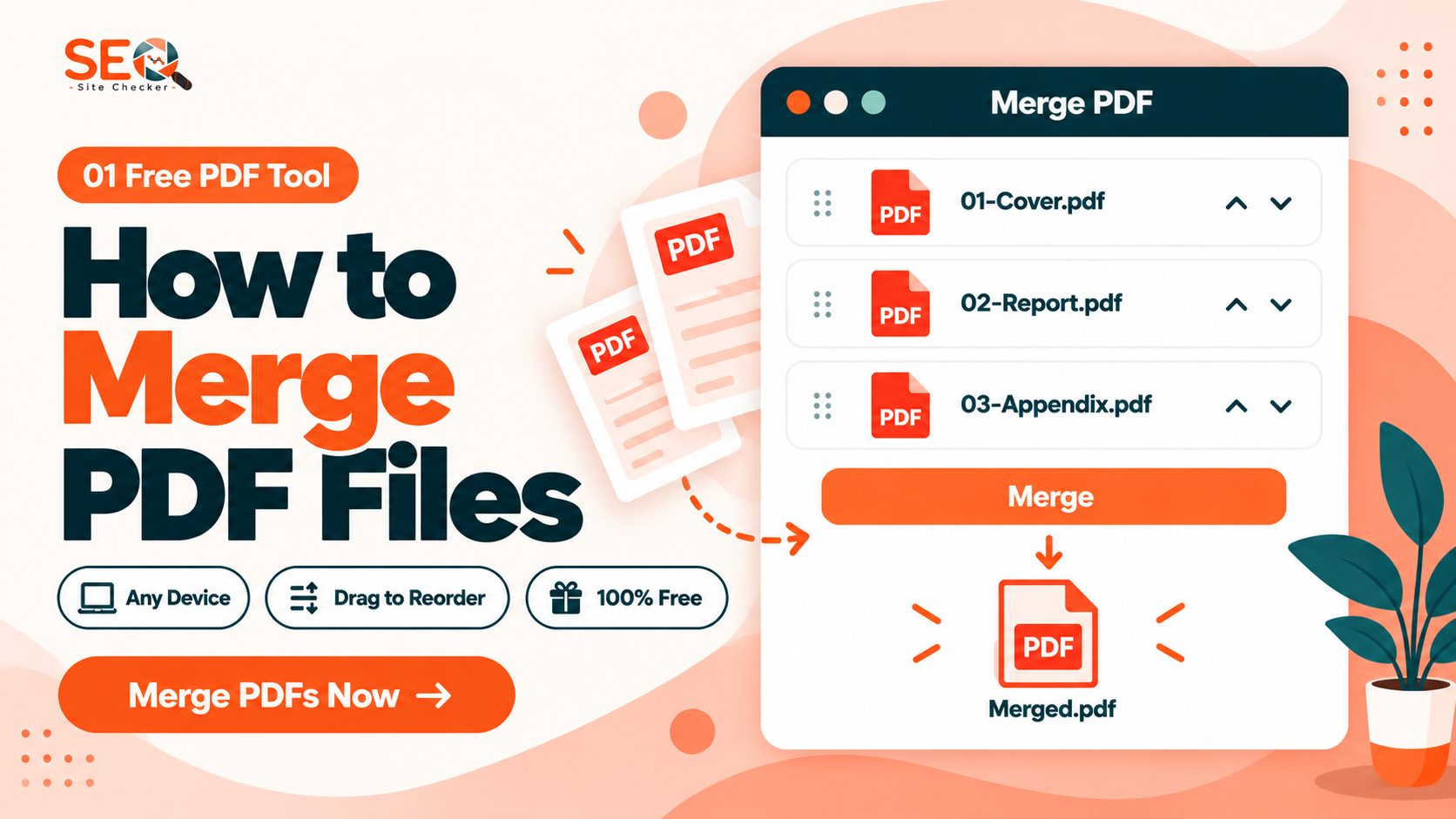
- Arrange the files into the order you want them to appear in the final document. This is the step that matters most, and we cover it in detail below.
- Click merge, then download your combined PDF.
That is the whole process, and it usually takes under a minute. Our free merge PDF tool does exactly this, with no sign-up, no watermark on the result, and no limit trap after a couple of uses. You upload, drag the files into order, and download one clean file.
Getting the Pages in the Right Order
This is the part that trips people up, and it is worth slowing down for, because fixing the order after you have merged is far more annoying than setting it correctly first.
When you upload several files, most tools place them in the order you added them, which is not always the order you want. Before you hit merge, drag the files or thumbnails into the correct sequence. If you are combining a cover page, a main report, and an appendix, you want them stacked in exactly that order, top to bottom. Take a moment to read the file names in the merge queue and confirm the sequence looks right.
A simple habit helps here: name your files descriptively before you upload them, something like 01-cover, 02-report, 03-appendix. Numbered names sort naturally and make the correct order obvious at a glance in the merge queue. Once the files are in the right sequence, merging locks that order into the final document, and every page falls where you expect.
How to Merge PDFs on Windows
Windows does not have a built-in way to combine multiple PDFs. The Edge browser can open and lightly edit PDFs, but it cannot merge them, so you have two practical options.
The easiest is to use an online tool, exactly as described above, which works perfectly on any Windows machine and needs nothing installed. If you merge PDFs often and prefer a desktop app, you can install a dedicated PDF merger from the Microsoft Store, such as a merge-and-split utility. You launch the app, choose the merge option, add your PDFs, arrange them in order, and save the combined file to your computer.
For a one-time job, the online route is almost always faster. For regular, high-volume merging on the same machine, a desktop app can be worth the install. Either way, the ordering principle is the same: arrange before you merge.
How to Merge PDFs on a Mac
Mac users have it a little easier, because macOS includes a built-in tool that can combine PDFs: Preview.
- Open the first PDF in Preview.
- Show the thumbnail sidebar by choosing View, then Thumbnails.
- Drag the other PDF files directly into the thumbnail sidebar, dropping each one where you want it in the sequence.
- Rearrange the thumbnails if needed so the pages are in the right order.
- Choose File, then Export as PDF, to save the combined document as a new file.
One tip: use Export as PDF rather than simply saving, so your original files stay intact as separate documents. Preview handles most everyday merging well, and because it is built into macOS, there is nothing to install. If you want drag-and-drop simplicity without opening Preview, an online merge tool works just as smoothly on a Mac.
How to Merge PDFs on a Phone (iOS and Android)
You can merge PDFs on a phone too, which is handy when you are away from a computer and need to combine documents on the go.
On both iOS and Android, the simplest approach is to open a free online merge tool in your mobile browser, just as you would on a desktop. Upload the PDFs from your phone, arrange them in order, and download the combined file. The experience is built to work on a small screen, so dragging files into sequence works with a tap and hold.
On an iPhone, the Files app also lets you select multiple PDFs, then use the Create PDF option to combine them, though you have less control over page order than a dedicated merge tool gives you. For anything where the order matters, the browser-based tool is the more reliable choice on mobile.
Does Merging Reduce PDF Quality?
A common worry is that combining PDFs will degrade them, and the honest answer is that a proper merge does not. Merging works by placing the existing pages of each file one after another into a new document. Unlike compressing a file, it does not re-encode or re-render your pages, so the text stays selectable, images keep their resolution, and the layout is untouched. Your merged PDF looks identical to the originals, just gathered into one file. If you want a smaller file afterward, that is a separate step: you would compress the merged PDF, which is the tool that actually reduces size.
Merging Scanned PDFs and Mixed Files
Scanned documents are ordinary PDF files, so they merge exactly like any other PDF. If you scanned a multi-page document that came out as separate files, you can combine them back into one, arranging the pages in the correct order as you go.
If your files are not all PDFs yet, for example you have some images you want in the same document, the cleanest approach is to convert them first. You can turn JPG or PNG images into a PDF, then merge that PDF with your others. Keeping everything in PDF format before merging gives you the most reliable result and the most control over the final order.
Can You Merge PDFs in Google Drive?
This is a common question, and the short answer is that Google Drive does not have a built-in merge feature. Drive is excellent for storing and sharing PDFs, but it cannot combine two files into one on its own.
The workaround is simple. Download the PDFs you want to merge from Drive to your device, combine them with an online merge tool, then upload the single merged file back to Drive. Because the merge happens in your browser, you can do the whole thing without installing anything, and your tidy combined document lives in Drive afterward just like any other file.
A Quick Recap
Merging PDF files comes down to three things: pick the method that fits your device, arrange the files in the right order before you combine them, and download your single, tidy document. Online tools are the fastest and work everywhere, Mac users can use the built-in Preview app, Windows users are best served by an online tool or a desktop app, and phones handle it through the browser.
Whatever route you choose, the ordering step is the one to get right the first time. When you are ready, you can merge your PDF files for free with no sign-up and no watermark, and have your combined document in seconds.
Frequently Asked Questions
Frequently Asked Questions (FAQs) is a list of common questions and answers provided to quickly address common concerns or inquiries.
How do I merge PDF files for free?
Open a free online PDF merge tool in your browser, upload the files you want to combine, drag them into the order you want, then click merge and download the single combined PDF. It takes under a minute, works on any device, and needs no software installed.
How do I merge PDF files on a Mac?
Open the first PDF in Preview, show the thumbnail sidebar under View then Thumbnails, drag your other PDFs into the sidebar in the order you want, rearrange if needed, then choose File and Export as PDF to save the combined document as a new file.
How do I merge PDFs on Windows?
Windows has no built-in PDF merge feature, so the easiest way is a free online merge tool, which works on any Windows machine with nothing to install. Alternatively, install a dedicated PDF merger app, add your files, arrange them in order, and save the combined file.
How do I get my PDF pages in the right order?
Before you merge, drag the files or thumbnails into the sequence you want in the final document. Naming your files with numbers first, like 01-cover and 02-report, makes the correct order obvious in the merge queue, since numbered names sort naturally.
Does merging PDF files reduce their quality?
No. Merging places the existing pages one after another into a new file without re-encoding or re-rendering them, so text stays selectable and images keep their resolution. The merged file looks identical to the originals. To make the file smaller, compress it as a separate step.
Can I merge a PDF with a JPG or image file?
Not directly, since a merge tool combines PDF files. Convert your JPG or PNG images into a PDF first, then merge that PDF with your other PDF files. Keeping everything in PDF format before merging gives the most reliable result.
Can I merge PDF files in Google Drive?
Google Drive has no built-in merge feature. Download the PDFs from Drive, combine them with a free online merge tool, then upload the single merged file back to Drive. The merge runs in your browser, so nothing needs to be installed.
Can I merge PDF files on my phone?
Yes. Open a free online merge tool in your phone's browser, upload the PDFs, arrange them in order with a tap and hold, and download the combined file. On iPhone, the Files app can also combine PDFs, though with less control over page order.