
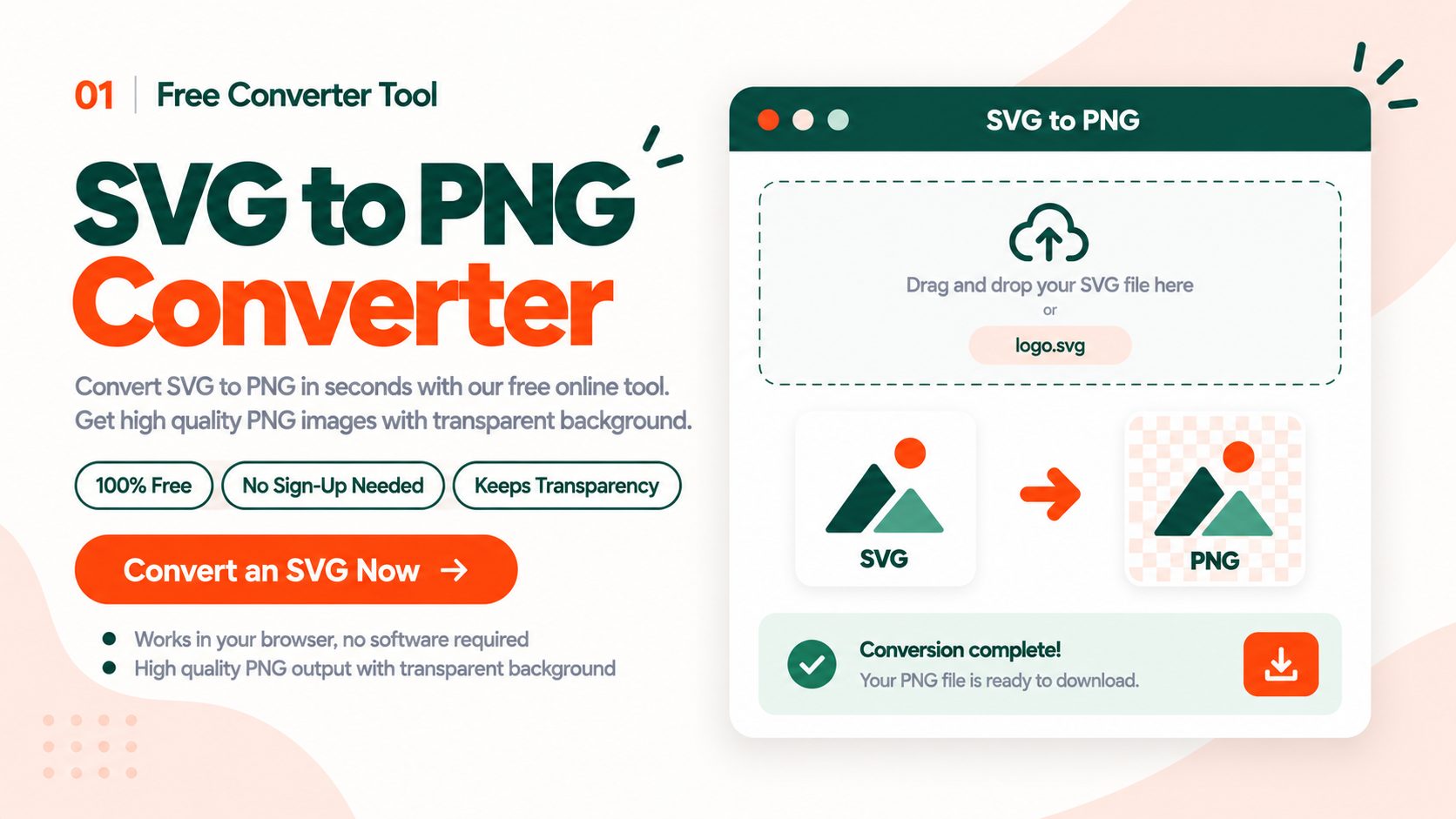
Drop in an SVG and get a PNG back, with transparency intact and nothing to install. Files up to 5 MB convert free with no account, you can upload several at once, and a batch comes back as a single ZIP.
There is one thing worth knowing before you start. Most SVG converters quietly get things wrong, dropping shadows, shifting text and losing whole elements, because they only support part of what the SVG format can do. This one renders your file through a real browser engine, so what you see when you open the SVG in Chrome is what lands in the PNG. The section on why SVG conversions go wrong explains how to spot a problem file before you convert it.
How to Convert SVG to PNG Online Free
Step 1. Upload your SVG. Drag the file onto the upload area, or click to browse. Files up to 5 MB work without an account, and a free account raises that to 100 MB. You can select several SVGs at once.
Step 2. Let it render. The file is drawn the way a browser would draw it, rather than being redrawn by a simplified graphics library. This is what keeps gradients, filters, CSS styling and fonts looking the way you designed them.
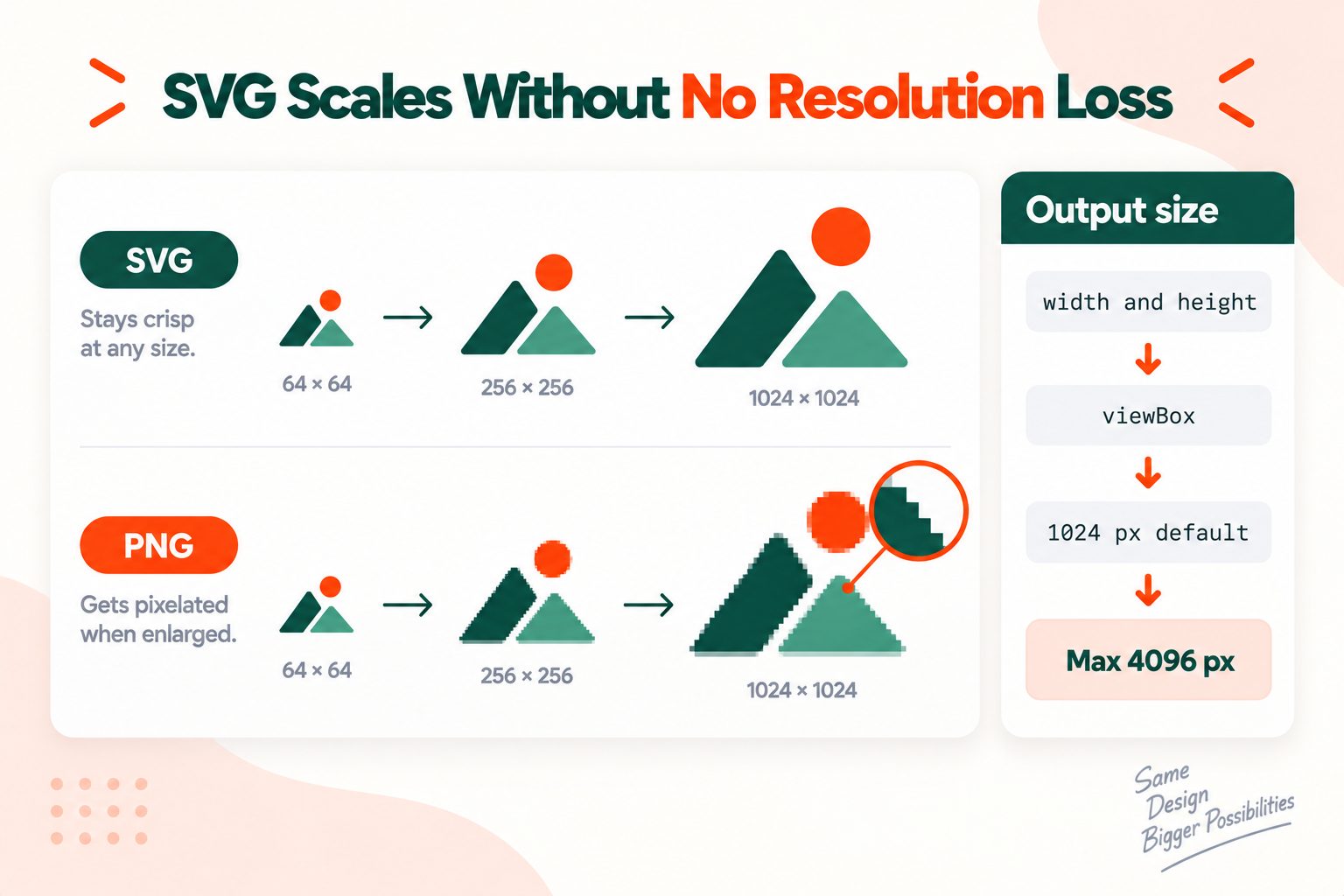
Step 3. Check the output size. The PNG takes its dimensions from the SVG's own width and height, or from its viewBox proportions if no size is set. Files with no size information at all come out at 1024 pixels, and the longest side is capped at 4096 pixels. If you need something larger or smaller, the sizing section below explains how to control it.
Step 4. Download your PNG. A single file downloads on its own, and a batch arrives as one ZIP archive.
Everything runs in your browser, so the process is identical on a phone, a tablet or a desktop. Open the SVG to PNG Converter at the top of this page whenever you need it.
Why Your SVG Converts Wrong, and How to Tell Before You Convert
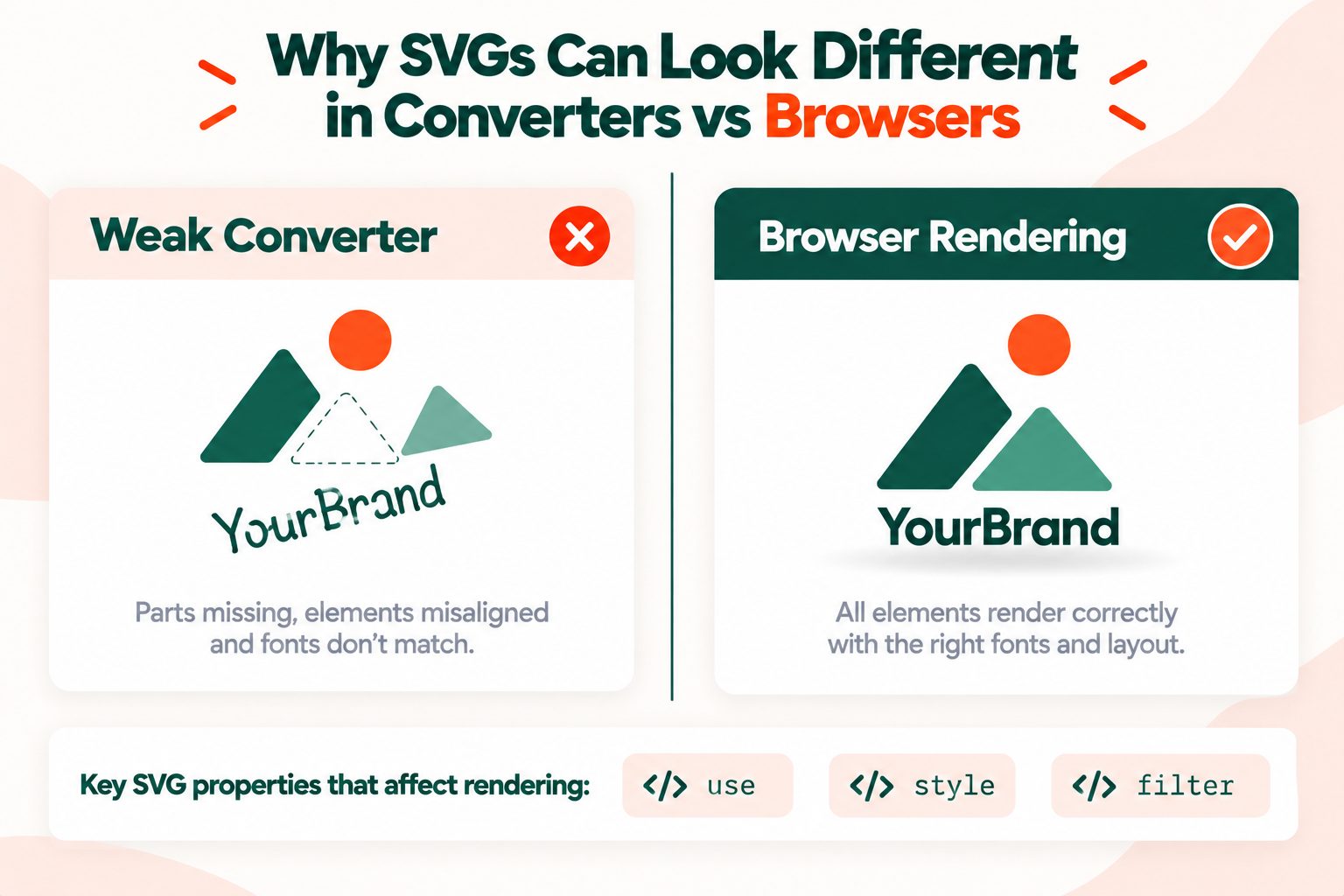
If you have ever converted an SVG and found the text in the wrong font, a shape sitting in the wrong place, a drop shadow missing or an entire element simply gone, the file was probably fine. The converter was not.
The reason is that the SVG format is enormous. It is a full specification with dozens of features, and building a converter that handles all of them properly is a serious piece of engineering. Most tools implement the common parts and quietly ignore the rest, so any file using the less common features falls through the gaps.
Three features break converters more than anything else:
| Feature | What it does | What a weak converter produces |
|---|---|---|
<use> | Draws a shape once and reuses it elsewhere in the file | Missing elements, or copies stacked in the wrong position |
CSS in <style> | Styles shapes with selectors instead of attributes on each shape | Everything renders black or unstyled |
<filter> | Blurs, drop shadows and colour effects | Effects dropped completely, so the image looks flat |
These are not exotic. Icon sets exported from design tools lean on <use> constantly, and any SVG with a soft shadow uses a filter.
Fonts are the fourth problem, and the sneakiest. If your SVG refers to a font by name, the converter needs that font available to draw the text. When it is not there, the text does not disappear. It silently falls back to a different font, which is why converted text often looks almost right but slightly off. The fix is to convert text to outlines in your design tool before exporting the SVG, which turns letters into shapes that need no font at all.
Here is how to check a file in ten seconds. Open the SVG in Chrome or Firefox. Modern browsers are the most accurate SVG renderers available, so if the file looks correct there, a browser-based converter will match it. If it already looks wrong in the browser, the problem is inside the file and no converter will fix it.
That is also why this converter renders through a browser engine rather than a lightweight library. The W3C SVG 2 specification gives a sense of how much a converter has to support, and browsers are the software that has actually done the work.
What Size Will My PNG Be?
Here is the idea that clears up most of the confusion around this: an SVG has no resolution. It is not an image made of pixels. It is a set of instructions for drawing shapes, so it has no size in pixels until something renders it. That is why the question "what size is my SVG" has no answer until you convert it.
When you do convert, the size is decided in this order:
- The
widthandheightattributes, if the SVG has them. - The
viewBoxproportions, if there is no explicit width and height. The viewBox sets the coordinate system the drawing lives in, and it is what lets an SVG scale to any size cleanly. MDN's documentation on viewBox explains how it works. - A 1024 pixel default, if the file carries no size information at all.
The longest side of the output is capped at 4096 pixels. In practice that is rarely a limit, since 4096 pixels is wider than a 4K display and large enough for most print work at sensible sizes. If you need something genuinely bigger, the SVG itself is the better file to hand over, because it stays sharp at any size.
To get a larger PNG, edit the SVG first. An SVG is a text file, so you can open it in any code editor, find the opening <svg> tag and change width="200" to width="2000", along with the matching height. Save it, upload it, and the PNG comes out ten times bigger with no loss of quality.
If your PNG comes out larger than you need, the Image Resizer will scale it down.
Transparency, and When You Need JPG Instead
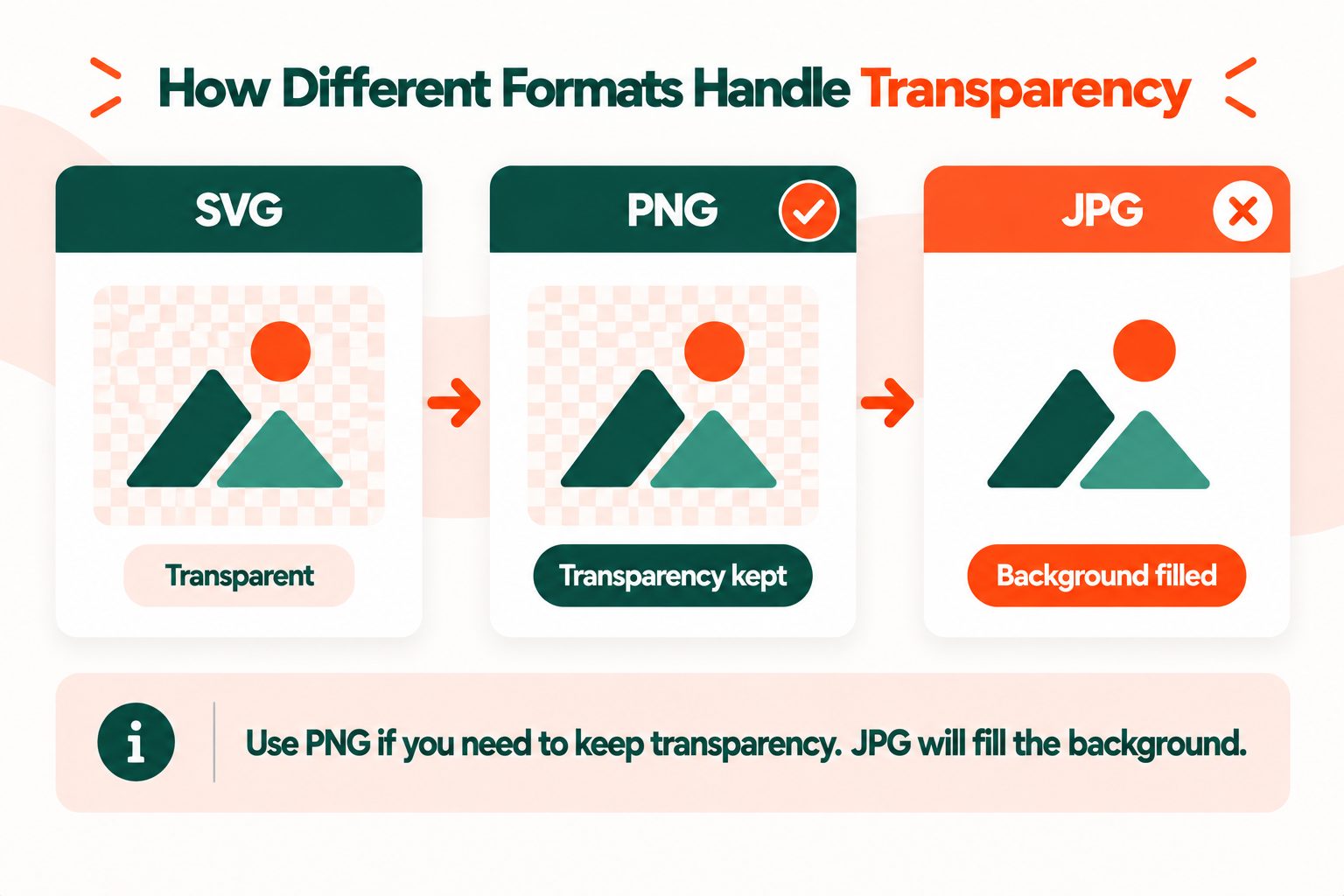
PNG supports an alpha channel, which is the part of the format that stores how transparent each pixel is. Transparent areas in your SVG stay transparent in the PNG, so a logo with no background drops cleanly onto any colour. This is set out in the W3C PNG specification, which became a W3C Recommendation in June 2025.
JPG has no alpha channel at all. Convert an SVG with a transparent background to JPG and every transparent area becomes solid, usually white or black. This catches people out constantly, and there is no setting that fixes it, because the format simply cannot store transparency.
The rule is straightforward. Logos, icons and anything going on top of a coloured background need PNG. Photographs and large flat images where file size matters more than transparency can use JPG.
If PNG is not the right target, SVG to JPG handles images with no transparency, SVG to WEBP produces smaller files for the web while keeping transparency, and SVG to PDF keeps the artwork as vectors for print.
When to Convert, and When to Keep the SVG
Converting is not always the right move, so it is worth knowing which situation you are in.
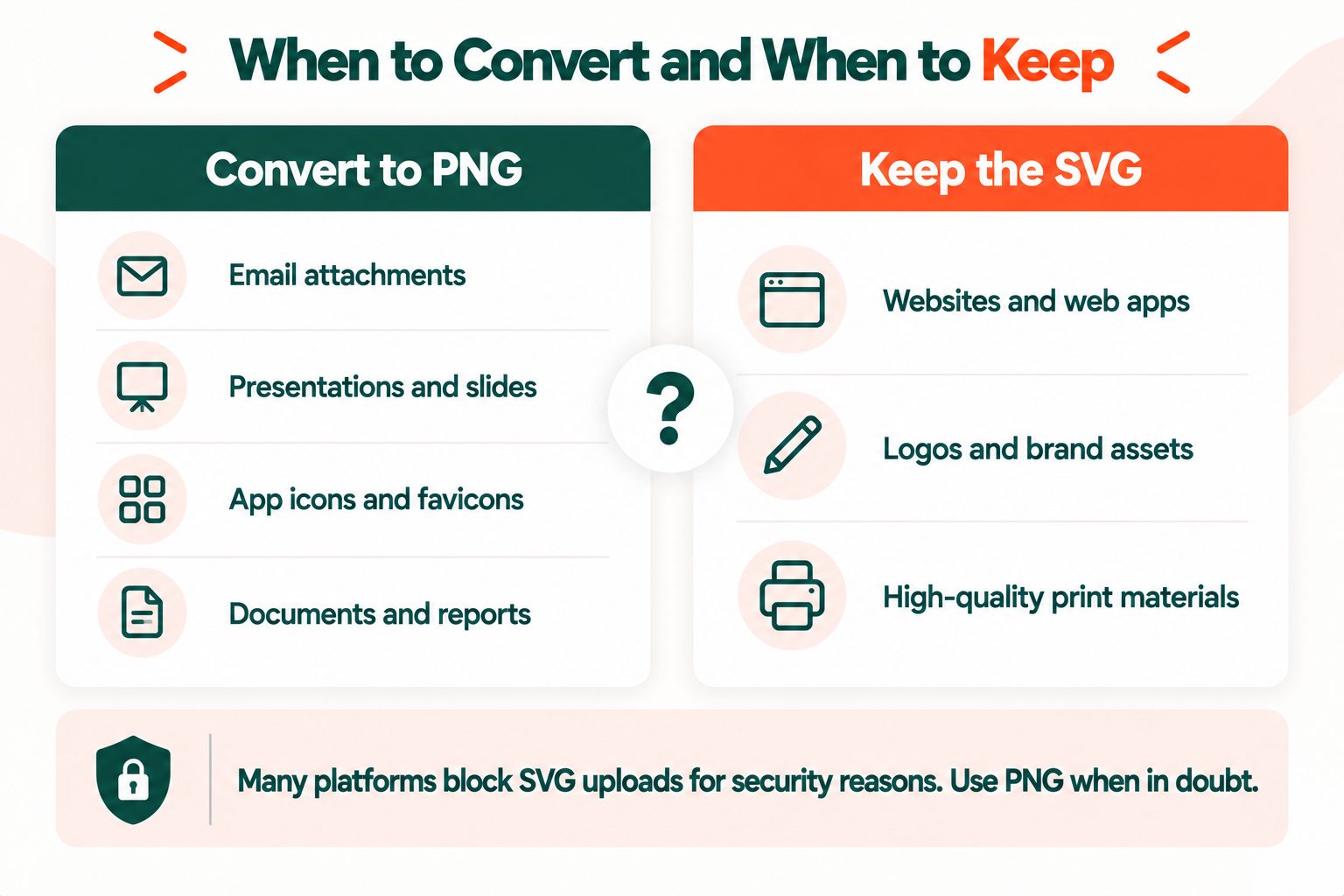
Convert to PNG when:
- The platform will not accept SVG uploads, which is common in email marketing tools, some content management systems and most social networks
- The image is going into a document, a slide deck or a video editor
- You need a favicon or an app icon at a fixed pixel size
- The person receiving the file cannot reliably open SVG
Keep the SVG when:
- It is a logo or icon on your own website, where a vector stays sharp on every screen and usually weighs less than a PNG
- You will need to edit the colours or shapes later
- It is going to print and the final size is not decided yet
One thing worth understanding about that first point. Many platforms block SVG uploads for security reasons rather than quality ones, because an SVG is a text file that can contain scripts. Converting to PNG removes that concern, which is why a PNG is accepted almost everywhere.
If a converted PNG turns out heavier than you expected, the Image Compressor will bring the file size down without a visible difference.
Converting a Whole Folder at Once
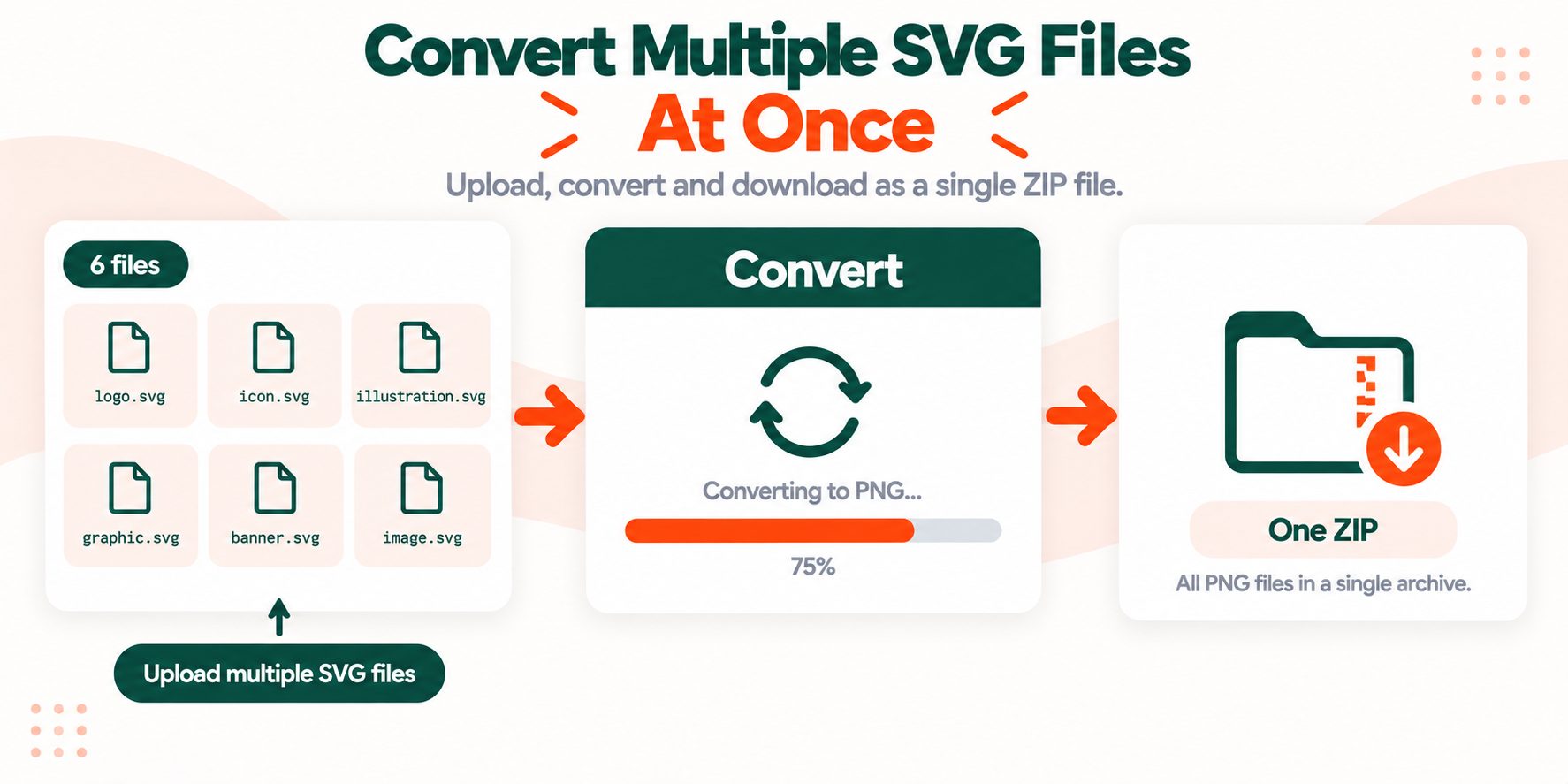
You can upload several SVGs together and download every converted PNG in a single ZIP archive, rather than repeating the process file by file.
The usual reason for this is an icon set. Design tools export icons as SVG, and plenty of places those icons need to appear will only take a raster image, so you end up needing a PNG version of all forty of them at once.
One practical tip: name your files properly before uploading. The PNGs keep the same names, and renaming forty files inside a ZIP afterward is a tedious way to spend ten minutes. Note that the 5 MB limit applies to each file individually, not to the batch as a whole.
Quick Reference
| I want | Use |
|---|---|
| Transparency kept | SVG to PNG |
| Smallest file for the web | SVG to WEBP |
| Transparency not needed | SVG to JPG |
| Print or documents | SVG to PDF |
| A different pixel size | Edit width and height in the SVG first |
| A smaller finished file | Image Compressor |
Frequently Asked Questions
Frequently Asked Questions (FAQs) is a list of common questions and answers provided to quickly address common concerns or inquiries.
How do I convert SVG to PNG for free?
Upload your SVG to a free online converter and download the PNG. There is no software to install and no account needed, and files up to 5 MB convert without signing up.
Does PNG keep the transparent background?
Yes. PNG supports an alpha channel, so transparent areas in your SVG stay transparent. JPG does not support transparency at all, so those areas turn solid.
What size will my PNG be?
It matches the SVG's width and height, or its viewBox proportions. Files with no size information default to 1024 pixels, and the longest side is capped at 4096 pixels.
Why does my converted PNG look wrong?
Most converters support only part of the SVG format, so <use> elements, CSS styles and filters get dropped. Open the file in Chrome first to see how it should look.
Why did my text change font after converting?
The converter did not have the font your SVG refers to, so the text fell back to another one. Convert text to outlines in your design tool before exporting to avoid this.
Can I convert multiple SVG files at once?
Yes. Upload several files together and download all the converted PNGs in a single ZIP archive. The size limit applies per file, not to the whole batch.
Can I convert PNG back to SVG?
Not properly. PNG stores pixels and SVG stores shapes, so going backwards means tracing the image, which rarely reproduces the original artwork accurately.
Is SVG better than PNG?
For logos and icons on a website, yes, because a vector stays sharp at any size. For photographs, or anywhere SVG is not supported, PNG is the better choice.
Why will my website not accept SVG uploads?
Many platforms block SVG because the format can contain scripts, which is a security risk. Converting to PNG removes that concern and is accepted almost everywhere.
Is this SVG to PNG converter free?
Yes. Files up to 5 MB convert free with no account, and a free account raises the limit to 100 MB with no cap on how often you use it.