Free Favicon Generator: Create a Favicon in 60 Seconds
 Kendall Chris
Apr 02 /
6 months ago
Kendall Chris
Apr 02 /
6 months ago

You open a new browser tab and glance at the strip of icons along the top. Without reading a single word, you already know which tab is Gmail, which is GitHub, and which is your project's admin panel. That instant recognition achieved in a 16×16 pixel square is the job of a favicon. It is one of the smallest elements on any website and one of the most consistently overlooked by new site owners.
Creating a professional favicon used to mean opening Photoshop, exporting at multiple sizes, converting to ICO format, and hoping the browser picked up the right file. Today it takes under 60 seconds. Our free Favicon Generator accepts any PNG, JPEG, GIF or JPG image and produces a complete cross-platform favicon package: a real multi-size favicon.ico, the PNG icons browsers, iOS, and Android need, a web manifest, and the exact HTML to install it, all downloadable as a single ZIP file with no account required. This guide explains what a favicon is, how to generate yours in 60 seconds, how to read and install every file in the package, and how to fix the most common favicon problems.
What Is a Favicon?
A favicon short for “favorite icon” is a small square image that represents your website across browsers, bookmarks, mobile home screens, and search engine results. The name dates to Internet Explorer 5 (1999), which introduced the feature as a 16×16 pixel icon displayed next to bookmarked pages. The word stuck even as the technology evolved far beyond that original single-file implementation.
Every Place Your Favicon Appears
A well-configured favicon is not just a browser tab decoration. Here is the complete list of where it shows up:
- Browser tab: The most visible placement, the small icon to the left of your page title in every open tab. Visitors with dozens of tabs open rely on favicons to identify and return to your site without reading the title.
- Browser bookmarks and favorites: Every bookmark in Chrome, Firefox, Safari, and Edge displays your favicon alongside the page title.
- Browser history: Your favicon appears next to every page in a visitor's browser history.
- Google search results: Since 2019, Google displays your favicon next to your URL in mobile search results, making your listing visually distinct before anyone clicks through.
- iOS home screen (Apple Touch Icon): When a visitor saves your website to their iPhone or iPad home screen, the apple-touch-icon.png file in your favicon package becomes the shortcut icon.
- Android home screen: The android-chrome-192x192.png file serves as the app shortcut icon when your site is saved to an Android home screen.
- Windows taskbar and tiles: Windows uses your site icon for tiles when a site is pinned to the taskbar or Start Menu.
- Progressive Web App (PWA) icon: If your site runs as a PWA, the 192×192 and 512×512 icons serve as the app icon across Android devices and app store listings.

A Brief History of the Favicon
The favicon was introduced by Internet Explorer 5 in 1999, originally just a 16×16 ICO file displayed in the browser's bookmark list. Apple expanded the concept dramatically in 2007 with the first iPhone, requiring a much larger "Apple Touch Icon" for home screen shortcuts. As Android, Windows 8 Metro tiles, and PWAs followed over the subsequent decade, a single favicon.ico became insufficient. Today's favicon standard requires multiple formats and dozens of sizes, which is exactly why automated generators exist.
📌 Your favicon appears in Google search results next to your URL.
Google has displayed favicons in mobile search results since May 2019.
A recognizable favicon makes your search listing visually distinct, which can
improve click-through rate (CTR) even before a visitor reaches your site.
How to Create a Free Favicon in 60 Seconds: Step by Step
Our free Favicon Generator converts any image into a complete cross-platform favicon package in seconds. No account, no crop steps, no settings to configure. Here is exactly how it works.
What You Need Before You Start
You need an image file to upload. The tool accepts four formats:
- .PNG: Recommended. Supports transparent backgrounds. Best results for logos and icons.
- .JPEG / .JPG: Supported. Works well for photographic images or logos without transparency.
- .GIF: Supported. Static GIFs will be converted directly; animated GIFs will use the first frame.
Preparation tip: Use a square image for best results. Favicons are always square, a non-square image will be scaled to fit, which may distort the proportions. If your logo is rectangular, crop it to a square around its core symbol or initial before uploading. For logos with text alongside a symbol, use only the symbol for the favicon, text becomes illegible at 16×16 pixels.
Step-by-Step Instructions
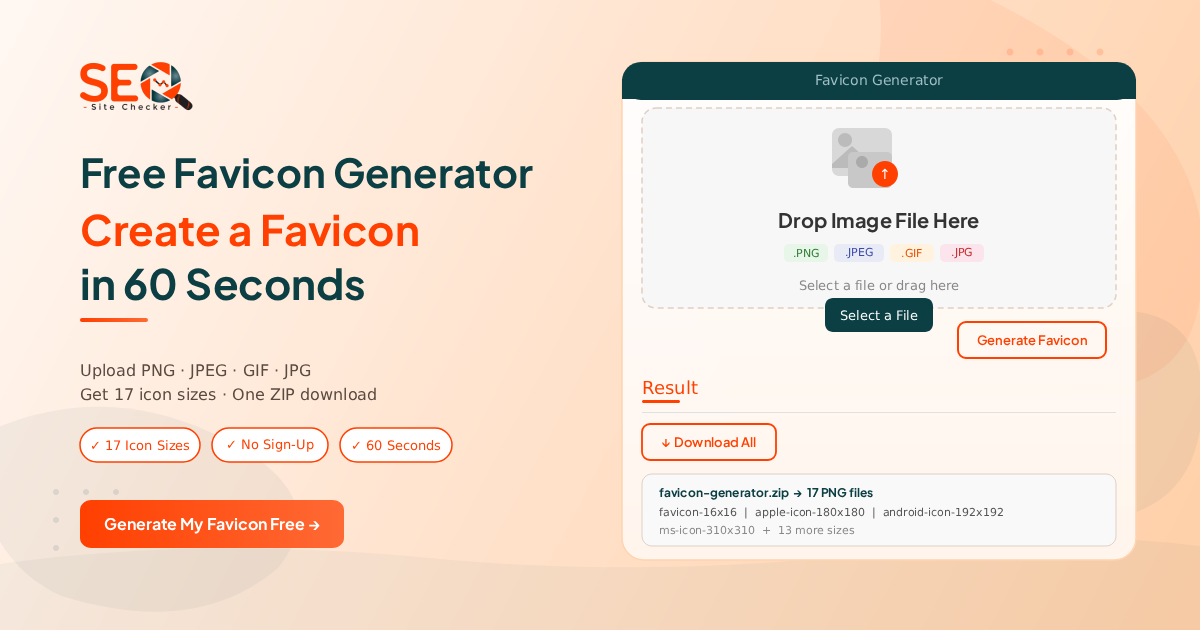
Step 1: Open the Favicon Generator tool
Go to seositechecker.pro/favicon-generator. The tool is open and ready immediately, no login or account required.
Step 2: Upload your image
You have two ways to load your image:
Drag and drop: Drag your PNG, JPEG, GIF, or JPG file directly onto the "Drop Image File Here" upload zone in the center of the tool.
Select a File: Click the dark "Select a File" button below the drop zone to open your device's file browser and choose your image manually.
Step 3: Click "Generate Favicon"
Once your image is loaded, click the "Generate Favicon" button on the right side of the upload area. The tool processes your image immediately no crop step, no quality settings, no additional configuration required.
Step 4: Review your results
The Result section below the upload area shows your generated favicon package is ready for download.
Step 5: Click "Download All"
Click the "Download All" button in the Result section. Your browser downloads favicon-generator.zip, a single ZIP file containing your favicon.ico, all the PNG icon sizes, a web manifest, and the HTML install code, ready to upload to your website.
📌 No account needed. No crop steps. No quality sliders to configure.
Upload your image, click Generate Favicon, click Download All. Done in 60 seconds.
What's Inside the favicon-generator.zip File?
When you click "Download All", you receive a ZIP file named favicon-generator.zip. Inside are 10 files: a real multi-size favicon.ico, the PNG icons for every common size, a web manifest, and the HTML install code. Here is exactly what each file is for:

What Is Inside the ZIP
- favicon.ico: The classic favicon browsers request automatically at your site root. Contains the 16x16, 32x32, and 48x48 sizes in one file.
Standard Favicon PNGs (Browser Tabs and Bookmarks)
- favicon-16x16.png: Standard browser tab and address bar icon.
- favicon-32x32.png: High-DPI (Retina) browser tab icon.
- favicon-48x48.png: Higher-resolution displays and Windows site icons.
Apple Touch Icon (iPhone and iPad)
- apple-touch-icon.png (180x180): The home screen icon when someone saves your site on iOS. Referenced in the apple-touch-icon HTML tag.
Android and Web App Icons
- android-chrome-192x192.png: Android home screen and Progressive Web App icon.
- android-chrome-512x512.png: Android splash screens and installable web apps.
Setup Files
- site.webmanifest: References the 192 and 512 icons so the Android icons work.
- favicon-code.html: The ready-to-paste link tags for your <head>.
| Category | Files | Platform Coverage |
| Favicon (browser) | favicon.ico, favicon-16x16.png, favicon-32x32.png, favicon-48x48.png | All browsers - tabs, bookmarks, address bars |
| Apple Touch Icon | apple-touch-icon.png (180x180) | iPhone and iPad home screens |
| Android Icon | android-chrome-192x192.png, android-chrome-512x512.png | Android home screens and installable web apps |
| Setup files | site.webmanifest, favicon-code.html | Manifest for Android icons and ready-to-paste HTML |
Favicon Sizes: Complete Reference
A modern favicon package requires multiple sizes to display correctly across all browsers, operating systems, and devices. Using a single small image leads to blurry or pixelated icons on high-resolution displays. The favicon package generated by our free tool covers the essential modern sizes plus a real favicon.ico.
What Is the Recommended Favicon Size?
The minimum sizes for basic browser compatibility are 16×16 pixels and 32×32 pixels, these are the standard browser tab sizes used by Chrome, Firefox, Safari, and Edge. However, for a complete cross-platform implementation that also covers iOS home screens and Android shortcuts, our generator produces the favicon.ico plus all the PNG sizes, a manifest, and the install code.
The apple-touch-icon.png is the most important icon for mobile users, it is used by all modern iPhones and iPads when someone saves your site to their home screen. The android-chrome-192x192.png serves the same role for Android devices and is also the standard size for Progressive Web App icons.
📌 Every size, plus the favicon.ico, is generated automatically from your
single uploaded image. You do not need to resize anything or convert formats
yourself, the generator handles all of it, including the manifest and install HTML.

How to Add a Favicon to Your Website: The HTML Code
After downloading favicon-generator.zip, extract the files and upload them to your website's root directory, the same folder that contains your index.html file. The ZIP already includes this HTML in the favicon-code.html file, so you can copy it straight from there. It looks like this:
Complete HTML Code for Your Favicon Package
<link rel="icon" href="/favicon.ico" sizes="any">
<link rel="icon" type="image/png" sizes="16x16" href="/favicon-16x16.png">
<link rel="icon" type="image/png" sizes="32x32" href="/favicon-32x32.png">
<link rel="apple-touch-icon" sizes="180x180" href="/apple-touch-icon.png">
<link rel="manifest" href="/site.webmanifest">
📌 You can add all these tags or use the minimal version for the most common use cases.
Minimum recommended tags:
<link rel="icon" href="/favicon.ico" sizes="any">
<link rel="apple-touch-icon" sizes="180x180" href="/apple-touch-icon.png">
<link rel="manifest" href="/site.webmanifest">
These three tags cover standard browsers, Apple devices, and Android devices.
Where to Place the HTML Code
All favicon link tags must go inside the <head> section of your HTML between the opening <head> and closing </head> tags. They should appear on every page of your website, not just the homepage. In most CMS platforms like WordPress, this means adding them to your theme's header.php file or using a theme settings panel that injects code into the head.
How to Add Your Favicon to WordPress
WordPress has built-in favicon support through the Customizer. No code is required for the most common installation method.
Method 1: Via WordPress Customizer (Recommended)
Step 1: Log in to your WordPress dashboard
Step 2: Go to Appearance → Customize
Step 3: Click "Site Identity"
Step 4: Click "Select site icon" and upload your square source image or one of the PNG files from your favicon package
Step 5: Click "Publish" to save your changes
WordPress automatically resizes your uploaded image to generate the required icon sizes. For best results, upload your original square source image rather than the 16×16 file from the favicon package, WordPress needs a large source to scale down from.
Method 2: Via functions.php or header.php (For Developers)
Upload all the files from the favicon package to your website's root directory (or a /favicons/ subfolder). Then add the HTML code from the previous section to your theme's header.php file inside the <head> tag, or use a code snippet plugin like WPCode to inject it without editing theme files directly.
How to Add Your Favicon to Shopify and Other Website Builders
Adding a Favicon to Shopify
Step 1: Go to Shopify Admin → Online Store → Themes
Step 2: Click "Customize" on your active theme
Step 3: Click "Theme Settings" (bottom-left) → Favicon
Step 4: Upload your square source image (recommended: 512×512 PNG with transparent background)
Step 5: Click "Save"
Other Website Builders: Quick Reference
- Squarespace: Website → Pages → Website Tools → Marketing → Browser Icon (Favicon) → Upload
- Wix: Settings → Website → Website Favicon → Upload your image
- Webflow: Project Settings → General → Favicon → Upload
- Ghost: Settings → Publication icon → Upload your image
Favicon Design Best Practices: 7 Rules for a Recognizable Icon
Your favicon is displayed at 16×16 pixels in most browser tabs. A design that looks perfect at full size can become completely unrecognizable at that scale. Here are seven rules that make the difference between a professional favicon and a blurry gray square:
- Rule 1: Keep it simple: Remove everything that isn't essential. A complex logo with fine details, gradients, and text becomes an indistinct blob at 16 pixels. Use only the core symbol or initial.
- Rule 2: Use high contrast: Your favicon must be visible on both light and dark browser themes. Test against a white background and a dark gray background. Low-contrast favicons disappear on certain browser configurations.
- Rule 3: Start with a square image: Favicons are always square. If your logo is wider than it is tall, use only the icon portion, not the full lockup with text. Non-square source images are scaled to fit, which can distort proportions.
- Rule 4: Use transparent backgrounds (PNG): Upload a PNG with a transparent background when possible. Transparent favicons adapt to the browser's tab color, both light and dark mode, rather than showing a white or colored box.
- Rule 5: Match your primary brand color: Your favicon is a micro-version of your brand identity. Use the same primary color as your logo and website. Color-coded favicons are among the most effective at tab recognition (think: YouTube red, Twitter/X black, Google's multicolor).
- Rule 6: Test at 16×16 before uploading: Resize a preview of your design to 16×16 pixels before uploading. If you can't tell what it is, simplify further. The favicon-16x16.png in your downloaded package shows you exactly what browsers will display in tabs.
- Rule 7: Two characters maximum for text favicons: If using initials or a short word, limit to two characters and use a bold, high-contrast font. Three or more characters at 16px are illegible on most screens.
For other free tools to prepare and optimize your source image before generating a favicon, explore the Image Tools category including tools for image compression, resizing, and format conversion.
Does a Favicon Affect SEO and Search Rankings?
The short answer: a favicon does not directly affect your page ranking in Google's algorithm. However, it has meaningful indirect effects on how your website performs in search and on whether Google even shows your favicon in results at all.
1. Favicons Appear in Google Search Results
Since May 2019, Google has displayed favicons in mobile search results, the small icon appears to the left of your website name above each result. If your site doesn't have a correctly configured favicon, Google displays a generic gray globe icon instead. A recognizable, branded favicon can help your listing stand out on a search results page dense with competitors, which has a measured impact on click-through rate (CTR).
2. Missing Favicons Generate 404 Errors
Every browser that loads any page on your site automatically makes a background request for /favicon.ico in your root directory. If no favicon file exists there, the server returns a 404 error. While Google does not penalise these 404s directly, they create noise in your error logs, waste server requests, and can appear as issues in crawl reports. Adding a favicon eliminates these 404s entirely.
3. Brand Recognition Drives Return Visits
Visitors who have multiple tabs open rely on favicons to locate and return to your tab without reading page titles. A distinctive, memorable favicon reduces the friction of returning to your site, which contributes to better session metrics (longer time on site, lower bounce rate) over time. These engagement signals correlate positively with search rankings.
4. PWA Favicons Are Required for App Indexing
If your website runs as a Progressive Web App (PWA), the android-chrome-192x192.png and larger icons are required for the PWA to install correctly on Android devices and appear in Google Play's app section for PWAs. Without these icons, your PWA functionality is broken and the icons cannot be indexed.
📌 Google's requirements for favicons in search results:
· Favicon must be accessible, visible at yourdomain.com/favicon.ico or linked in <head>
· Favicon must be square
· Favicon must be at least 48×48 pixels
· Favicon must not be NSFW content
Meet these criteria and Google will typically display your favicon within a few days
of crawling. Our free generator produces files that satisfy all of these requirements.
ICO and PNG: How the Two Formats Work Together
Your favicon-generator.zip includes both a real favicon.ico and PNG icons, which is the correct modern setup. Here is how the formats work together.
Why Modern Favicons Use PNG Alongside ICO
The original favicon format was ICO, a Windows icon container that can hold multiple sizes in a single file. ICO was required by older versions of Internet Explorer and became the de facto standard for many years. However, the web has moved on:
- All modern browsers including Chrome, Firefox, Safari, Edge, support PNG favicons natively
- PNG supports transparency (alpha channel), ICO's transparency support is inconsistent across browsers
- PNG files are smaller and more efficiently encoded than equivalent ICO containers
- The Apple touch icon has always been PNG. ICO was never used for iOS
- Android and Windows tile icons are PNG-based in every modern specification
When Do You Still Need a favicon.ico File?
There is one case where favicon.ico is still useful: browsers automatically request /favicon.ico from the root directory of any website without needing any HTML code. If you upload a favicon.ico file to your root directory, most browsers will find it automatically even without <link> tags in your <head>.
Good news: you do not need to create the ICO yourself. Older tools give you only PNGs and tell you to convert one to ICO at another site. This generator already includes a real multi-size favicon.ico in your download, containing the 16x16, 32x32, and 48x48 sizes. Just upload it to your root directory alongside the PNG files, and browsers will find it automatically.
My Favicon Is Not Showing: How to Fix It
This is the most common question after successfully generating and installing a favicon. You have uploaded the files and added the HTML code, but the tab still shows a blank gray square or the old favicon. Here are the five causes and their fixes:
Problem 1: Browser Cache
Cause: Your browser cached the old favicon (or the absence of one). Browsers cache favicons aggressively, sometimes for days.
Fix: Do a hard refresh: Ctrl+Shift+R on Windows or Cmd+Shift+R on Mac. Or open the site in a private/incognito window, incognito browsing uses a fresh cache, so the new favicon will appear immediately if it's installed correctly.
Problem 2: Files Uploaded to the Wrong Location
Cause: The favicon PNG files are not in the root directory of your website. The root directory is the top-level folder where your index.html lives.
Fix: Verify the file is accessible by typing https://yourdomain.com/favicon-32x32.png directly into your browser. If you see the icon, the file is in the right place. If you get a 404 error, the file is in the wrong directory, move it to root.
Problem 3: Wrong or Missing HTML Code
Cause: The <link> tags are missing from the <head> section, or reference incorrect file names.
Fix: Check that your <head> includes at minimum <link rel="icon" type="image/png" sizes="32x32" href="/favicon-32x32.png">. Verify the filename in the href attribute exactly matches the file you uploaded, file names are case-sensitive on Linux servers.
Problem 4: CDN or Caching Layer
Cause: Your CDN (Cloudflare, Fastly, CloudFront) is serving a cached version of the 404 response for your old favicon request.
Fix: Purge your CDN cache. In Cloudflare: Caching → Configuration → Purge Everything. The new favicon will appear on the next page load after the purge completes.
Problem 5: CMS Caching Plugin
Cause: A WordPress caching plugin (WP Super Cache, W3 Total Cache, WP Rocket) is serving cached pages that don't include the new favicon <link> tags.
Fix: Go to your caching plugin settings and clear all cached files. The next page load will regenerate the cache with the correct favicon tags.
If you haven't created your favicon yet or need to start over, our free Favicon Generator takes 60 seconds and produces a complete favicon package in one download.
Favicon vs Logo vs App Icon: What's the Difference?
These three image types serve related but distinct purposes. Understanding the relationship between them helps you choose the right source image and set realistic expectations about what the favicon will look like.
Logo: Your full brand mark, typically a combination of a symbol, wordmark (your name), and possibly a tagline. Logos are designed to be read at medium to large sizes: website headers, business cards, printed materials, display advertising. A logo with text alongside a symbol is almost never usable as a favicon directly, the text disappears at 16 pixels.
Favicon: A simplified, square extraction of the most recognizable element of your brand, typically the symbol, initial, or core icon from your logo, stripped of any wordmark. The favicon is not the full logo; it is the logo reduced to its most essential visual element.
App Icon: A larger version of the favicon (192×192 to 512×512 pixels) used when your website is saved as a shortcut on a phone's home screen or installed as a Progressive Web App. The android-chrome-192x192.png and apple-touch-icon.png files in your favicon package serve as these app icons automatically.
The relationship is: your logo is the source → your favicon is the small browser version → your app icons are the large mobile versions. All three can be generated from one well-prepared square source image uploaded to our Favicon Generator.
Before uploading your logo as a favicon source, make sure the file is properly prepared. If you need to compress or resize your source image beforehand, our free Image Compressor can help reduce file size without quality loss.
Does Every Website Need a Favicon?
Yes, and the reasons are both professional and technical.
Professional: Without a favicon, every browser displays a blank gray square or generic browser icon in the tab next to your page title. For visitors with multiple tabs open, your site becomes indistinguishable from an unlabeled blank. First impressions of professionalism and attention to detail begin at the browser tab, before a user even reads your headline.
Technical: Every browser automatically requests /favicon.ico from your server on every page visit. Without a favicon file, this generates a 404 error on every page load, every single visitor, every single page. At scale, this means thousands of unnecessary 404 errors in your error logs per day, wasted server requests, and noise in your crawl reports.
Google Search: Google displays a generic gray globe icon for websites without a correctly configured favicon in search results. Sites with branded favicons have a more polished, trustworthy appearance in search results than those showing the default globe, which matters in competitive results pages where every visual cue contributes to click-through decisions.
📌 Creating a favicon takes 60 seconds with our free generator.
There is no good reason not to have one and several good reasons you should.
Upload your logo or any square image to: seositechecker.pro/favicon-generator
More Free Image Tools
After generating your favicon, these related tools from SEO Site Checker help with the rest of your image workflow:
- Favicon Generator: Upload a PNG, JPEG, GIF, or JPG and get a complete favicon package with a real ICO, PNG sizes, a manifest, and install HTML in one download. Free, no account required.
- Free Image Compressor: Compress your source image before using it as a favicon input. Reduces upload time and server storage.
- Image Tools category: Browse all free image tools including compress, convert, and create icons for your website.
Create Your Favicon for Free: Right Now
A favicon is not optional for any serious website. It is the first visual element a visitor sees in the browser tab, the image Google displays next to your URL in search results, and the icon that appears on mobile home screens when someone saves your site. Getting it right requires a real favicon.ico plus several PNG sizes, a manifest, and install HTML, which sounds complex until you realize it takes 60 seconds with the right tool.
Upload your logo, brand icon, or any square PNG, JPEG, GIF, or JPG image to our free generator. Click "Generate Favicon". Click "Download All". Upload the files in your favicon-generator.zip to your server's root directory, add the included HTML to your <head>, and your website is covered across every browser, every device, and every platform.
-> Generate My Favicon Free Now - No account. No crop steps. Complete favicon package in 60 seconds.
Frequently Asked Questions
Frequently Asked Questions (FAQs) is a list of common questions and answers provided to quickly address common concerns or inquiries.
What is a favicon generator?
A favicon generator is a free online tool that converts an image file into the complete set of icon files needed for a website. Upload a PNG, JPEG, GIF or JPG, click Generate and download a ZIP package containing a real favicon.ico plus all the icon sizes for browsers (16×16, 32×32, 48×48), iOS devices (180×180), and Android and web apps (192×192 and 512×512).
What size should a favicon be?
The minimum sizes for browser compatibility are 16×16 and 32×32 pixels. A complete favicon package should also include 48×48, 180×180 pixels for the Apple Touch Icon (iOS devices), and 192×192 and 512×512 pixels for Android and web apps. Our free Favicon Generator produces all of these automatically from a single image upload, alongside a real multi-size favicon.ico.
What files are included in the favicon download?
The downloaded favicon-generator.zip contains 10 files: a real multi-size favicon.ico (16, 32, and 48 pixels), PNG icons (16, 32, 48, 180, 192, and 512 pixels), a site.webmanifest, and a favicon-code.html file with the install tags. All are ready to upload to your server.
How do I add a favicon to my website?
Upload the files from your favicon package to your website's root directory. Then add these link tags to the <head> section of every page: <link rel="icon" href="/favicon.ico" sizes="any">, <link rel="apple-touch-icon" sizes="180x180" href="/apple-touch-icon.png">, and <link rel="manifest" href="/site.webmanifest">. The ZIP includes these exact tags in favicon-code.html. For WordPress, use Appearance → Customize → Site Identity.
Does a favicon affect SEO?
A favicon does not directly affect search rankings, but it has indirect benefits. Google displays your favicon next to your URL in mobile search results, a recognizable favicon can improve click-through rate. Missing favicons also generate unnecessary 404 errors on every page load, and leave a generic gray globe icon in search results instead of your brand icon.
What image format should I upload to create a favicon?
Our free Favicon Generator accepts PNG, JPEG, GIF, and JPG image files. PNG is recommended because it supports transparent backgrounds, which produces favicons that look correct on both light and dark browser themes. Use a square image for best results, favicons are always square, and a rectangular source image will be scaled to fit, which can distort proportions.
Why is my favicon not showing in the browser?
The most common cause is browser cache, do a hard refresh (Ctrl+Shift+R on Windows, Cmd+Shift+R on Mac) or test in a private/incognito window to bypass the cache. Other causes include: the favicon files are in the wrong directory (test by visiting yourdomain.com/favicon-32x32.png directly), the HTML <link> tags are missing from the <head> section or a CDN cache is serving the old version, purge your CDN cache to resolve.
Do I need an ICO file or will PNG work?
Both are included, so you are covered either way. Your download contains a real favicon.ico for the automatic root-directory lookup and PNG icons for every modern platform. You do not need to convert anything yourself.