
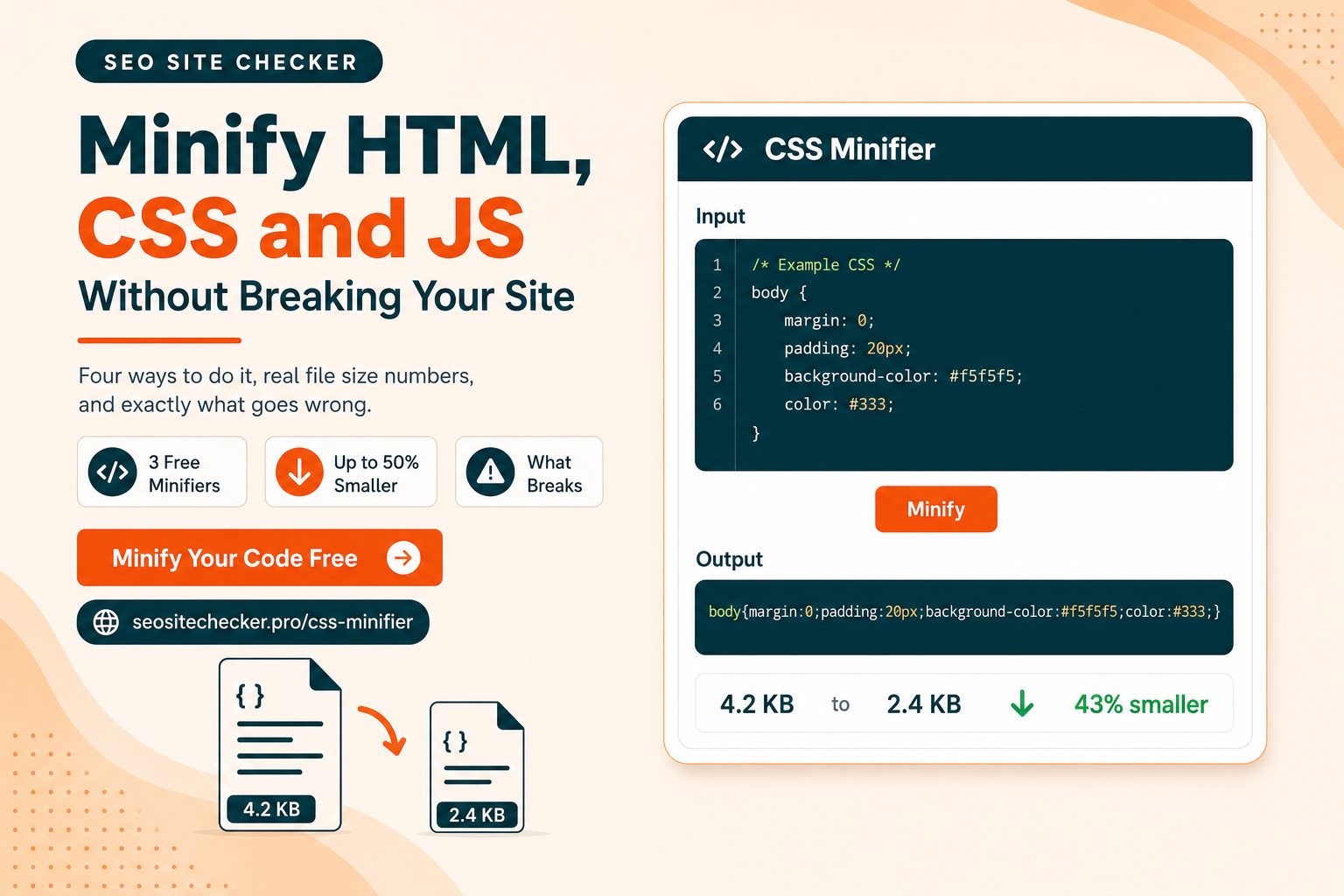
How to Minify HTML, CSS and JavaScript for Faster Pages
 Kendall Chris
Aug 31 /
7 hours ago
Kendall Chris
Aug 31 /
7 hours ago

PageSpeed Insights flagged your site. "Minify CSS." "Minify JavaScript." You clicked through, and the recommendation was to install a plugin.
That works, sometimes. Other times it breaks the navigation and you spend an evening working out which of the three toggles did it.
This guide takes the longer route, which is faster in the end. It covers what minification actually removes from your files, how much it genuinely saves once server compression is in the picture, the four ways to minify HTML, CSS and JS depending on how your site is built, and specifically what breaks when it goes wrong. That last part is the reason most people leave minification switched off, and it is avoidable.
What Is Minification?
Minification strips characters that a browser does not need in order to execute your code. The file gets smaller. The behavior stays exactly the same.
What comes out:
- Whitespace, indentation, and line breaks
- Comments
- Unnecessary semicolons, including the last one in a block
- Long variable and function names, shortened where it is safe to do so, in JavaScript only
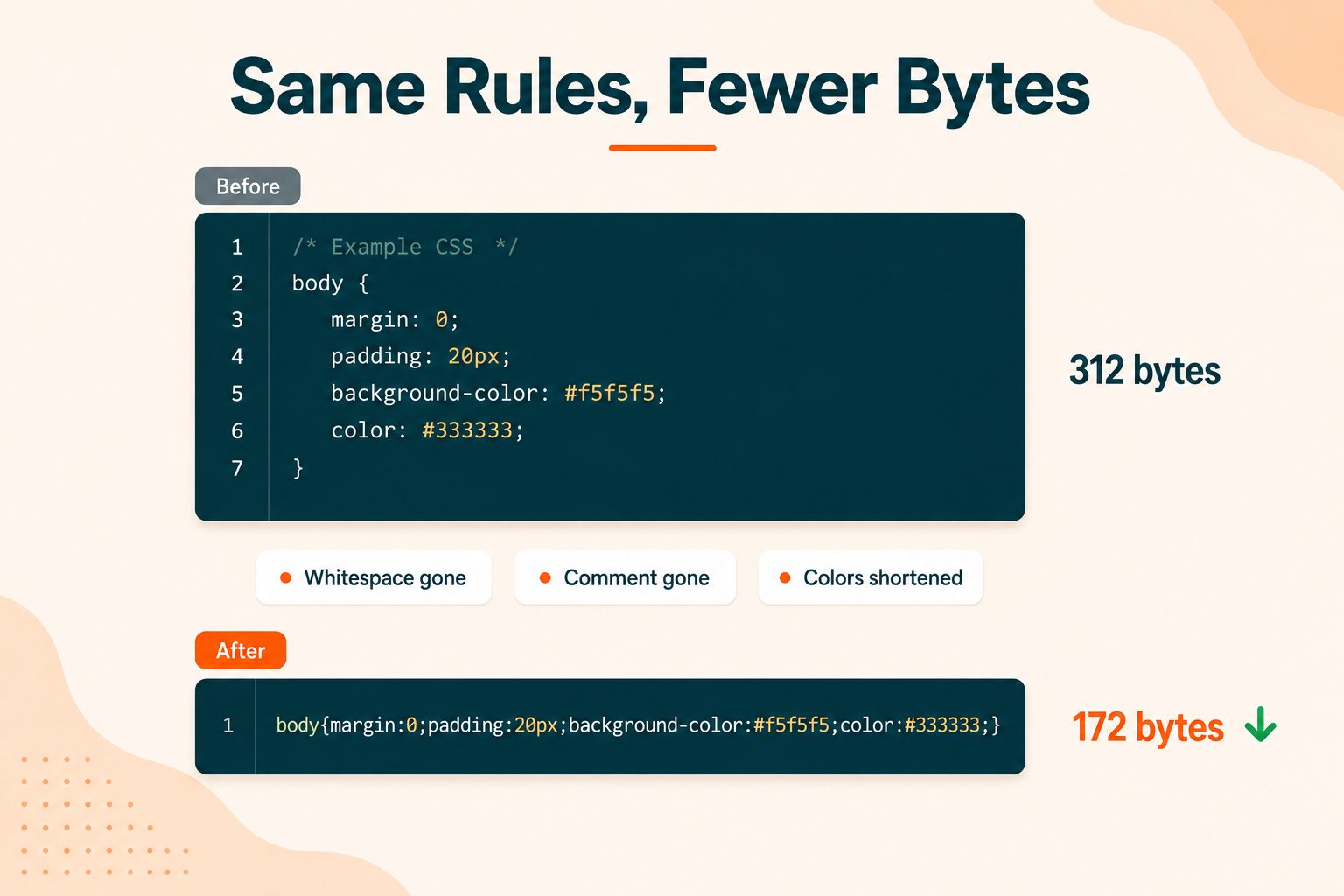
Here is what that looks like in practice. Before:
css
/* Primary button styling */
        .btn-primary {
            background-color: #FF4001;
            color: #FFFFFF;
            padding: 12px 24px;
            border-radius: 6px;
        }
After:
css
.btn-primary{background-color:#FF4001;color:#fff;padding:12px 24px;border-radius:6px}Same rules, same result on screen, roughly 45 percent fewer bytes. Notice the minifier also shortened #FFFFFF to #fff and dropped the final semicolon, both of which are safe.
You will see minified files named with a .min in the middle, like styles.min.css or app.min.js. That is a convention rather than a requirement, and it exists so you can tell at a glance which file is the source and which is the build output. MDN's definition of minification covers the formal version if you want it.
One thing to settle before going further, because it causes more confusion than anything else in this topic. Minification and compression are not the same thing, and you want both.
Minification vs Compression: Not the Same Thing
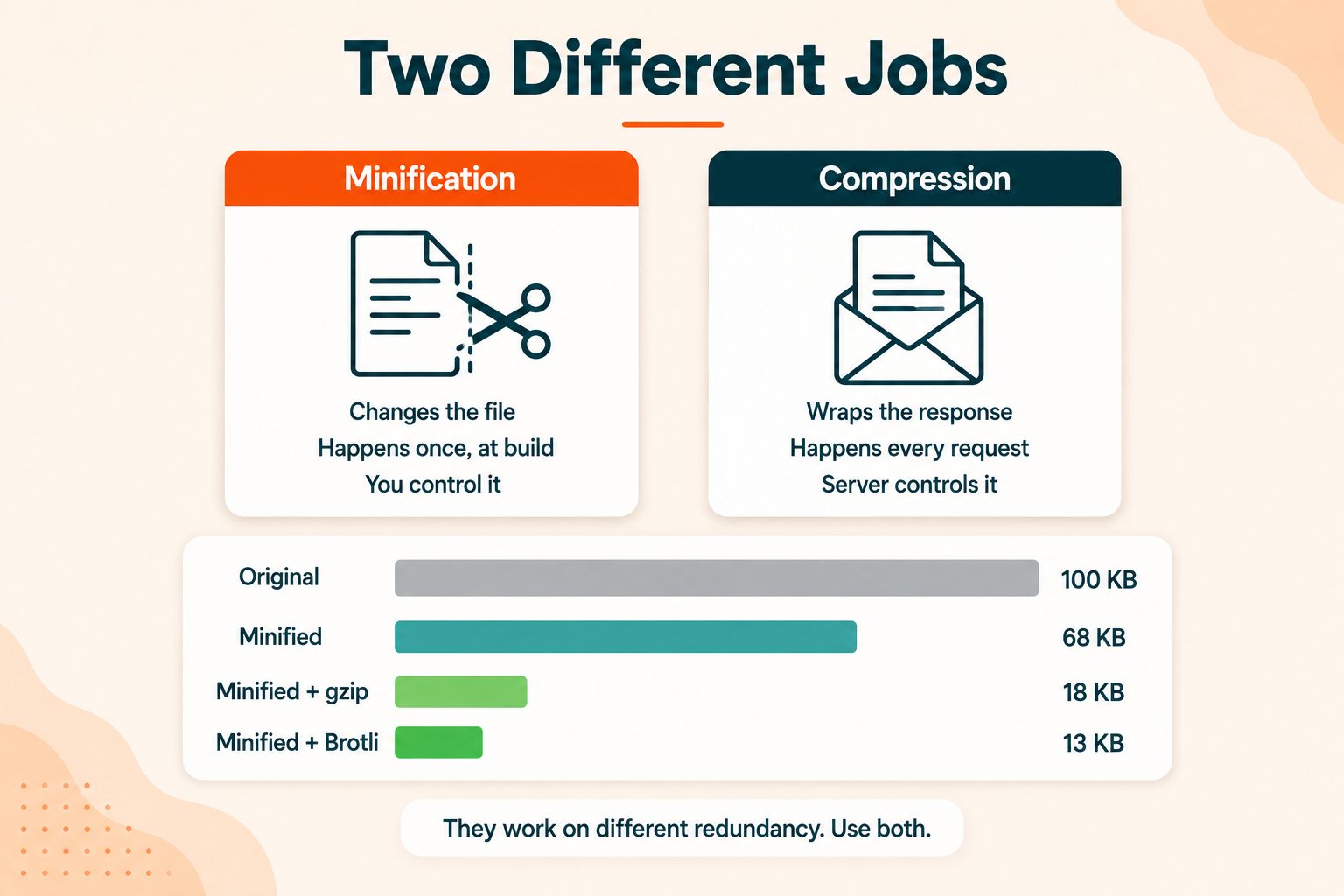
Minification changes the file itself. It happens once, at build time or when you run a tool. The file sitting on your server is genuinely smaller.
Compression happens at transfer time. Your server wraps the response in gzip or Brotli, sends it, and the browser unwraps it. The file on disk never changes. You edit nothing.
Here is what stacking them actually does to a 100 KB CSS file:
| Stage | Result |
|---|---|
| Original | 100 KB |
| Minified | 60 to 75 KB |
| Minified plus gzip | 15 to 20 KB |
| Minified plus Brotli | 11 to 15 KB |
The reason both still matter is that they work on different things. Minification removes redundancy the CSS or JavaScript parser does not need. Compression then finds byte-level repetition in whatever is left. Neither one does the other's job.
Brotli generally beats gzip on text by another 15 to 25 percent, which is why most production servers now serve Brotli first with gzip as a fallback. If you want the formal detail, RFC 7932, the Brotli compressed data format specification is the standard browsers implement.
There is a quick diagnostic worth learning here, because it tells you which of the two is actually missing.
Open your browser's dev tools, go to the Network tab, reload the page, and click one of your CSS files. Look at two things:
The Size column. On a 100 KB source file, a properly minified and Brotli-compressed response should show somewhere around 11 to 15 KB. If it shows 60 KB, you have minification but no compression. If it shows 100 KB, neither is running.
The Content-Encoding response header. br means Brotli. gzip means gzip. Nothing at all means compression is not configured, and that is a bigger problem than unminified files.
Fix compression first if it is missing. It is a server configuration change and it delivers the larger single win.
How Much Does Minification Actually Save?
You will see "up to 80 percent" on a lot of pages about this. That number is doing some work. Here are the realistic figures for minification on its own:
| File type | Typical reduction |
|---|---|
| CSS | 20 to 30 percent |
| JavaScript | 30 to 50 percent |
| HTML | 5 to 20 percent |
JavaScript gains the most because minifiers can rename variables and functions on top of removing whitespace, and a codebase full of calculateShippingCostForOrder becomes a codebase full of single letters.
HTML gains the least. It is already fairly compact, and whitespace inside certain tags cannot be touched safely, so there is simply less to remove.
The honest caveat that most articles on this topic skip: once Brotli is running, minification adds a smaller marginal gain than those percentages suggest, because compression already handles a lot of the same redundancy. It is still worth doing, and the reasons are covered further down, but you deserve the real picture rather than a number designed to make a plugin look essential.
How to Minify HTML, CSS and JavaScript for Faster Pages
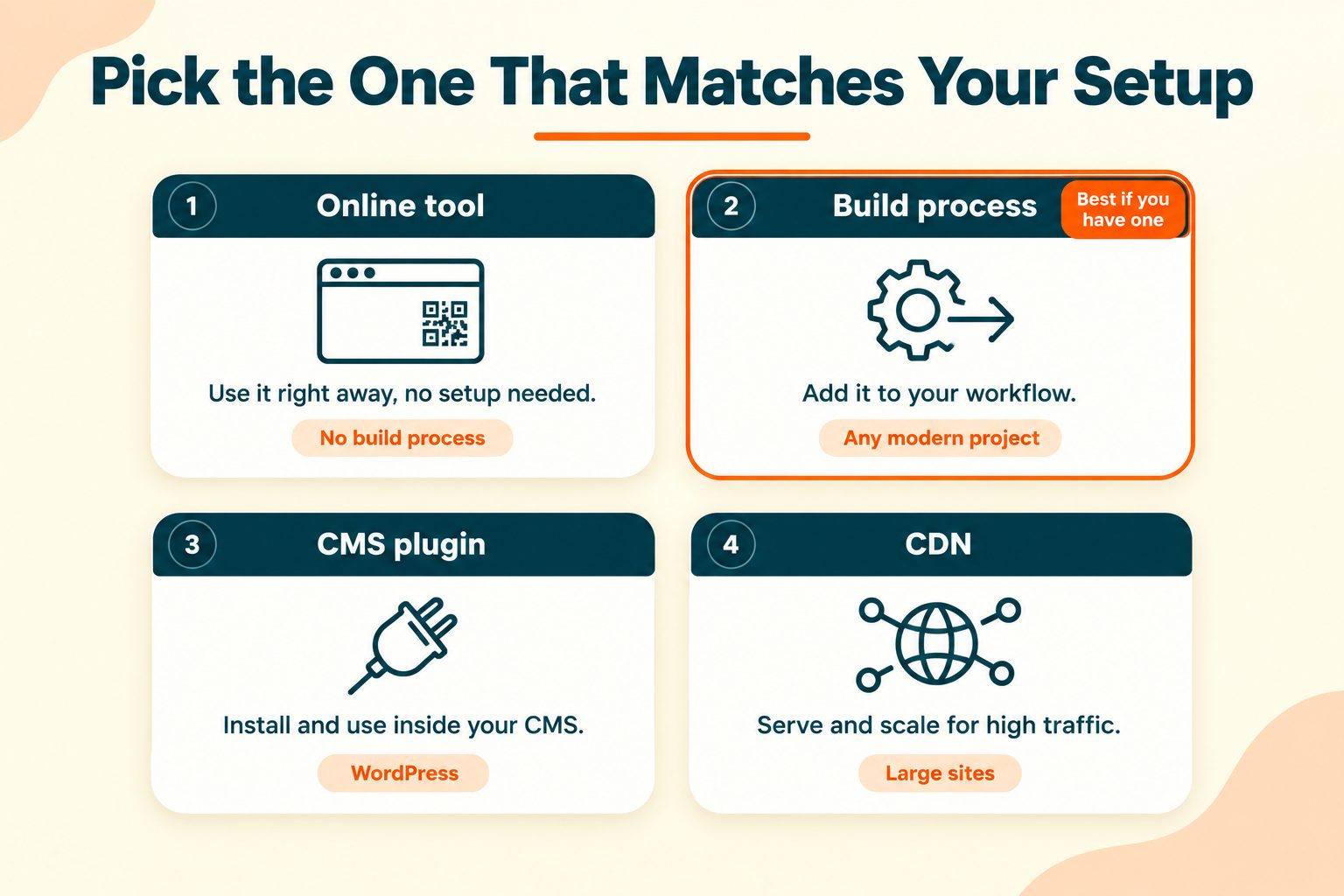
There are four ways to do this. The right one depends entirely on how your site is built, so pick the method that matches your setup rather than the one that sounds most thorough.
Method 1: Online minifiers
Best for one-off files, static sites, code snippets, and anyone without a build process.
Paste your code in, minify, copy the output, and save it as a .min file alongside your original. Three free tools cover the three file types:
All three are free with no account needed. If you want to tidy up your markup before minifying it, the HTML Editor handles that in the browser too.
The honest limitation of this method: it does not run by itself. Every time you change a source file, you minify again. That is fine for a site you update monthly and painful for one you update daily.
Method 2: Your build process
The right answer for any project with a build step, and the one to use if you have the option.
Modern bundlers minify in production mode by default, usually with no configuration at all. Building for production is often the entire instruction. Where you do need to configure it, you are adding a minifier as a build step: one for JavaScript, one for CSS, one for HTML.
The advantage is that it happens automatically, every time, without anyone remembering. That is worth more than any percentage difference between individual minifiers.
Method 3: CMS plugins
WordPress caching plugins ship with minification toggles, usually one each for HTML, CSS, and JavaScript.
One instruction here matters more than everything else: enable one file type at a time and test the site between each. Turn on HTML, click through the site, check the menus and forms. Then CSS. Then JavaScript.
Combining and minifying JavaScript is the single most common way to break a WordPress site. Enabling all three at once and then trying to work out which one did it is a bad evening you can skip entirely.
Method 4: Your CDN or host
Some CDNs minify assets as they serve them. Zero effort, no build change, and it applies to everything automatically.
The trade-off is that it applies globally, so excluding a specific problem file is harder than it would be in a build process. Good for simple sites, less good when you have one script that cannot be touched.
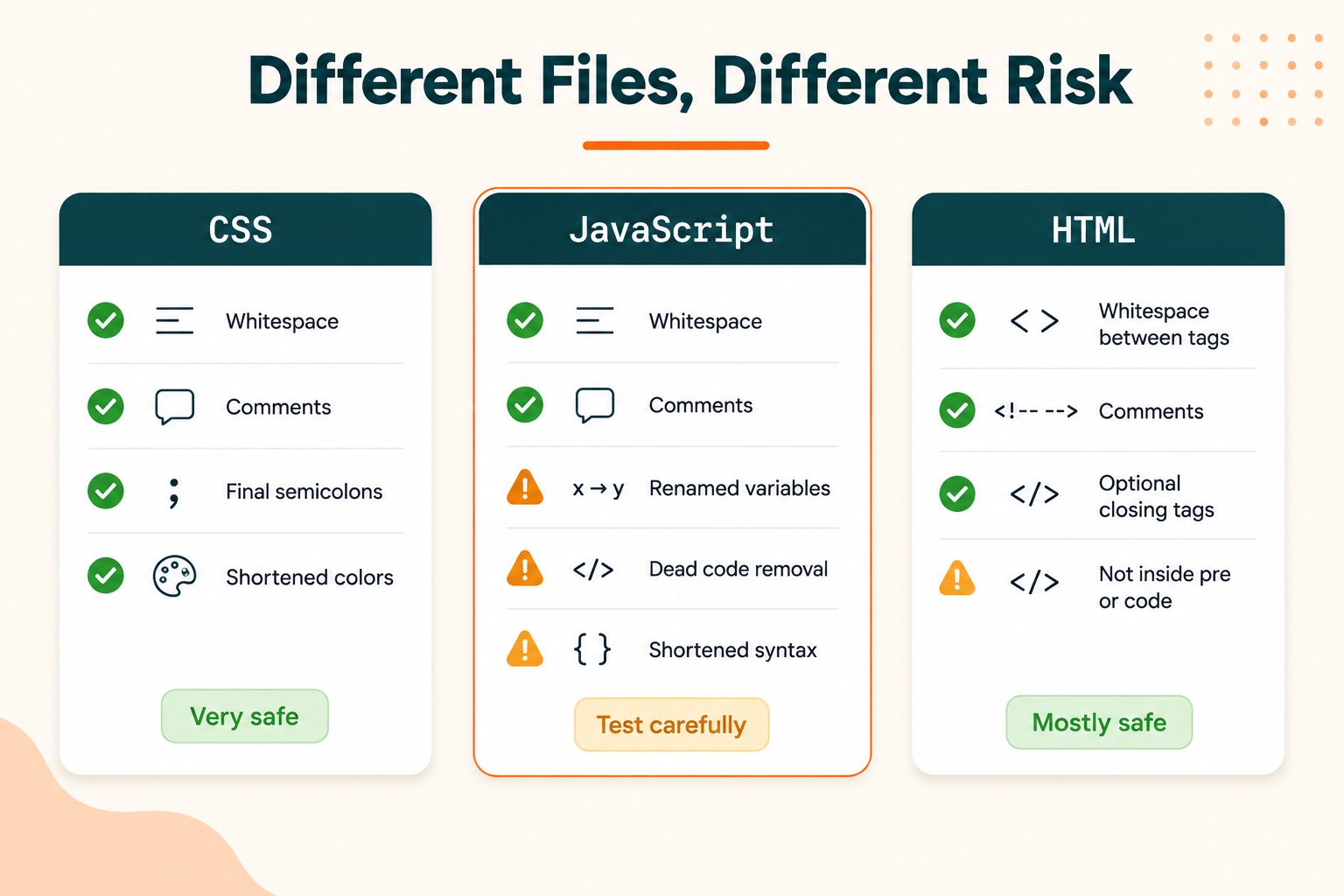
What Actually Gets Removed From Each File Type
Each language behaves differently, and knowing the difference tells you where the risk sits before you find out the hard way.
CSS
Whitespace, comments, the final semicolon in each block. Most minifiers also shorten color values and merge duplicate rules.
CSS minification is very safe. In practice it almost never breaks anything. If you are nervous about starting, start here.
JavaScript
Whitespace and comments, plus variable and function renaming, dead code removal, and shortened syntax. This is far more aggressive than CSS, which is why it is where breakage happens.
Three specific risks worth knowing:
- Code that reads function or parameter names at runtime, which some dependency injection patterns do
- Code relying on automatic semicolon insertion, where removing line breaks changes how statements are parsed
- Anything depending on a global variable that gets renamed
HTML
Whitespace between tags, comments, optional closing tags, and redundant attributes.
The important caveat: whitespace inside <pre>, <code>, and <textarea> is meaningful and must be preserved. A good HTML minifier knows this and leaves those elements alone. A careless one collapses them and your formatted code blocks turn into a single run-on line.
Which Method Should You Use?
| Your situation | Use this |
|---|---|
| Static HTML site, few files | Online minifiers, save as .min files |
| Any project with a build step | Build process minification |
| WordPress, no dev workflow | Caching plugin, one file type at a time |
| Large site behind a CDN | CDN-level minification |
| One file, right now | Online minifier |
The underlying principle is simple. Automation beats manual work, but only if you have somewhere to automate it. If you do not have a build process, an online tool used consistently beats a plugin that breaks things intermittently.
One rule regardless of method: never minify over your source file. Keep styles.css and generate styles.min.css from it. Minification is not meaningfully reversible. Unminified whitespace can be restored by a formatter, but renamed variables cannot. A minified JavaScript file where every function is now called n is genuinely difficult to work with again.
Does Minification Still Matter Now That Brotli Exists?
This is the question any experienced developer has, and almost nobody writing about minification answers it honestly.
The objection is fair. If Brotli already takes a 100 KB CSS file down to 12 KB, what does removing whitespace beforehand actually buy you?
The answer is yes, it still matters, for four reasons that have nothing to do with the transfer size headline.
Parse time. The browser parses the decompressed file, not the compressed one. A smaller decompressed file means less parsing work on the main thread. On a mid-range phone, that is measurable.
Memory. Decompressed size is what sits in memory. For large JavaScript bundles this is not trivial.
Cache storage. Browser caches and service worker caches store the decompressed file. Smaller files mean more of your assets survive before eviction.
Compression works better on minified input. The two genuinely stack rather than fully overlapping, which is why the numbers in the table earlier keep improving at each stage.
If you have to pick one, configure compression first. It delivers the bigger single win and it is a server setting rather than a workflow change. But this is not an either-or decision. Minification is usually one build flag away, and there is no good reason to skip a free improvement.
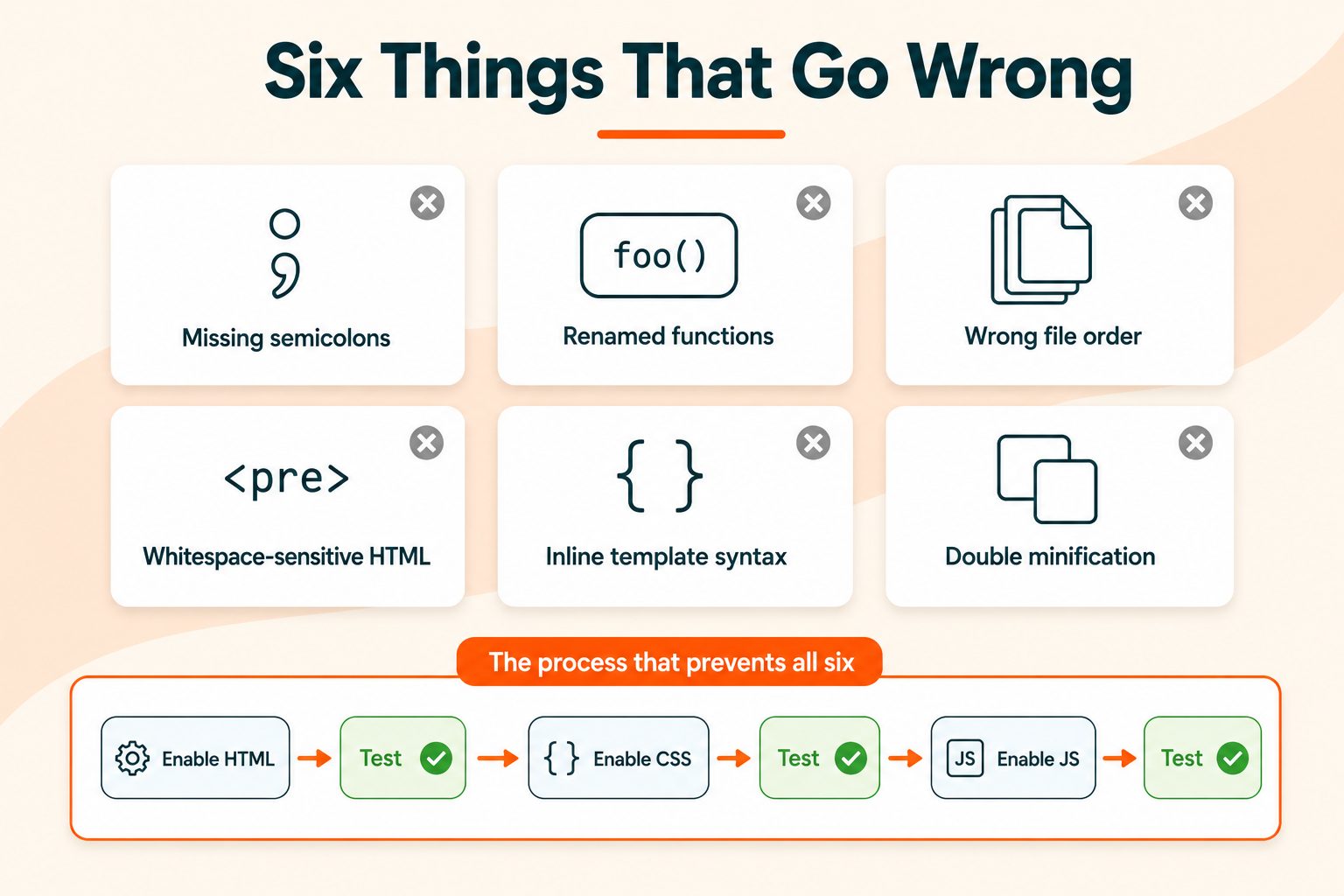
What Breaks and How to Avoid It
This is the section that decides whether you actually turn minification on, so here is what goes wrong and why.
Missing semicolons. JavaScript that relies on automatic semicolon insertion can break when line breaks disappear. The fix is running a linter on your source, not avoiding minification.
Code that depends on function names. Some frameworks and dependency injection patterns read function or parameter names at runtime. Renaming breaks them silently. Add those files to your minifier's exclusion list.
Concatenation order. Combining files in the wrong sequence breaks dependencies. Strictly this is a combining problem rather than a minification one, but plugins usually do both together and people blame the wrong feature.
Whitespace-sensitive HTML. Content inside <pre> and <textarea> needs its whitespace intact. Check your code blocks after enabling HTML minification.
Inline scripts with server template syntax. Template tags sitting inside JavaScript can confuse a minifier that does not expect them.
Double minification. Running an already-minified file through a minifier again occasionally causes problems and gains you nothing.
Every one of these is avoidable with the same process: enable one file type at a time, test the site, then enable the next. Test the interactive parts specifically, since that is where JavaScript problems show up. Menus, forms, sliders, modals, anything with a click handler.
Source Maps and Debugging Minified Code
Once your JavaScript is minified, an error in production points at line 1, column 4,847 of a file with no line breaks in it. That tells you nothing.
Source maps fix this. A source map is a separate file that maps your minified code back to the original, so browser dev tools show you the real filename, the real line number, and the real variable names. Every serious minifier can generate one.
Two practical notes. Generate them, because debugging without them is genuinely miserable. But think about whether to expose them publicly, since a publicly accessible source map effectively publishes your unminified source code. A common approach is generating them and restricting access, or uploading them to your error monitoring service rather than serving them from the site.
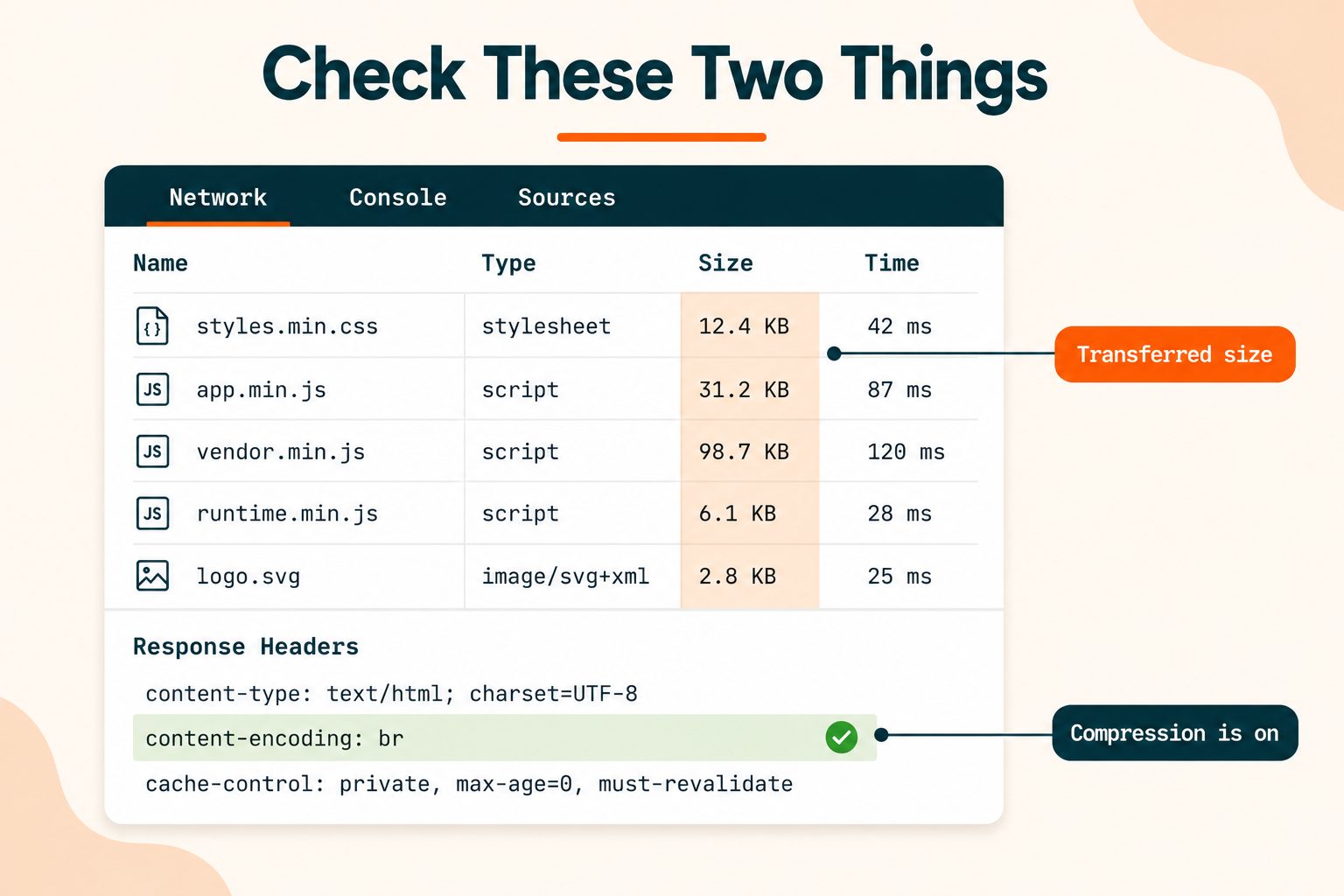
How to Verify It Worked
Enabling minification and minification actually working are two different things. Check.
- Open dev tools and go to the Network tab, then reload the page
- Find your CSS and JavaScript files and look at the Size column
- Check the
Content-Encodingresponse header forbrorgzip - Click a file and view the response body to confirm it is genuinely minified, not just compressed
- Re-run PageSpeed Insights and confirm the minification audits now pass. Lighthouse's guidance on unminified JavaScript explains what the audit is measuring
- Click through the site properly and test every interactive element
Step six is not optional. A passing audit on a broken site is worse than a failing audit on a working one.
If you want to see exactly what your server is sending rather than what your browser renders, the Online HTML Viewer shows the raw source. And to catch anything else affecting page speed alongside minification, run a full site audit and work down the list.
Wrapping Up
Do these in order.
Check whether compression is running at all, using the Content-Encoding header in your Network tab. If it is missing, fix that first, because it is the bigger win and it is a server setting rather than a workflow change.
Then minify. Use your build process if you have one, an online tool if you do not, and a plugin only if neither applies. Keep your originals and generate .min files from them.
Then verify in the Network tab and click through the site properly.
If you are using a plugin, enable one file type at a time. That single habit prevents most of the problems people associate with minification.
Frequently Asked Questions
Frequently Asked Questions (FAQs) is a list of common questions and answers provided to quickly address common concerns or inquiries.
What does it mean to minify HTML, CSS and JavaScript?
Minifying removes characters browsers do not need, such as whitespace, comments, and line breaks, making files smaller. The code behaves identically but downloads and parses faster.
How do I minify HTML, CSS and JS?
Use an online minifier for one-off files, add a minification step to your build process, enable it in a caching plugin, or turn it on at your CDN.
Is minification the same as compression?
No. Minification changes the file itself and happens once. Compression like gzip or Brotli happens during transfer and leaves the file unchanged. Use both together.
Does minification break JavaScript?
It can, if your code relies on automatic semicolon insertion or reads function names at runtime. Enable one file type at a time and test between each to catch problems early.
How much does minification reduce file size?
Roughly 20 to 30 percent for CSS, 30 to 50 percent for JavaScript, and 5 to 20 percent for HTML. Adding gzip or Brotli on top reduces it much further.
Do I still need to minify if my server uses gzip or Brotli?
Yes. Compression reduces transfer size, but the browser still parses and stores the decompressed file. Minification reduces that, which helps parse time and memory.
What is the difference between minify and uglify?
Minifying removes whitespace and comments. Uglifying goes further by renaming variables and restructuring code. Most JavaScript minifiers today do both by default.
Should I minify HTML too, or just CSS and JS?
Minify all three. HTML gains the least, typically 5 to 20 percent, but it is free once configured and applies to every page request on your site.
Does minification help SEO?
Indirectly. Faster pages improve Core Web Vitals, which Google uses as a ranking signal. Minification is one contributor among several rather than a fix on its own.
Can I unminify a file?
A formatter can restore whitespace and indentation, making the code readable again. It cannot restore original variable names or comments, which are gone permanently.



.jpg)
