Best Free Image Tools for Web Developers and Designers
 Kendall Chris
Aug 09 /
2 months ago
Kendall Chris
Aug 09 /
2 months ago


Between compressing assets, converting formats, removing backgrounds, and grabbing quick screenshots, image work eats up more of a dev or design workflow than most people budget for. Done badly, it quietly costs page speed and search rankings too, often without anyone realizing exactly why a page feels sluggish.
This guide covers 8 genuinely useful free image tools, grouped by what stage of the workflow they solve, plus why image optimization actually matters for performance and how to combine these tools into a real routine rather than a scattered collection of bookmarks you rediscover every few months.
What to Look For in a Free Image Tool (as a Developer or Designer)
Browser-based beats installed software most days. You usually just need a fast, no-install answer, not another app competing for disk space and update notifications you'll dismiss for months without ever actually running.
Privacy matters more than people think. Client-side processing, where images never leave your device, is worth prioritizing over tools that silently upload files to a server you know nothing about, particularly when the images in question involve client work under an NDA.
No forced signups for basic use. A genuinely free tool should let you do real work before it ever asks for an account, not dangle the actual feature behind a paywall disguised as a "free trial" that expires after one use.
Format support matters too. Modern web work increasingly needs WebP and AVIF alongside the standard JPG and PNG, and a tool still stuck in 2015-era format support is worth skipping entirely in favor of one that's kept pace with how the web actually works today.
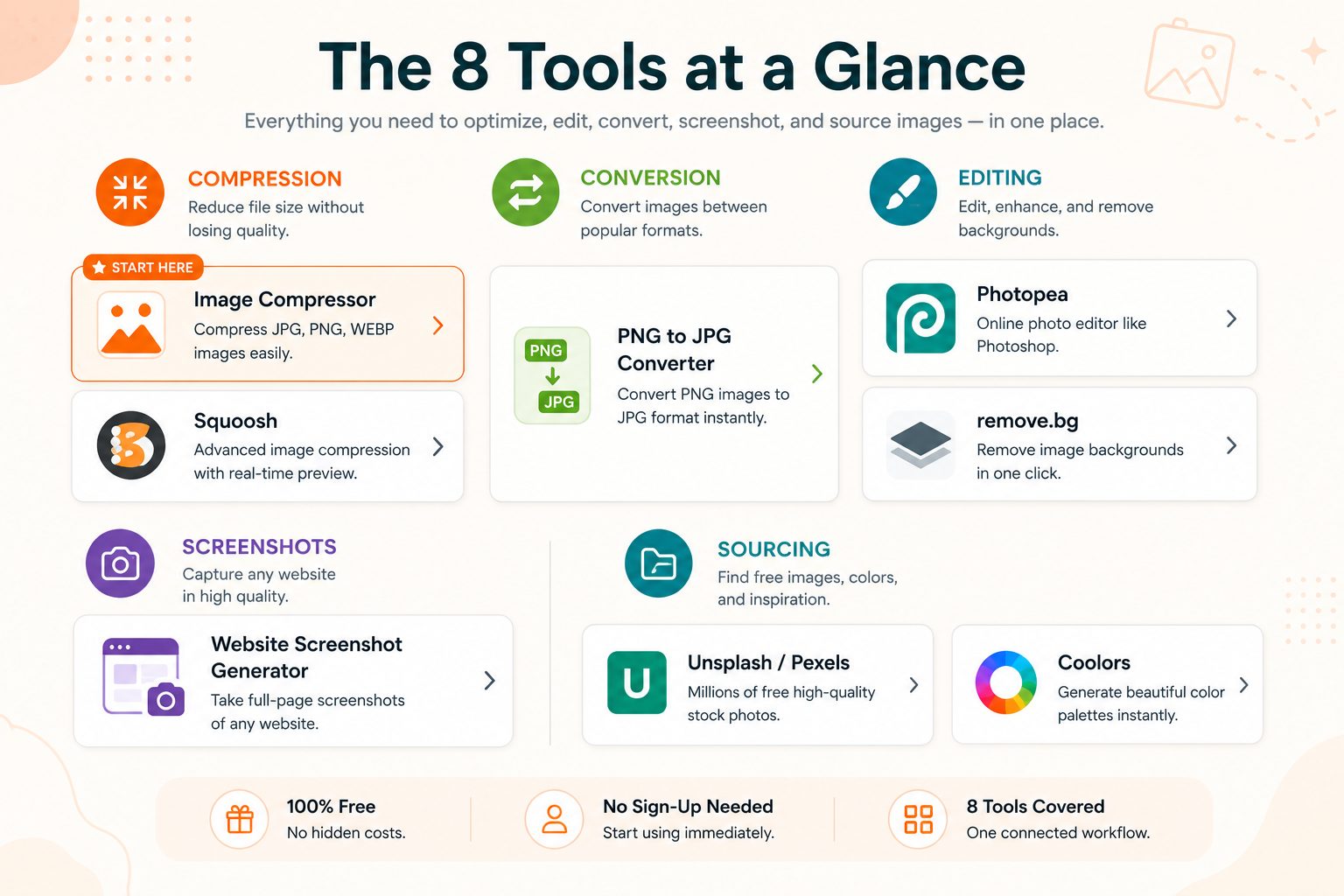
The Best Free Image Tools for Web Developers & Designers
Rather than list these randomly, they're grouped by workflow stage: compression, conversion, editing, screenshots, and sourcing. Building a small, connected toolkit from each category will get you further than bookmarking tools at random.
Compression and Optimization
These tools handle the single most common, most fixable performance problem in web work: images that are simply bigger than they need to be.
1. Image Compressor (SEO Site Checker)
This reduces an image's file size while preserving visual quality, entirely browser-based, no install required.
Oversized images are one of the most common, most fixable causes of slow page loads, and a quick compression pass before deployment costs almost nothing in either time or effort. It's the kind of fix that takes thirty seconds but can meaningfully improve how fast a page actually feels to a real visitor.
To use it, open SEO Site Checker's Image Compressor, upload an image, preview the result, and download the optimized file.
Tip: compress images as the very last step in your workflow, after resizing and format conversion, to avoid compounding quality loss across multiple separate edits.
2. Squoosh
Squoosh is Google's own browser-based image compression tool, letting you compare compression settings side by side in real time before exporting anything.
It's entirely client-side, meaning images never leave your device, and it supports modern formats like WebP and AVIF directly, no separate converter needed.
To use it, visit Google's Squoosh image compression tool, drag in an image, and adjust the slider while watching the live before-and-after comparison update in real time.
Tip: reach for Squoosh specifically when you want to fine-tune compression manually rather than accept a one-click automated result, it's the better choice when quality control really matters for a specific hero image.
Format Conversion
Picking the right format is a quieter decision than compression, but it matters just as much for both file size and visual quality.
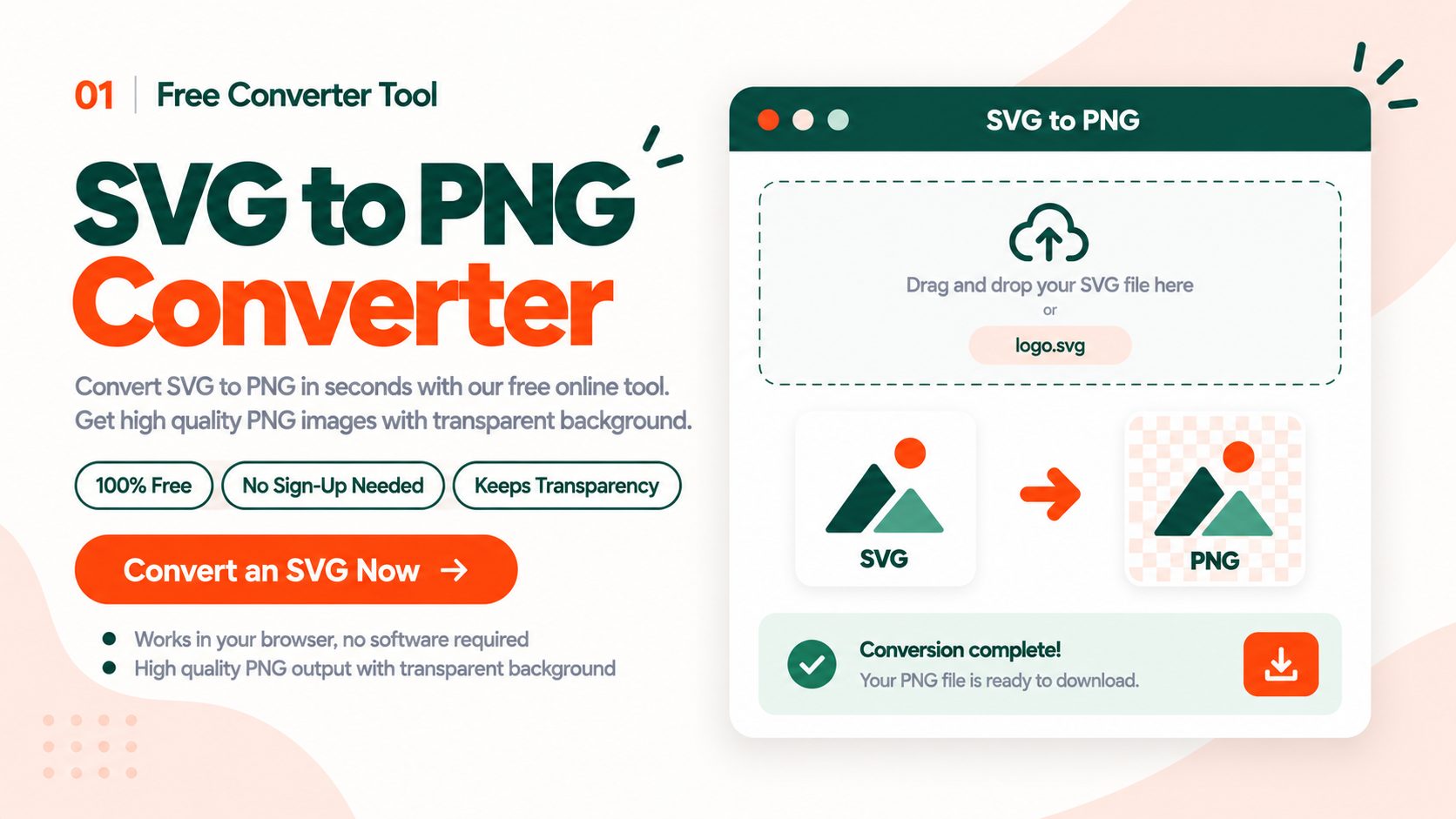
3. PNG to JPG / JPG Converter (SEO Site Checker)
This converts between common image formats, browser-based, no software required.
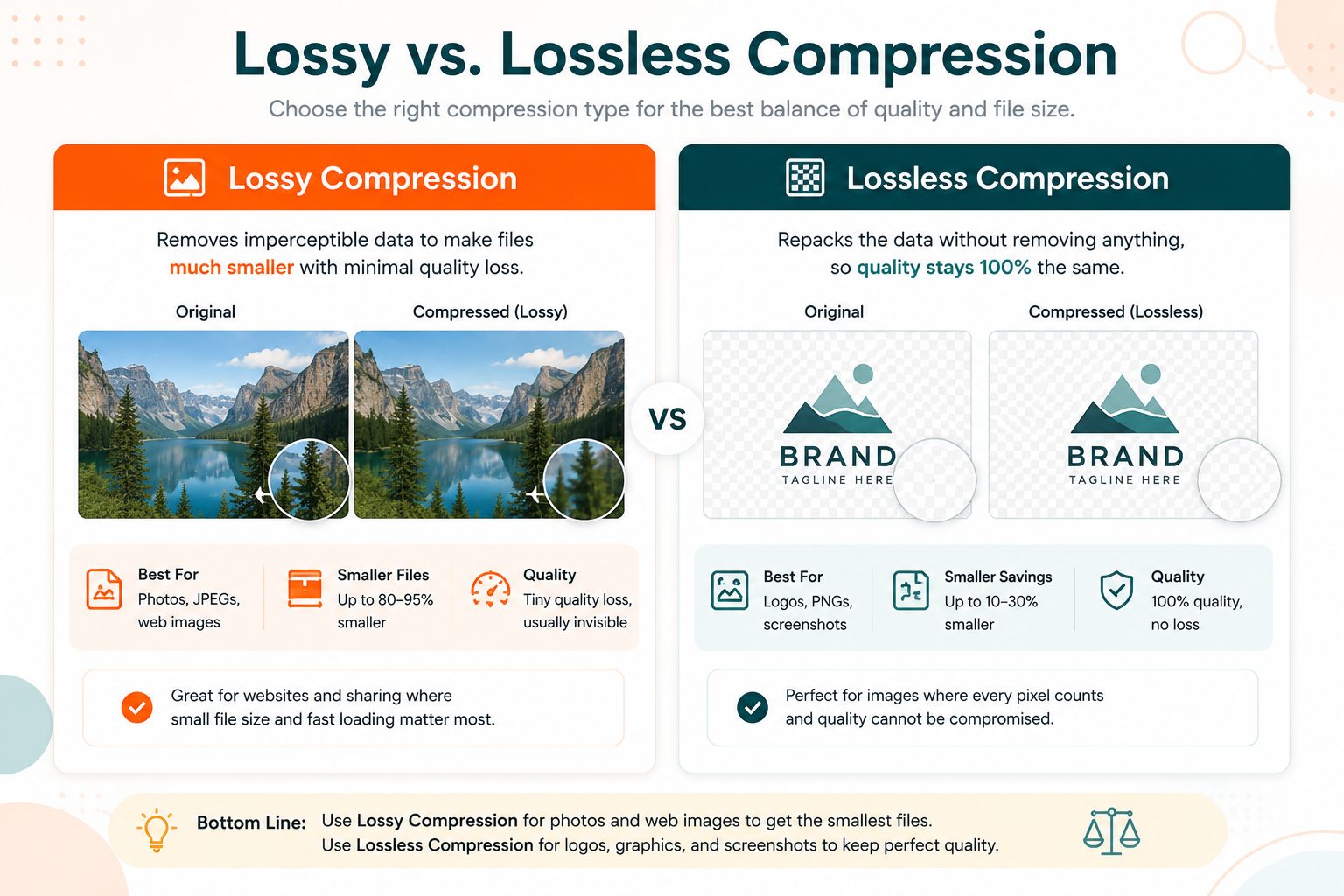
The right format choice affects both file size and visual quality. PNG suits graphics and anything needing transparency, JPG suits photos, and picking the wrong one quietly bloats a page for no visual benefit whatsoever, since the extra file size buys you nothing the viewer can actually see.
To use it, open SEO Site Checker's PNG to JPG Converter, upload the source file, and download the converted result.
Tip: keep your original, uncompressed source file archived separately. Format conversion is generally a one-way trip in terms of quality, and you'll want the original if you ever need to start over.
Editing and Background Removal
Sometimes you need more than compression and conversion, actual editing, without opening a full design suite for a five-minute task that doesn't warrant the overhead.
4. Photopea
Photopea is a free, browser-based image editor with a Photoshop-style interface, supporting layers, filters, and PSD files directly, close enough to the real thing that switching over rarely feels like a downgrade.
For developers and designers, this means genuinely capable editing without an installed app or subscription, useful for quick mockup tweaks or asset touch-ups mid-project without breaking your flow to open something heavier.
To use it, open Photopea directly in a browser tab. No account is required for core editing features.
Tip: it opens PSD files natively, which is especially useful when a designer hands off a Photoshop file and you don't have Photoshop installed yourself, a surprisingly common gap between design and development toolchains.
5. remove.bg
remove.bg automatically removes the background from a photo using AI, producing a clean, transparent cutout in seconds, no manual selection tool required.
Background removal used to require real editing skill and patience. Now it's a one-click task, useful for product photos, headshots, and UI assets that need to sit cleanly on any background without a visible edge or halo.
To use it, upload an image, let the automatic detection run, and download the transparent result.
Tip: results are strongest on clear subjects with well-defined edges. Complex or fine detail, like hair or fur, sometimes needs a manual touch-up afterward to clean up any rough edges the AI missed.
Screenshots and Documentation
Documentation work has its own set of needs, and a dedicated screenshot tool beats a browser extension more often than you'd expect.
6. Website Screenshot Generator (SEO Site Checker)
This captures full-page or full-screen screenshots of any website in either desktop or mobile view.
Documenting a bug, capturing a competitor's layout, or building a before-and-after comparison all start with a clean screenshot, and browser extensions often add watermarks or require an install just to get one image, friction that adds up when you're doing this several times a week.
To use it, open SEO Site Checker's Website Screenshot Generator, enter a URL, choose full page or full screen, and download the result.
Tip: pair a full-page capture with SEO Site Checker's Image Compressor before sharing it. Screenshots are often much larger than they need to be for a quick Slack message or support ticket, and nobody wants to wait on a slow upload just to show a bug.
Stock Photos and Color Tools
Rounding out the list, two tools that handle sourcing and visual identity rather than editing an existing asset.
7. Unsplash and Pexels
Both are large libraries of free, high-resolution stock photography, licensed for both personal and commercial use, with millions of images between them.
A project mockup or placeholder page looks dramatically more finished with real photography instead of gray boxes, and both libraries are genuinely searchable by subject rather than buried under irrelevant results the way a general image search often is.
To use them, search directly on either site and download at the resolution you need. No attribution is legally required, though it's appreciated by the photographers who make the library possible.
Tip: search broad terms first, then narrow. Both platforms' search tends to reward simple, common-language queries over specific jargon you'd expect a search engine to understand, so "office desk" beats "minimalist workspace flatlay" more often than you'd guess.
8. Coolors
Coolors is a fast color palette generator, letting you lock colors you like and randomize the rest until a palette clicks into place.
A cohesive color palette is one of the fastest ways to make an early-stage project look intentional rather than thrown together in an afternoon, and it takes minutes rather than hours of manual trial and error.
To use it, hit the spacebar to generate new palettes, lock any color you want to keep, and export the final palette as hex codes.
Tip: export directly to CSS variables or a design tool plugin if you're taking a palette straight into a live build, it saves the manual step of retyping hex codes later.
Why Image Optimization Actually Matters for Performance (and SEO)
Images are frequently the single largest contributor to a page's total weight, often outweighing every other asset on the page combined, sometimes by a wide margin once you actually check a page's breakdown in dev tools.
This ties directly into Core Web Vitals. A large, unoptimized hero image is one of the most common causes of a poor LCP, or Largest Contentful Paint, score, and LCP is one of the metrics Google actively measures when evaluating page experience. For the technical detail behind format choice, compression, and responsive sizing, Google's web.dev guide to image optimization covers the specifics in depth, including exactly how much each optimization technique tends to save in practice.
Modern formats matter here too. WebP files are typically 25 to 35 percent smaller than equivalent JPEGs at similar visual quality, a meaningful savings at scale, especially on image-heavy pages like portfolios or product catalogs. Google's WebP format documentation is worth a look when deciding what formats to support on a given project.
The practical takeaway: the tools in this list aren't just convenience. Unoptimized images measurably slow down real pages and can quietly cost rankings, which makes a five-minute compression pass one of the highest-leverage things you can do before shipping anything, right alongside minifying code and reducing render-blocking resources.
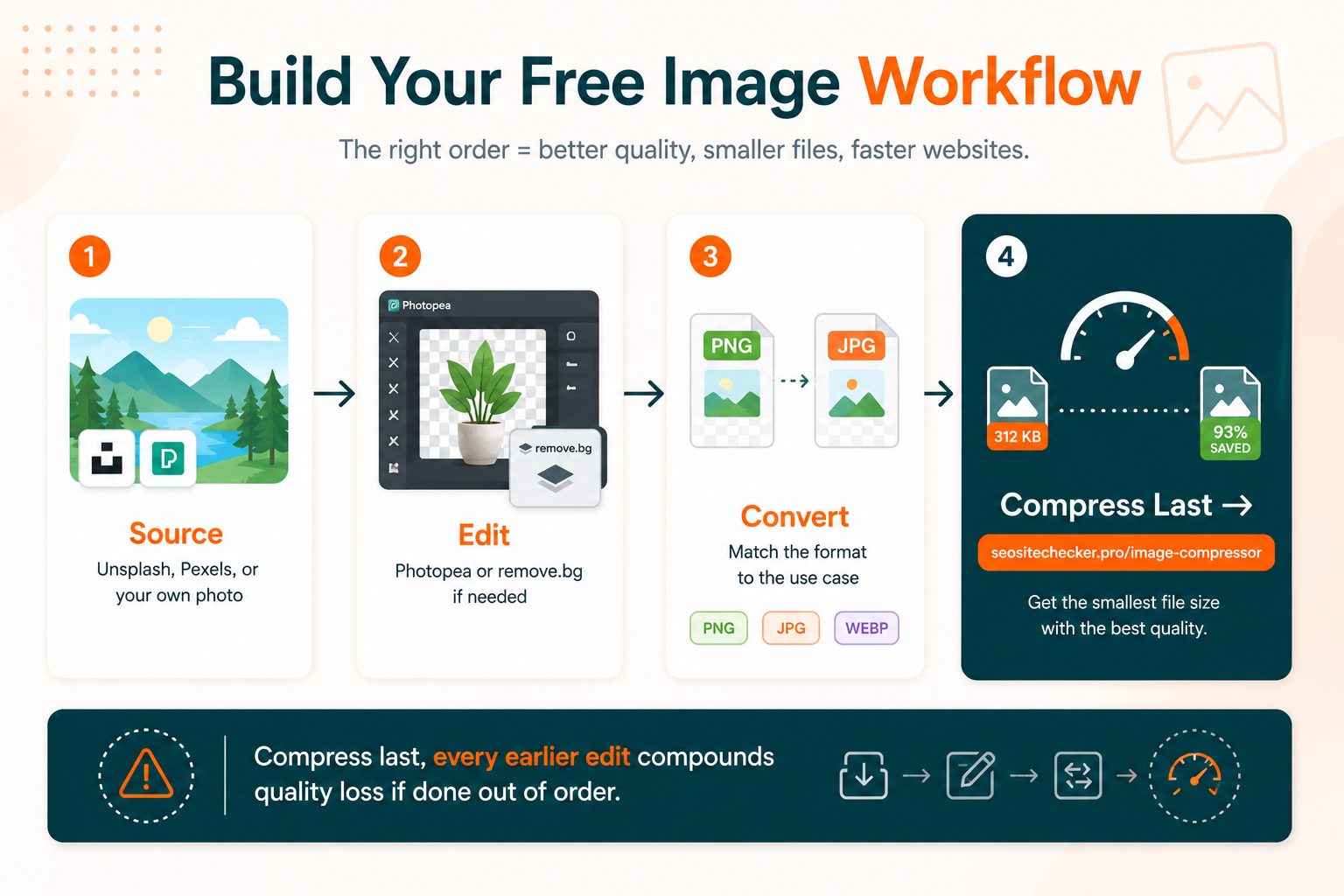
How to Build a Free Image Workflow (Putting These Tools Together)
For a new project asset, a sensible order looks like this: source or create the image first, using Unsplash or Pexels for stock photography or your own original work, edit if needed using Photopea or remove.bg, convert to the right format, then compress last using Squoosh or SEO Site Checker's Image Compressor. Doing compression last matters more than it might seem, since compressing before editing means every subsequent edit compounds quality loss on top of an already-compressed file.
For documentation and bug reports, the order simplifies further: screenshot, compress, share. Keeping that order small and consistent keeps files small without sacrificing readability for whoever's on the receiving end, whether that's a teammate, a client, or a support ticket queue.
This entire pipeline uses only free, mostly browser-based tools, and it takes just a few minutes once it becomes a habit rather than something you have to relearn or rebuild from scratch on every new project. The value compounds the more consistently you actually follow it rather than reaching for whatever tool happens to be top of mind that day.
Quick Reference: Free Image Tools Cheat Sheet
| Tool | Category | Best For |
|---|---|---|
| Image Compressor | Compression | Reducing file size before deployment |
| Squoosh | Compression | Manual, fine-tuned compression control |
| PNG to JPG Converter | Conversion | Switching formats without quality loss |
| Photopea | Editing | Full editing without installing software |
| remove.bg | Background Removal | Clean, transparent cutouts in one click |
| Website Screenshot Generator | Screenshots | Full-page and full-screen captures |
| Unsplash / Pexels | Stock Photos | Free, high-resolution photography |
| Coolors | Color | Fast, cohesive color palette generation |
Final Thoughts
A small, connected set of free tools, one for compression, one for conversion, one for editing, one for screenshots, covers the vast majority of real image work in a dev or design workflow. None of it requires a subscription, and most of it takes seconds once you know exactly where to reach.
The goal was never collecting every tool available. It's having one reliable option per task and actually using it consistently, so image work stops being a recurring annoyance and becomes a five-minute habit baked into how you already work.
SEO Site Checker's free image tools are a fast starting point for the compression, conversion, and screenshot portions of that stack.
Frequently Asked Questions
Frequently Asked Questions (FAQs) is a list of common questions and answers provided to quickly address common concerns or inquiries.
Are free image tools safe to use for client or commercial work?
Yes, as long as you check each tool's specific licensing terms. Most browser-based tools and stock photo sites explicitly allow commercial use at no cost.
Do free image compressors actually reduce quality?
Good compressors use smart algorithms that reduce file size with minimal visible quality loss, though extremely aggressive compression can introduce noticeable artifacts.
What's the best free alternative to Photoshop?
Photopea is the closest free equivalent, offering a similar interface, layer support, and native PSD file compatibility directly in your browser.
Should I use WebP or JPG for my website images?
WebP generally produces smaller files at similar quality and is now supported by all major browsers, making it the better default choice for most modern websites.
Do I need to credit stock photos from Unsplash or Pexels?
No, attribution isn't legally required by either platform's license, though crediting the photographer is appreciated and considered good practice.
What's the difference between an image compressor and an image converter?
A compressor reduces file size while keeping the same format. A converter changes the file format itself, such as turning a PNG into a JPG.
Can I remove image backgrounds for free without Photoshop?
Yes, tools like remove.bg use AI to automatically detect and remove backgrounds in seconds, no editing software or design skill required.
How much do unoptimized images actually slow down a website?
Significantly. Images are often a page's single largest asset, and oversized ones directly hurt Largest Contentful Paint, a core measure of page loading performance.