JPG to PDF Free: Convert Images Without Losing Quality
 Kendall Chris
Sep 12 /
1 month ago
Kendall Chris
Sep 12 /
1 month ago

Either you have a set of photos that need to be one document, or someone asked for a PDF and all you have is images.
Below you will find what each setting in the JPG to PDF converter does to the finished file, why a phone photo may be refused at the upload box, how the page size you pick decides both the sharpness and the file size, and the one thing conversion does not do that people consistently assume it does.
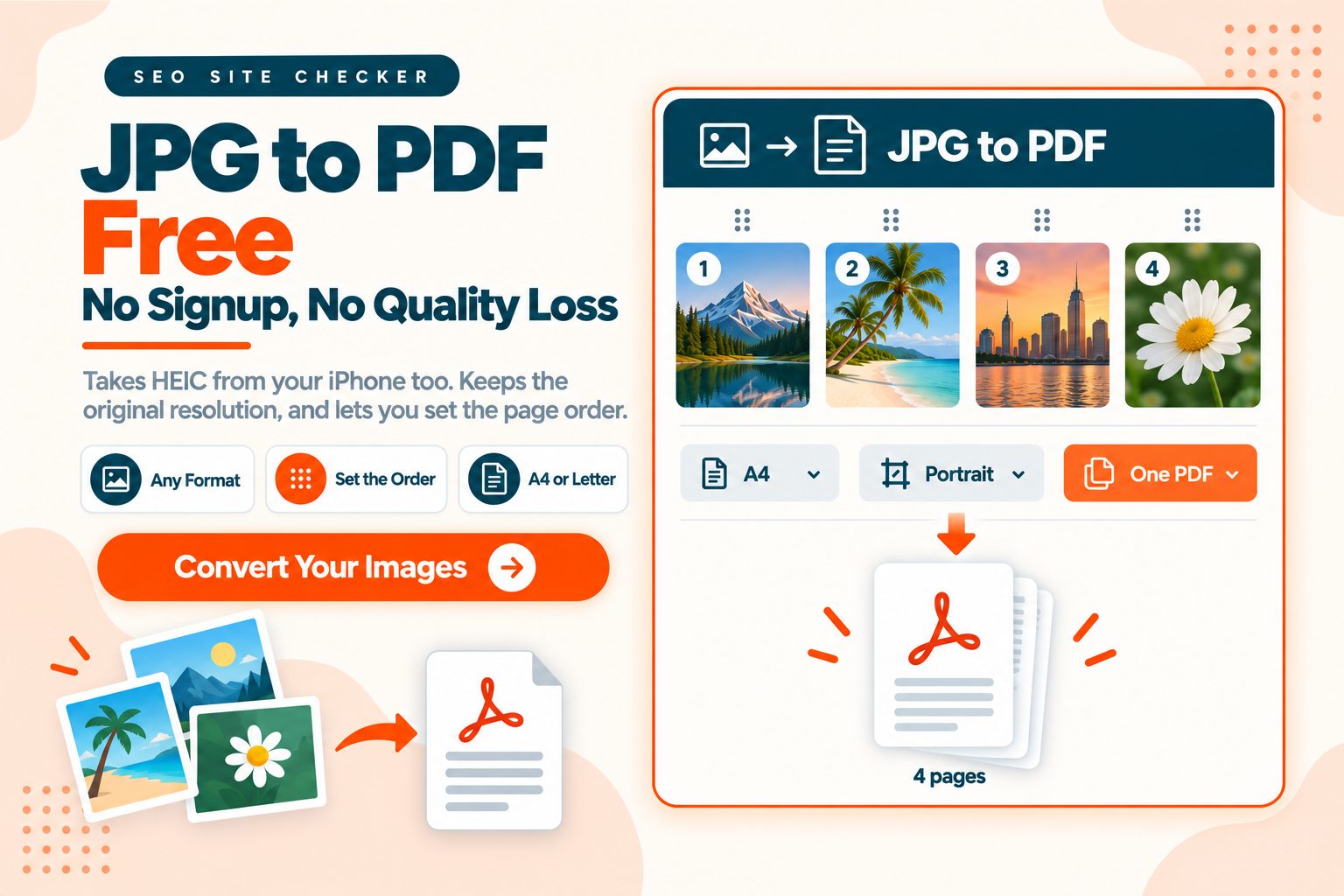
How to Convert JPG to PDF Online Free
Four steps:
- Add your .jpg images, in the order you want the pages
- Choose your settings
- Click Convert to PDF
- Download the PDF
Four settings change what comes out, and their labels say little about the result, so here is what each one does.
One PDF or separate PDFs. The box labeled Merge all images in one PDF file is checked by default, so ten images become a single ten-page document. Uncheck it and you get ten individual PDFs, each named after its image, which the result page lists one by one with a Download All button. Those are different jobs. A contract bundle wants one file; a set of product shots for a supplier probably wants ten.
Page size. Fit, A4 or US Letter. Fit makes each page exactly as large as its picture. A4 is standard outside North America, Letter inside it, and the difference matters if the document gets printed. The page size also decides how sharp the picture stays, which a later section covers.
Orientation. Automatic, Portrait or Landscape. Leave it on Automatic unless you want every page the same shape, because a picture on a page of the wrong shape is the most visible problem on this list.
Margin. No Margin, Small Margin or Big Margin. It only applies to A4 and Letter pages.
Limits and accepted files. Without an account you can add up to 10 images per upload, each up to 60MB. With a free account the limits rise to 100 images of up to 500MB each. The upload box takes files whose names end in .jpg. It refuses .jpeg, .png and .heic files with the message File type is not supported, so a .jpeg file needs renaming to .jpg first. New images join the end of the list, and every thumbnail has a delete button.
Your Phone Photos Might Not Be JPGs
Worth checking first, because for a lot of people this is the actual problem.
iPhones shoot in HEIC by default, not JPG, and some Android phones can save HEIC too. So someone searching for a JPG to PDF converter frequently does not have a single JPG, and only finds out when the tool rejects the file.
Our converter does not take HEIC. As covered above, the upload box takes .jpg files only, so a file whose name ends in .heic is turned away with the message File type is not supported. Two routes:
Save a JPG copy of the photo. A photo app or an image editor can save or export a copy as JPG, and that copy goes straight into the converter.
Or change the capture setting. On iPhone, open Settings, then Camera, then Formats, and choose Most Compatible. Your phone will capture JPG from that point on. Worth doing if you convert photos regularly, though it does not change photos you already took. Apple's guidance on iPhone photo formats covers the trade-off.
One thing worth knowing about that trade-off. HEIC files are usually much smaller than an equivalent JPG at similar visual quality, which is exactly why Apple defaults to it. A JPG copy of the same photo is therefore bigger, which is worth remembering when you convert a whole batch.
A Photo of a Document Is Not a Scan
This is the assumption that causes the most trouble.
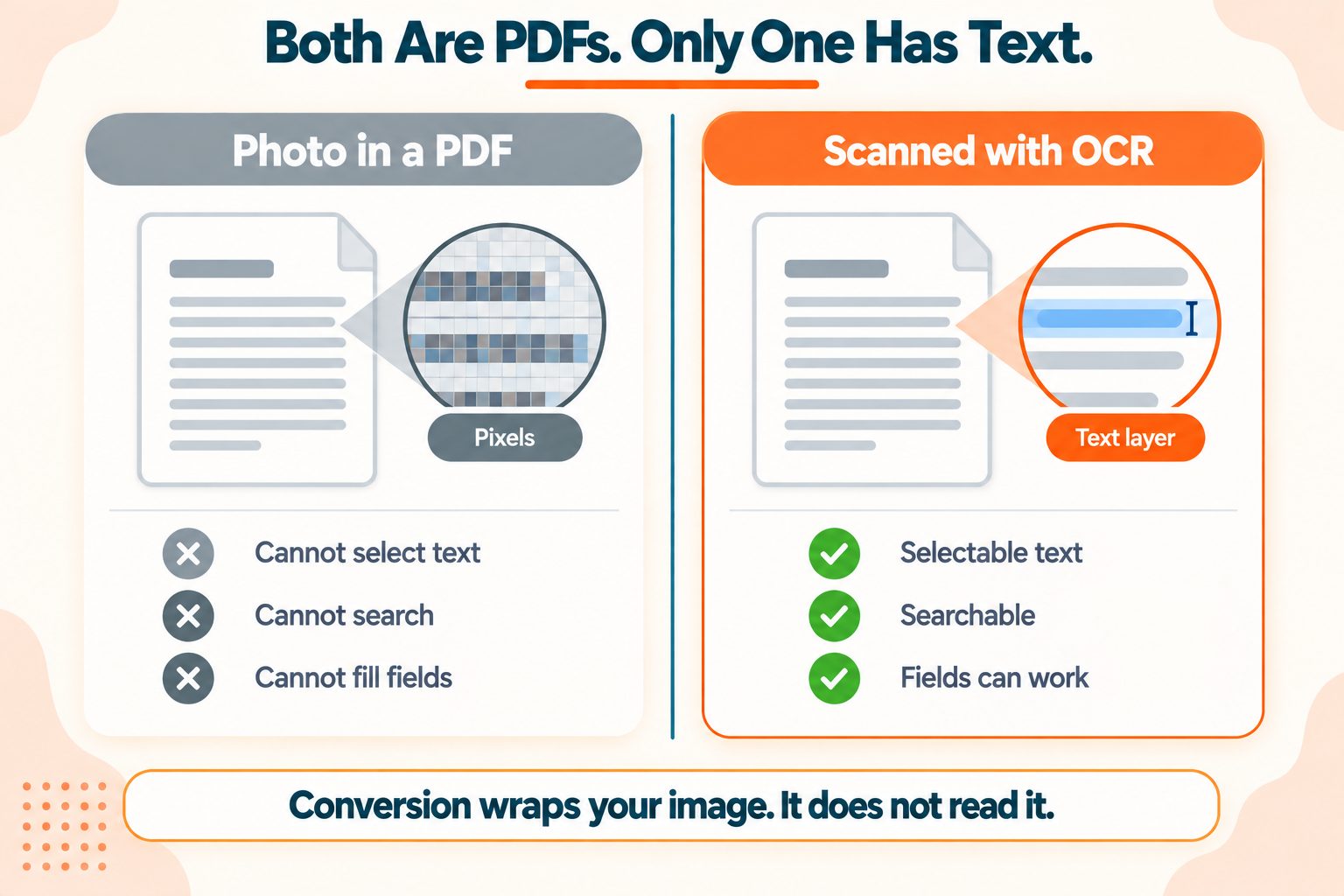
Here is the situation. You photograph a form, convert it to PDF, and email it. The recipient replies asking you to send a proper scan, because they cannot select the text, cannot search it, and cannot fill in the fields.
The reason is simple once stated. Conversion wraps your image inside a PDF container. It does not read the image.
The resulting PDF contains a picture of text. To a computer, a picture of text is just a picture. There are no words in it, only pixels that happen to look like words to a human eye.
What people expect, and what it actually requires:
Searchable or selectable text needs OCR, optical character recognition. That is a separate process which reads the image, recognizes the characters, and adds an invisible text layer behind the picture. Conversion does not do it and cannot. If you already have the PDF, the OCR PDF tool adds that text layer.
Fillable form fields need the PDF to have form fields defined in it. A photograph has never had them, so there is nothing to fill.
A small file size needs fewer pixels or heavier compression. Conversion does not pick a small size for you: Fit keeps every pixel, so the file stays big, while A4 and Letter shrink the picture to the page, which makes a small file at the cost of sharpness.
The practical guidance: if the recipient only needs to read it, a photo in a PDF is fine and this is the right tool, as long as the text stays readable at the size they will view it, which is a reason to choose Fit for small print. If they need to search it, copy from it or fill it in, you need OCR or the original document. The PDF Association has more on what a PDF can and cannot contain, and the Library of Congress format description for PDF is a readable explanation of how the format stores content.
Worth adding: phone scanner apps exist for exactly this, and many of them run OCR. If someone has asked you for a scan twice, that is the tool they mean.
Page Size and Orientation
The settings, explained rather than listed.
Page size. Fit makes each page exactly as large as its picture, one pixel to one point, so nothing is resized. A4 measures 210 by 297mm and is standard across Europe, Asia and most of the world. Letter measures 8.5 by 11 inches and is standard in the US and Canada. Both put the picture on a white page of that size, centered and scaled to fit. If the document will be printed, or if it needs to match an official template, pick the paper your recipient uses.
What the page size does to sharpness. A4 and Letter pages keep their normal size (842 by 595 points for a landscape A4 page, 792 by 612 for landscape Letter), but the picture is drawn on them at up to 200 pixels per inch, which is sharp enough for print. Every picture is resized to fit inside the page, so a 4000 by 3000 pixel photo is reduced to about 2,200 by 1,650 pixels on a landscape A4 page with no margin, with a thin white strip on each side, and a little smaller with a margin. A set of pictures shares one pixel density, set by the sharpest picture. A picture smaller than the page goes the other way and is enlarged until it reaches the page edge: a 300 by 200 pixel image on A4 was stretched to almost three times its width in our test, so it looks soft. Fit keeps every pixel, and in the same kind of test a 4000 by 3000 pixel photo made a page of 4000 by 3000 points, about 55 by 42 inches, which a PDF viewer scales down to your window.
Orientation. This one produces visible problems rather than subtle ones.
A landscape photo placed on a portrait A4 or Letter page is shrunk until its width fits, which leaves white bands above and below. This converter never crops: the whole picture always stays on the page.
The rule: match orientation to your images. Automatic does that for you. With A4 or Letter, a picture wider than it is tall gets a landscape page and every other picture gets a portrait page, so a mixed set comes out right, as it did in our test with two landscape pictures and one portrait picture. Choose Portrait or Landscape only when you want every page the same shape, and accept the white bands on the pictures that do not match. With Fit, forcing Portrait or Landscape rotates a picture by 90 degrees when it points the other way.
Sideways pages. Many phones store a portrait photo as a landscape picture plus a flag that tells viewers to turn it. The converter reads that flag, so a portrait phone photo comes out upright: in our test a JPEG stored that way gave a portrait page with the picture the right way up. A picture that was saved sideways with no flag is converted as it is. If a page comes out sideways, rotate the original in a photo editor and save a copy, or turn the finished file with the Rotate PDF tool, which can rotate all pages or only the ones you list by 90, 180 or 270 degrees.
Margins. No Margin fills the page edge to edge, which looks better on screen. Small Margin leaves half an inch and Big Margin leaves a full inch on every side. A margin is worth having if the document will be printed, because most home and office printers cannot print to the paper edge and will crop whatever falls outside their printable area. Margins only apply to A4 and Letter, because with Fit the page is the picture and there is nothing to pad.
How Big the PDF Gets and How Sharp It Looks
Two things decide this, and neither is obvious from the buttons.
Every picture is saved again. The converter does not copy your JPG into the PDF untouched. It rebuilds each page and stores the picture as a new JPEG at quality 90, a high setting. For most photos that is hard to tell from the original, but it is not a byte-for-byte copy, and a very sharp original loses a little fine detail.
The page size sets the pixel count. Fit keeps every pixel, so the PDF stays heavy and every extra photo adds its full weight. A4 and Letter shrink each picture to the page, so the PDF stays small and each page gets softer. In our test, a 2.2MB image of 4000 by 3000 pixels made a 1.1MB PDF with Fit and a 120KB PDF with A4. Choose Fit when small text or fine detail must stay readable, and A4 or Letter when a small, tidy file matters more.
Twenty full-size phone photos converted with Fit can still produce a file too big for an email attachment or an upload form, so check the size on the result page before you send it.
Two ways to shrink it, and the order genuinely matters:
Resize the images first, before converting. With Fit the PDF follows the pixel count, so shrinking 4000 pixel photos to about 1600 pixels wide leaves roughly a sixth of the pixels. In our test that took the Fit PDF from 1.1MB to 0.3MB. Resize the images, then convert. Compressing them first helps far less here, because the converter saves every picture again at its own quality setting: the same image saved at a lower quality first, a 0.8MB file, still made a 1.0MB PDF.
Or compress the PDF afterwards if you have already converted. Compressing the finished PDF works, and it works on the whole document at one setting rather than per image.
Getting the Order Right
The same trap as merging PDFs, and it catches people in exactly the same way.
The order the images were added is the order of the pages. Not alphabetical, not by the date the photo was taken. In our test, three images came out as pages one, two and three, in the order they were added. If you select many files at once, your browser or phone hands them over in whatever order it decides, and that is frequently not what you expected. Every new image joins the end of the list, so to move one, delete it with the button on its thumbnail and add it again after the others.
Two habits fix it permanently. Look through the thumbnails before you convert and page through the finished PDF before you send it. And if you do this regularly, name your files with a leading number, so 01-front.jpg and 02-back.jpg make the sequence obvious in the file picker and in the list.
There is a photo-specific version of this worth knowing. Filenames like IMG_4471 sort correctly by number most of the time, but a set spanning a counter rollover, or photos from two different devices, will not. If the order matters, check it.
The same principle applies when merging PDFs, where the consequences are usually larger because the documents are longer.
What Happens to Your Images
Here are the facts for this converter. The images are uploaded to our server and converted there, not in your browser. Each uploaded image is deleted as soon as the conversion job ends, whether it worked or failed. The finished PDF stays available to download for about two hours, at a link that contains a random identifier, and is then removed automatically.
Whichever converter you use, three checks are worth making: where the processing happens, how long the result is kept, and whether your workplace has rules about the documents you are handling.
One consideration specific to images that does not apply to other file types. Photos carry EXIF metadata, which can include the GPS location where the photo was taken, the device that took it, and the exact timestamp. This converter does not copy it into the PDF. In our test, a JPEG carrying GPS coordinates, a camera make and model, and a capture timestamp produced a PDF with none of them, because each picture is rebuilt as a new JPEG without the EXIF block. The PDF's own properties name this site as the producer and carry no author. Your original files are untouched, so they keep their EXIF data.
For a photo of a receipt that hardly matters. For a photo taken at your home address that you are sending to someone you do not know, the location data stays out of the PDF, although anything you can see in the picture itself, such as a street sign or a house number, still goes with it.
Wrapping Up
Three things worth remembering.
Check the order before you convert. The order the images were added becomes the page order, and browsers do not always hand files over the way you expect.
Pick the page size for the job. Fit keeps every pixel and makes a bigger file, while A4 and Letter shrink each picture to the page, which makes a small file that gets soft when you zoom in.
A photo of a document is still a photo. If someone needs to search it, copy from it or fill it in, conversion is not what they are asking for. They want OCR.
Frequently Asked Questions
Frequently Asked Questions (FAQs) is a list of common questions and answers provided to quickly address common concerns or inquiries.
How do I convert JPG to PDF for free?
Add your .jpg images in the order you want the pages, choose the page size, orientation and margin, click Convert to PDF, then download the result. No account is needed for up to 10 images of 60MB each.
How do I combine multiple JPGs into one PDF?
Add them in the order you want the pages and leave the box labeled Merge all images in one PDF file checked, which it is by default. You get one PDF with one page per image. Without an account you can add up to 10 images at a time, and with a free account up to 100.
Does converting JPG to PDF reduce quality?
Slightly, and it depends on the page size. Each picture is saved again as a JPEG at quality 90. With Fit the pixel size does not change, so the result looks like the original at normal size. With A4 or Letter the picture is scaled to the page at up to 200 pixels per inch, which stays sharp on screen and in print as long as the original has enough pixels. Choose Fit when you want every original pixel.
Can I convert HEIC photos to PDF?
Not directly. The upload box accepts files whose names end in .jpg and turns a .heic file away with the message File type is not supported. Save a JPG copy of the photo first, or set your iPhone to Most Compatible under Settings, Camera, Formats so new photos are captured as JPG.
Why is my PDF so large after converting?
Because Fit keeps every pixel of each picture, so a set of full-size phone photos adds up quickly. A4 and Letter shrink each picture to the page and give a much smaller file: in our test, one 4000 by 3000 pixel image made a 1.1MB PDF with Fit and a 120KB PDF with A4. Resize the images before converting, or compress the finished PDF.
How do I convert a photo to PDF on my phone?
Open the converter in your phone's browser, tap Select a File, choose your photos, set the options and tap Convert to PDF. Nothing needs installing. The upload box takes .jpg files, so a photo saved as HEIC may be turned away.
How do I make the text in my PDF searchable?
You need OCR, which is a separate process. Conversion stores a picture of the text, not the text itself, so nothing is searchable. The OCR PDF tool on this site adds a text layer to a PDF you already made.
Can I change the order of the images?
The pages follow the order the images were added to the list. To change it, delete an image with the button on its thumbnail and add it again, which puts it at the end. Numbering your filenames makes the sequence obvious, and it is worth paging through the finished PDF before you send it.
What page size should I choose?
Fit gives every picture a page of its own pixel size, A4 suits most of the world and US Letter suits the US and Canada. For a document that will be printed, match the paper your recipient uses.
What happens to my images when I convert them?
They are uploaded to our server and converted there. Each uploaded image is deleted as soon as the conversion job ends, and the finished PDF is removed automatically after about two hours. The PDF does not carry the EXIF data of your photos, such as GPS location or camera details.