
You have four documents and someone needs one. That is usually the whole reason anybody merges a PDF.
Merging itself is the quick part. What follows below is the part that actually causes trouble: getting the pages in the right order, handling scanned double-sided pages, and knowing what a merge quietly drops, such as bookmarks, internal links and signatures.
How to Merge PDF Files Online for Free
Four steps:
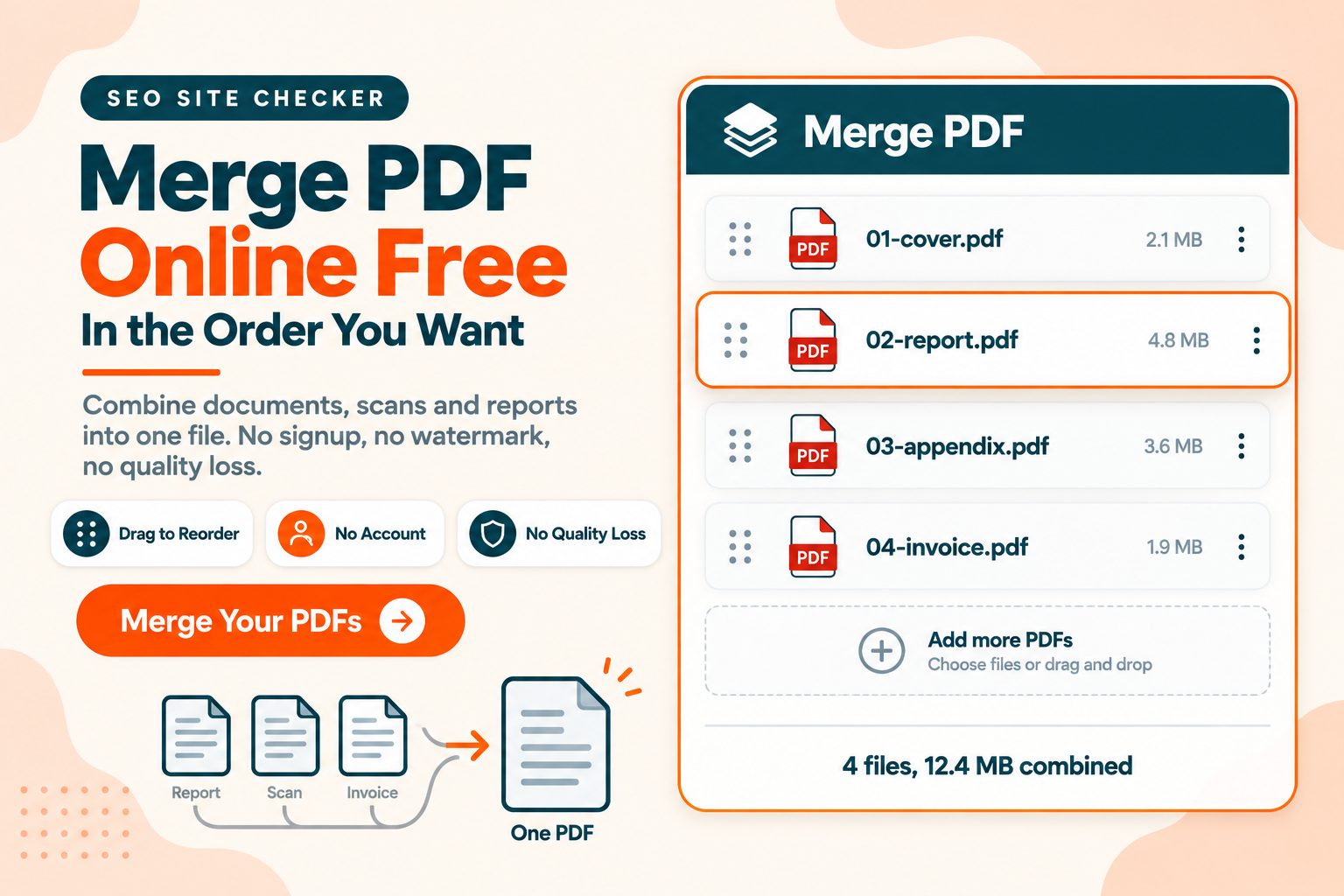
- Add your PDF files by selecting them or dropping them on the page
- Drag the file cards into the order you want
- Click Merge PDF
- Download the combined file
The one thing worth knowing before you start: the order of the cards on screen is the order in the output. Each file appears as a card showing its name and a small number, and the cards read left to right, then down. That is not alphabetical order, and not the order the files sit in your folder. If you select several files at once, each card appears as soon as its file has loaded, so they can show up in a different order than you picked them.
Check the sequence before you merge rather than after. Re-merging is not difficult, but noticing the problem three days later when someone else opens the file is.
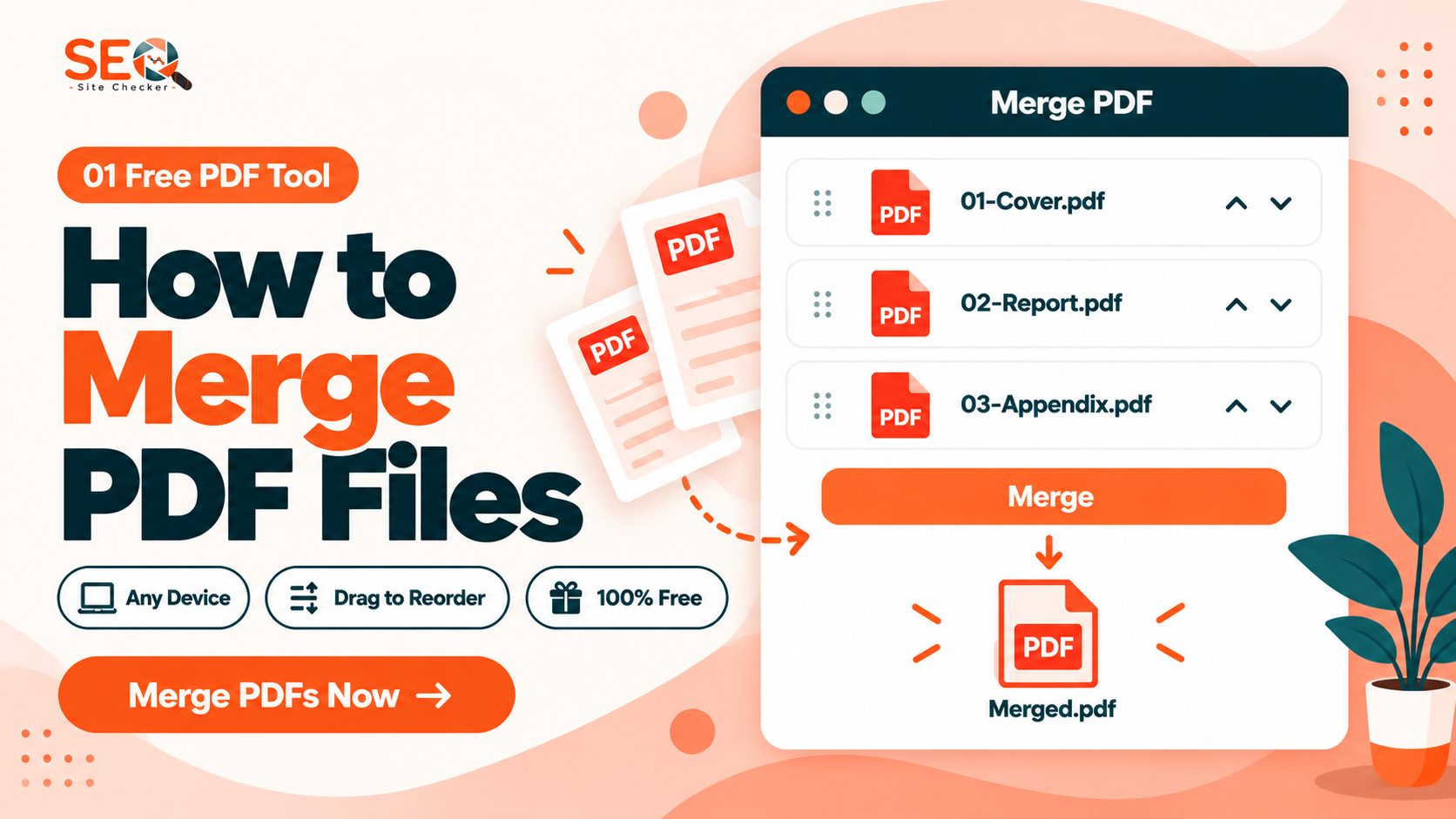
One habit that makes the check faster: if you merge the same kind of set regularly, name your files with a leading number. 01-cover.pdf, 02-report.pdf, 03-appendix.pdf. The numbers stay visible on the cards even when a long name is cut short, so a wrong sequence is easy to spot and fix.
Limits. As a guest you can add up to 10 files per merge, each up to 60 MB. With a free account that rises to 20 files of up to 500 MB each. Merge PDF always takes every page of every file, so if you only need some pages from a file, pull them out first with Extract PDF Pages.
Good to know. You reorder by dragging a card; there are no up and down buttons. If dragging is awkward on your device, add the files one at a time in the order you want them, because each new card lands at the end. A card you added by mistake shows a delete button when you point at it, and Add More Files lets you keep building the batch. If one of your PDFs is password protected, the page asks for its password when you add it. The merged file comes out without a password, and it downloads as Merge PDF.pdf, so rename it before you send it on.
Getting the Page Order Right
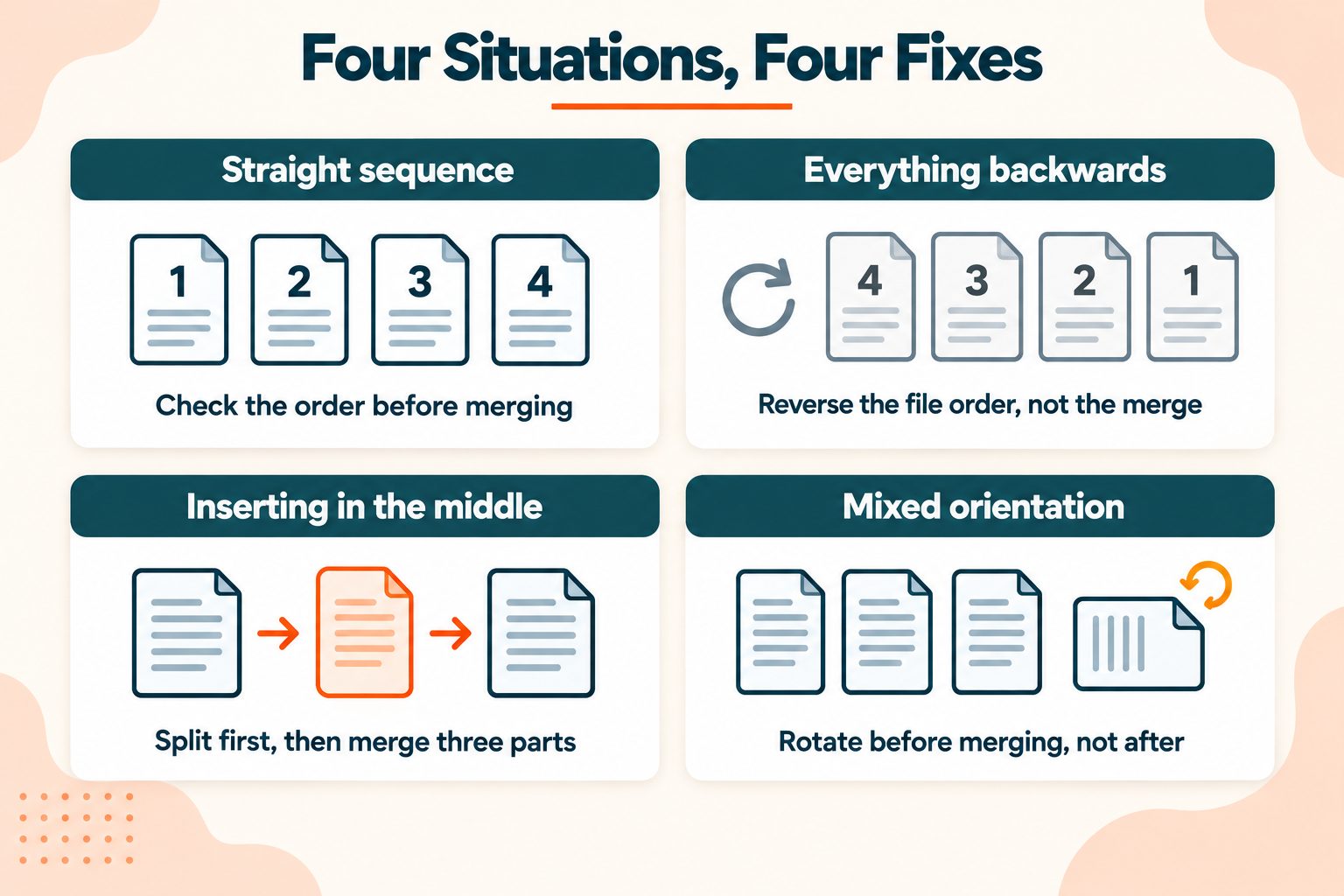
Four situations come up repeatedly, and only the first is simple.
A straight sequence. Files combine in the order you arrange them. Check before merging.
Everything is backwards. Some scanners output pages back to front, particularly sheet feeders. If your merged document reads from the end, the fix is at the scanner or by reversing the file order before you merge. Merging again in a different arrangement and hoping is slower than it looks.
Inserting into the middle. Merge PDF joins whole files end to end, so it cannot place one file inside another. Organize PDF can: upload both files, drag the pages of the second one in among the pages of the first, and download a single PDF. The other route is to split the original at the insertion point with Custom ranges (1-5,6-20 cuts a 20-page file after page 5), download the parts, and merge them in the order you want with the new file in between.
Mixed orientation. Merging does not fix rotation. A landscape page combined into a portrait document stays landscape, and it will still be sideways in the output. Rotate the pages first, then merge. Doing it the other way round means rotating pages inside a much larger file.
Merging a Double-Sided Scan
Plenty of people hit this one, and it is easy to get wrong.
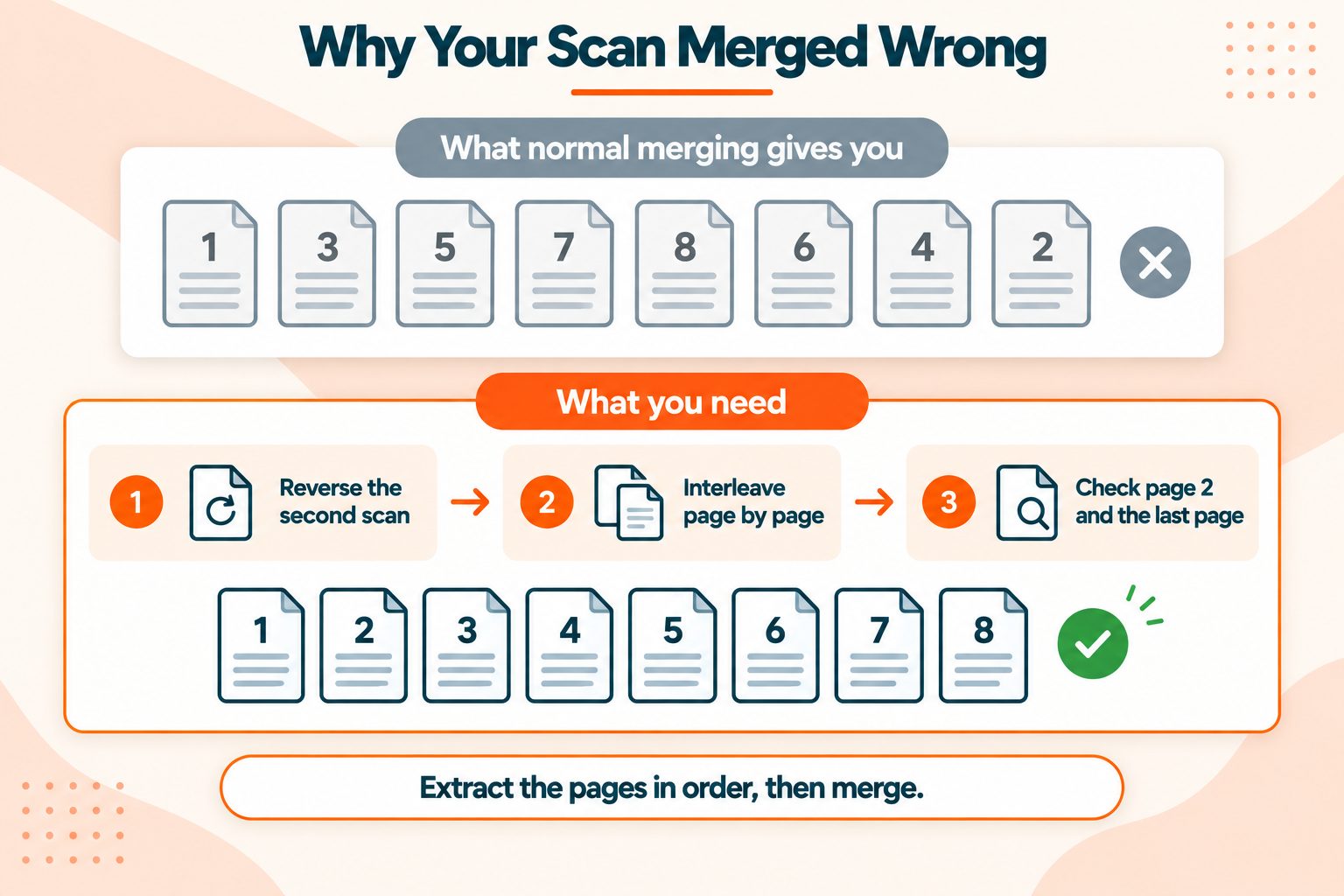
You have a stack of double-sided pages and a scanner with no duplex feature. You scan the whole stack and get pages 1, 3, 5, 7. You flip the stack over and scan again, and you get pages 8, 6, 4, 2, because flipping reversed the order.
Now you have two files that need interleaving, not appending. Merge them normally and you get every odd page followed by every even page running backwards, which is worse than either file on its own.
The fix, in order:
- Reverse the second file so its even pages run forwards
- Interleave the two files, taking one page alternately from each
- Check page 2 and the last page. Errors show up there first, and if those two are right the middle almost always is
Desktop PDF software often has a dedicated feature for this, usually called mix or alternate merge, because single-sided scanners are so common.
Merge PDF does not have one. It joins whole files end to end and never mixes pages from different files, so merging the two scans gives you the odd-then-even result described above. The route that works here is Organize PDF. Upload both scans (two files at a time as a guest, five with a free account) and every page appears as its own thumbnail. Drag the pages into the final order: first page of the first scan, then the last page of the second scan, then the next page of the first scan, and so on. It writes a single PDF. Dragging page by page suits a short stack better than a long one.
What Merging Preserves and What It Breaks
The quality of your pages is preserved. That is true, and it is not the whole picture.
What survives intact:
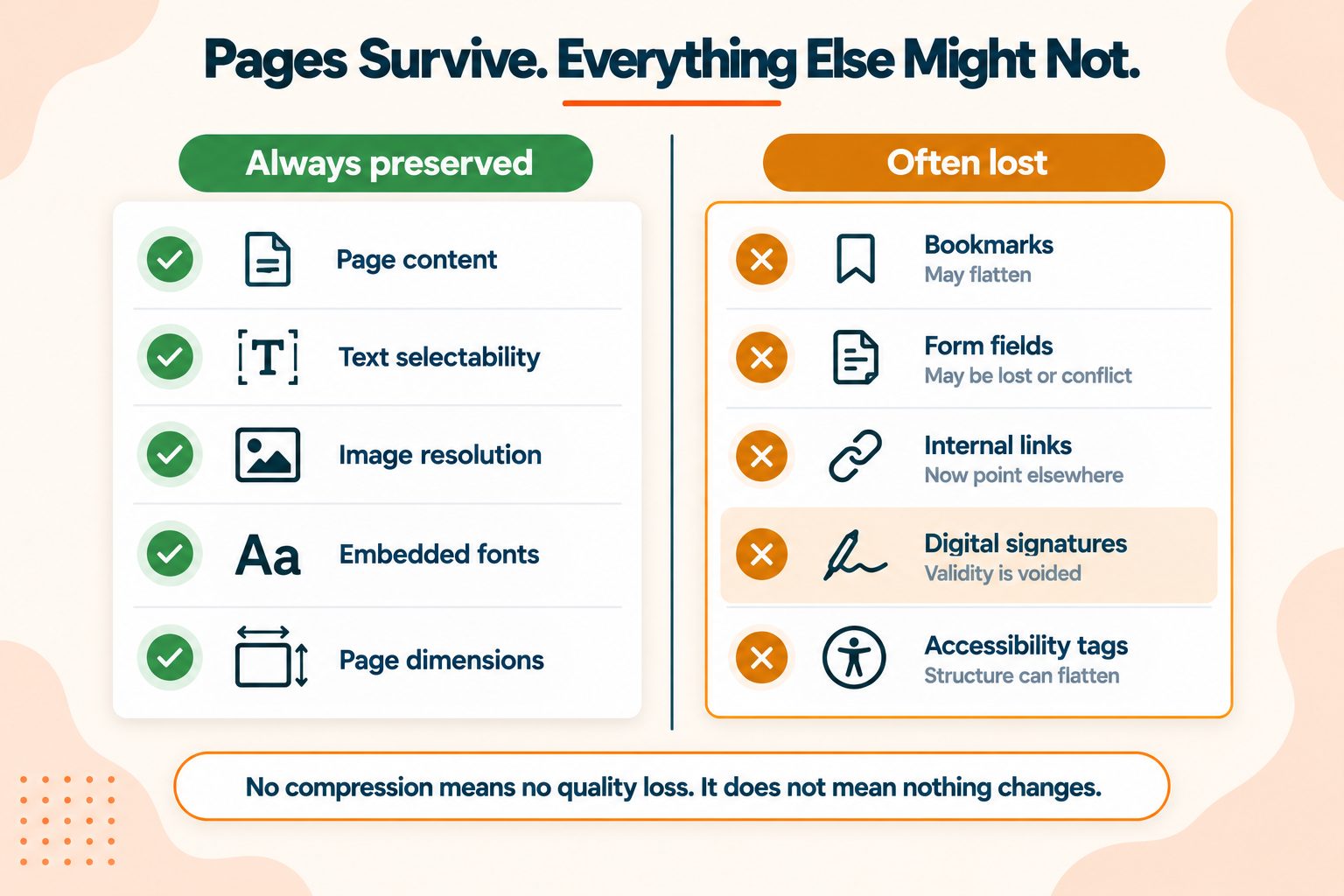
Page content, text and its selectability, image resolution, embedded fonts, and page dimensions. Merging does not redraw your text or re-encode your images, so there is genuinely no quality loss. The page you put in is the page you get out.
What often does not:
Bookmarks. This tool does not carry them across. The merged file has no bookmark panel at all, so a long report loses its clickable outline.
Form fields. Simple fillable fields carried across when we merged test forms, and two fields with the same name stayed separate instead of becoming linked. Forms that use scripts or calculations are the ones we have not tested, so fill in a field in the merged file before you rely on it.
Internal links. A link that jumps to another page inside one of your files, such as a contents entry, stops working in the merged file. The link is still there, but it no longer goes anywhere.
Digital signatures. A signed PDF loses signature validity when merged. The signature covered the original document, and the merged file is not that document. Keep the original signed file for anything that needs to be verified later.
Accessibility tags. The tagged structure that screen readers rely on is not carried into the merged file. If you have compliance obligations, plan to re-tag the result. The W3C's accessibility guidelines set out what tagged documents need to retain.
Document properties. The title and author stored in your source files are not copied into the merged file, so set them again if a portal or an archive reads them.
The working rule: for ordinary documents, merge freely. For forms, signed contracts, or anything that relies on bookmarks, internal links or accessibility tags, open the result and check before you send it. The PDF Association has more on how document structure works if you want the detail.
Your Merged File Will Be Larger
Obvious once stated, and it catches people out constantly.
Merging adds file sizes together. Four 3 MB documents produce roughly a 12 MB file. That is past most job portal limits, awkward for email, and rejected outright by some filing systems.
Merging does not compress, and that is deliberate. It preserves quality precisely because it leaves every page exactly as it found it.
So if the combined file is too large, that is a second step rather than a merging problem. Merge first, then compress the result. Compressing the merged file once beats compressing each source file separately: it is one upload instead of several, and you see the final size straight away.
Merging Other File Types
Merge PDF takes PDF files only. A Word document, a spreadsheet or a photo is not accepted, so it has to become a PDF first.
Two steps: convert, then merge. JPG to PDF handles photos saved as JPG files, Word to PDF handles .doc and .docx files, and Excel to PDF handles .xls and .xlsx spreadsheets. Once everything is a PDF, merge as normal.
A Note on Privacy
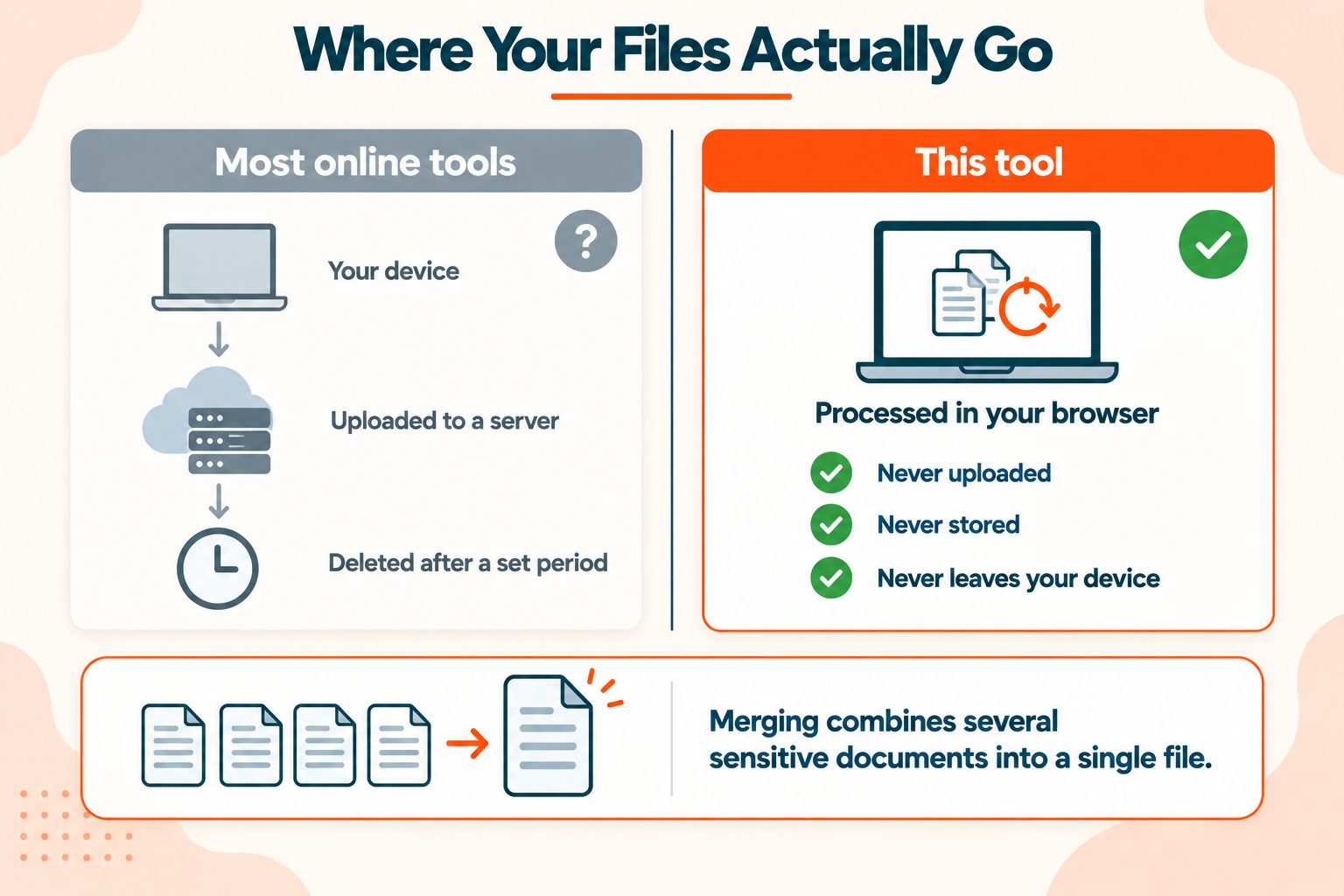
Worth a moment before you upload, because people often merge sensitive documents. Contracts, case files, invoices, medical records, tax paperwork. Combining several of those into one file and uploading it is a bigger exposure than uploading any one of them alone.
Three things worth checking with any web tool, with our answers to the first two:
- Whether processing happens in your browser or on a server. Here it happens on our server, so your files are uploaded.
- What the stated retention period is. Here the uploaded files are deleted as soon as the merge job ends, and the merged file is removed after about two hours.
- Whether your workplace has rules covering client documents
For genuinely confidential bundles, desktop software keeps everything on your own machine.
Wrapping Up
Two things to remember.
Check the order before merging, not after. It costs a few seconds and saves the version of this that involves someone else spotting it.
Check the output if the documents use bookmarks, internal links, forms or signatures. Page content always survives. Bookmarks, internal links and accessibility tags do not, and a signature stops validating.
Frequently Asked Questions
Frequently Asked Questions (FAQs) is a list of common questions and answers provided to quickly address common concerns or inquiries.
How do I merge PDF files for free?
Upload your files, drag them into the order you want, click merge, and download the result. No account needed.
How do I combine multiple PDFs into one?
Add all the files, arrange them in sequence, then merge. The order of the cards on screen becomes the order of the pages in the finished document.
Can I merge PDFs without installing any software?
Yes. Add your files on this page and the merge runs on our server, so there is nothing to install and no account to create.
What happens to my files when I merge PDFs here?
The merge runs on our server, so your files are uploaded. The uploaded copies are deleted as soon as the merge job ends, and the merged file is removed after about two hours. If your documents are covered by workplace rules, check them before you upload.
How do I change the order of PDFs when merging?
Drag the file cards into the order you want before you click Merge PDF. Starting each file name with a number, such as 01 and 02, makes the right sequence easy to see on the cards.
Does merging PDFs reduce quality?
No. Merging copies pages without recompressing them, so text stays sharp and images keep their original resolution.
Can I merge a PDF and a Word document?
Not in one step. Merge PDF takes PDF files only, so convert the Word file with Word to PDF first, then add the result to your merge. JPG to PDF does the same for photos.
Is there a limit to how many PDFs I can merge?
Yes. As a guest you can add up to 10 files per merge, each up to 60 MB. With a free account the limits rise to 20 files and 500 MB each.
How do I merge scanned double-sided pages?
Put the pages of the second scan in reverse order, then alternate pages from the two scans rather than appending one file to the other. Merge PDF only joins whole files, so use Organize PDF to drag the pages into place.
Will my form fields still work after merging?
Simple fillable fields carry across, and two fields with the same name stay separate rather than becoming linked. Forms that use scripts or calculations are untested, so open the merged file and fill in a field before relying on it.