PDF to Word Free: What Converts Cleanly and What Does Not
 Kendall Chris
Sep 13 /
1 month ago
Kendall Chris
Sep 13 /
1 month ago

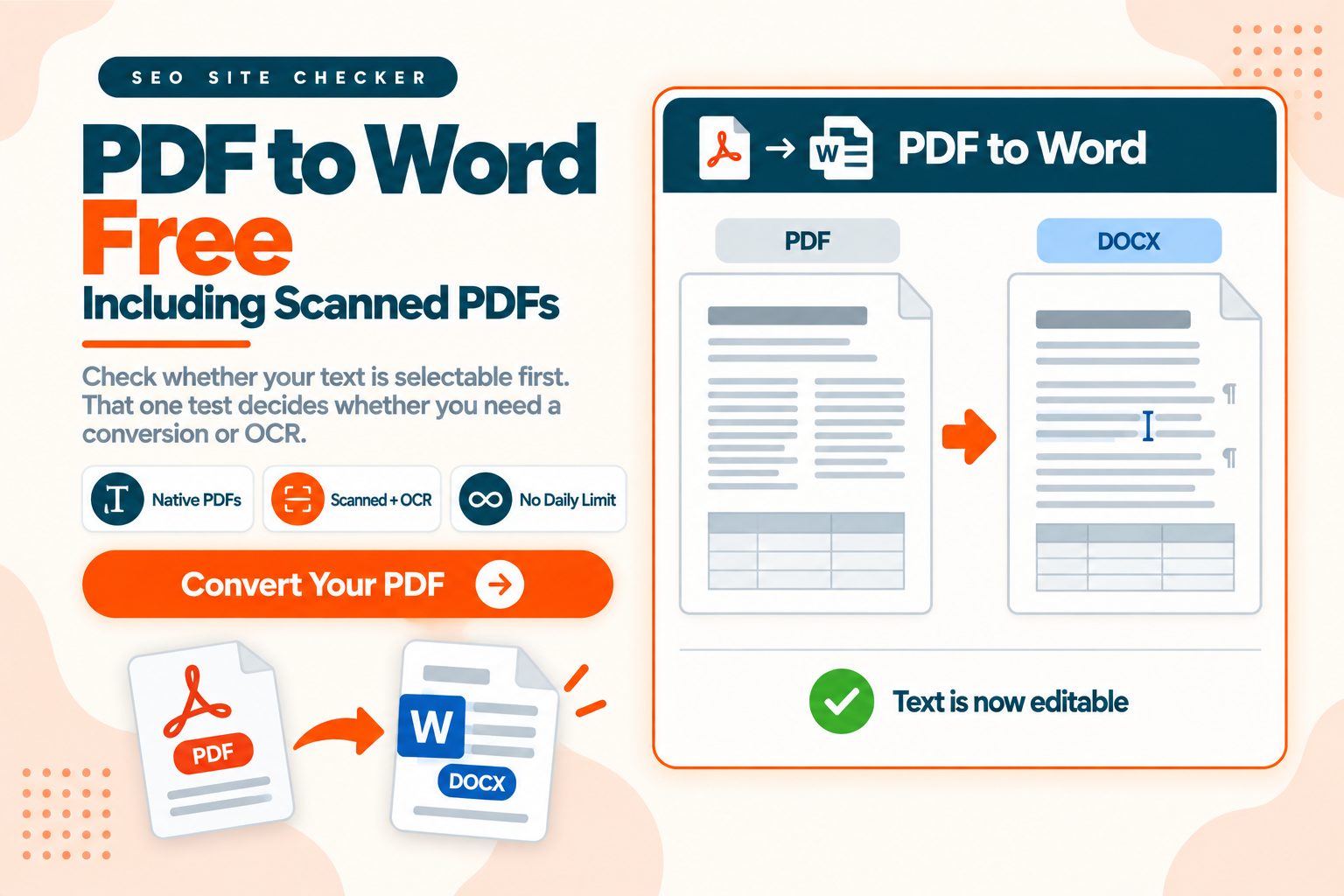
The conversion worked. The document looks wrong. That is why most people search this twice.
Here is the honest version before you start. Simple documents convert almost perfectly. Designed layouts need cleanup. And scanned PDFs are a different job entirely, with different tools and different accuracy.
In this guide: how to tell which kind of PDF you have, why formatting breaks the way it does, what survives and what does not, and two tools you may already have that can do the job without a converter.
How to Convert PDF to Word for Free
Three steps in our PDF to Word converter:
- Upload your PDF by dragging it onto the upload area or choosing it from your device
- Select Convert to Word
- Download the .docx file from the result table
Before you do any of that, one check determines everything downstream.
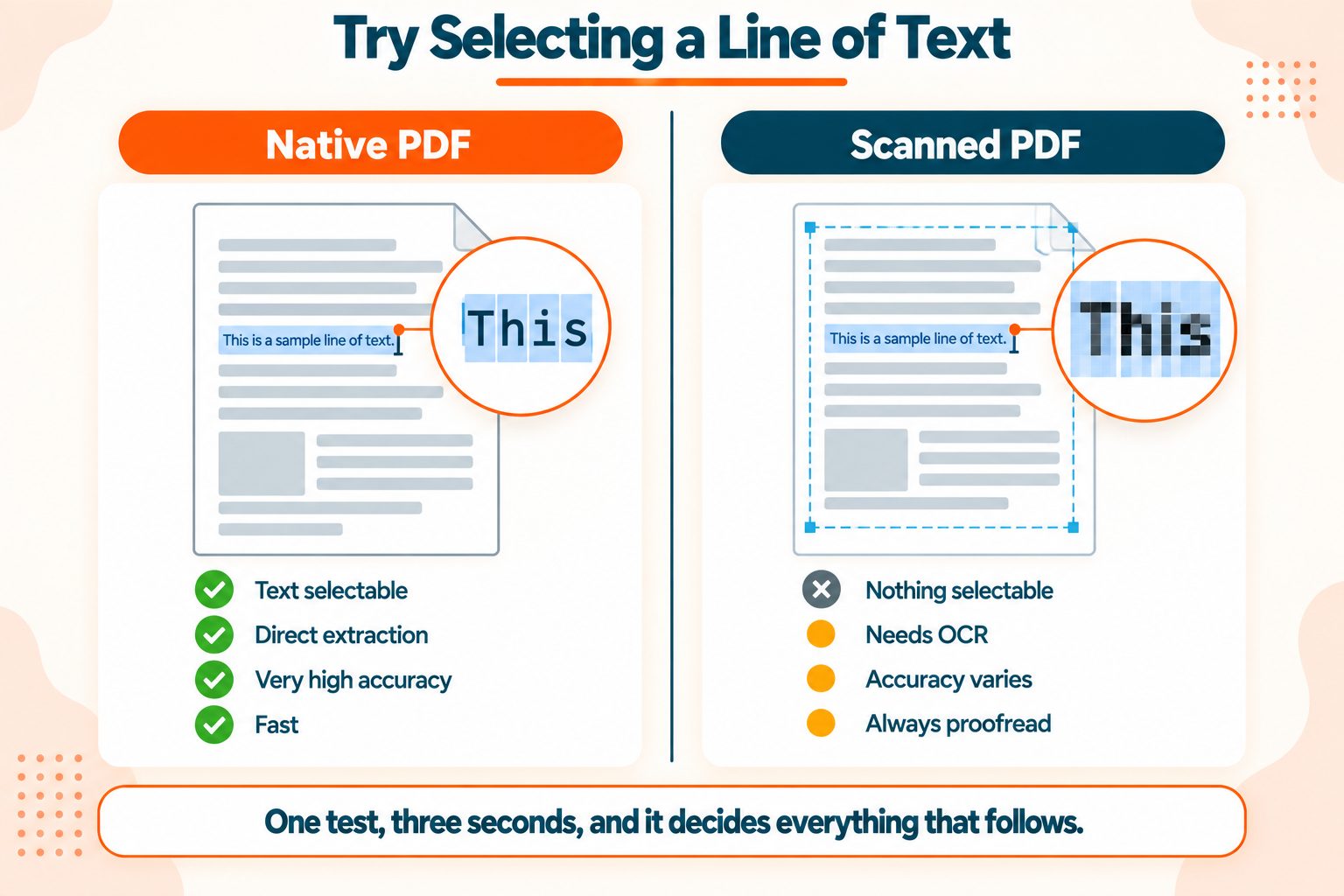
Open your PDF and try to select a line of text.
If your cursor highlights individual words, you have a native PDF and conversion will work well. If nothing highlights, or the entire page highlights as a single block, you have a scan and you need OCR.
Those are genuinely different jobs with different accuracy and different failure modes. Our converter makes that call for you. It checks the first five pages for a text layer, and if it finds little or none, it pauses and offers OCR before converting.
What you get: one .docx file for each PDF you upload, which opens in Word, Google Docs and other editors that read .docx. Without an account you can upload up to 2 PDFs at a time, up to 60 MB each. A free account raises that to 5 PDFs at a time, up to 500 MB each. There is no daily conversion limit and no watermark on the Word file. OCR for scanned PDFs is free with a free account and offers 14 language options.
Two Kinds of PDF, Two Different Jobs
Native PDFs were created digitally. Exported from Word, InDesign, a browser, or any program that generates them. The text exists as actual text inside the file, with font and position data attached to each character. A converter reads that directly, which is why accuracy is high.
Scanned PDFs are photographs of pages. The text is pixels arranged to look like letters. There is nothing to read, so the converter has to recognize characters visually before it can produce anything editable.
| Native PDF | Scanned PDF | |
|---|---|---|
| Text selectable | Yes | No |
| Conversion method | Direct extraction | OCR |
| Typical accuracy | Very high | Good to poor, depends on scan |
| Speed | Fast | Slower |
| Needs proofreading | Rarely | Always |
That last row matters more than the rest. OCR output always needs checking. It confuses visually similar characters, so a lowercase l becomes a 1 or a capital I. It struggles with unusual fonts. It fails on handwriting entirely.
On a clean typed scan, accuracy is high but never perfect. On a photograph taken at an angle in poor light, it can be close to unusable.
On our converter, the OCR route returns the recognized text as plain paragraphs, one for each printed line. Fonts, tables and pictures from the scanned page are not rebuilt, so plan to restyle the result. If you choose Continue without OCR instead, each page is placed into the Word file as an image, which looks right but cannot be edited.
If you are wondering why a scanned document has no text in it to begin with, converting images to PDF covers the other half of that: a photo of a page wraps the image without reading it, which is exactly what leaves you needing OCR later.
Why the Formatting Breaks
The usual warning is that formatting "may need adjustment." The reason behind that warning makes the whole thing predictable.
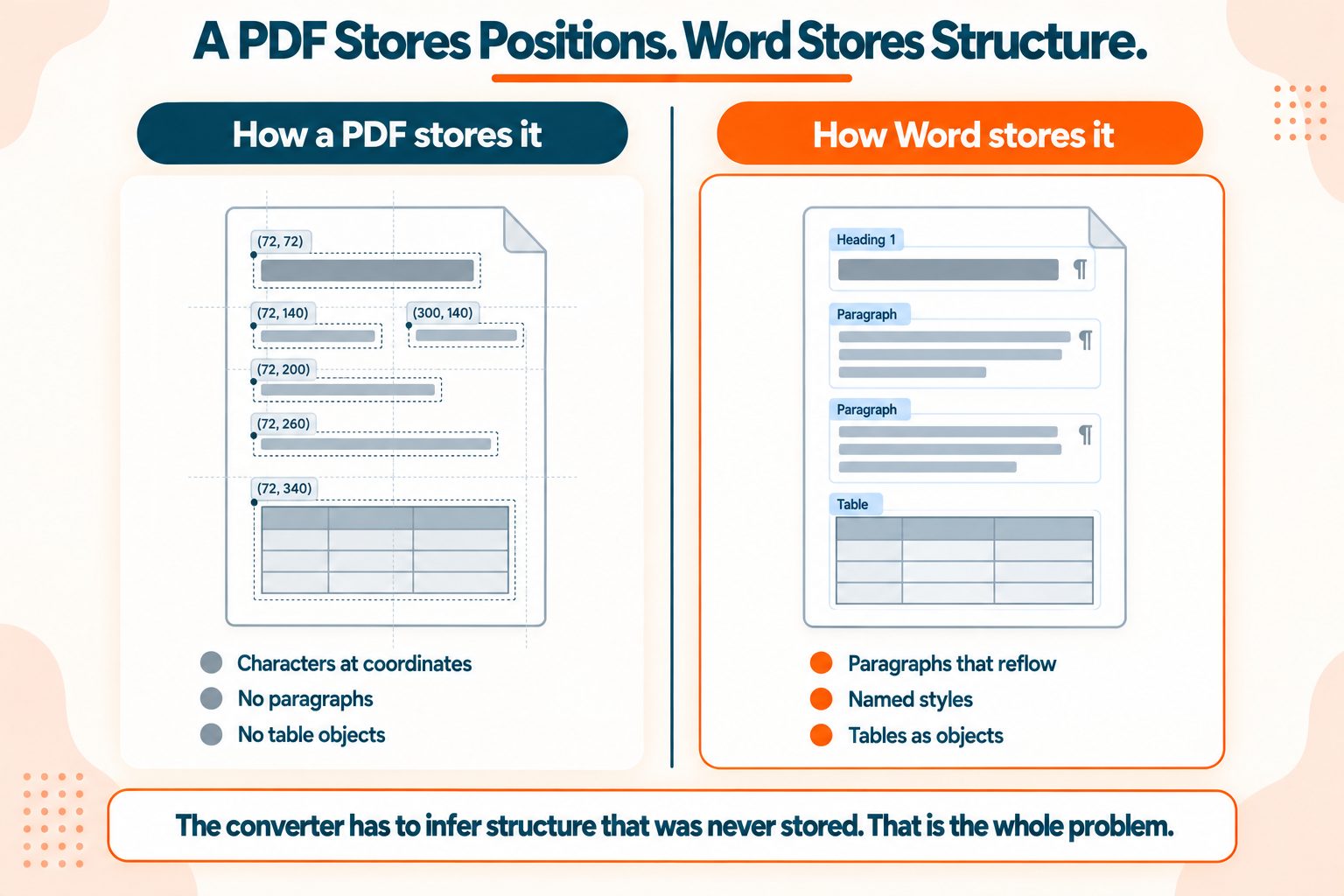
A PDF has no concept of a paragraph.
It stores positioned text runs. Characters, with a font, placed at specific coordinates on a page. There is no structure in the file saying "this is a heading" or "this paragraph continues into the next column." The PDF knows where every character sits and nothing about what any of it means.
Word is built on the opposite idea. Everything in it is flow: paragraphs that reflow when you type, styles, sections, tables as real objects with rows and cells.
So a converter has to infer structure that the file never recorded in the first place. It looks at spacing, font sizes, alignment and position, then makes an educated guess about what was a heading, what was a column, and what was a table.
That single fact explains every failure you will see:
Multi-column layouts get read in the wrong order. The converter has to guess whether text continues below or jumps across, and on a magazine-style layout it frequently guesses wrong.
Tables become text boxes or lose their borders, because a PDF may have drawn lines on a page rather than defined a table. The converter sees lines and text near each other and has to decide whether that is a table or a coincidence.
Headers and footers often appear as floating text boxes on every page, because the PDF repeats them per page rather than marking them as headers.
Custom fonts get substituted if the font is not installed on your machine, which shifts every line length.
Text boxes and shapes land approximately where they were rather than exactly.
The practical rule that follows: the more visually designed the original, the more cleanup you will do. A plain report converts near-perfectly. A brochure does not.
The PDF Association has more on how the format actually stores content, if you want the technical detail behind this.
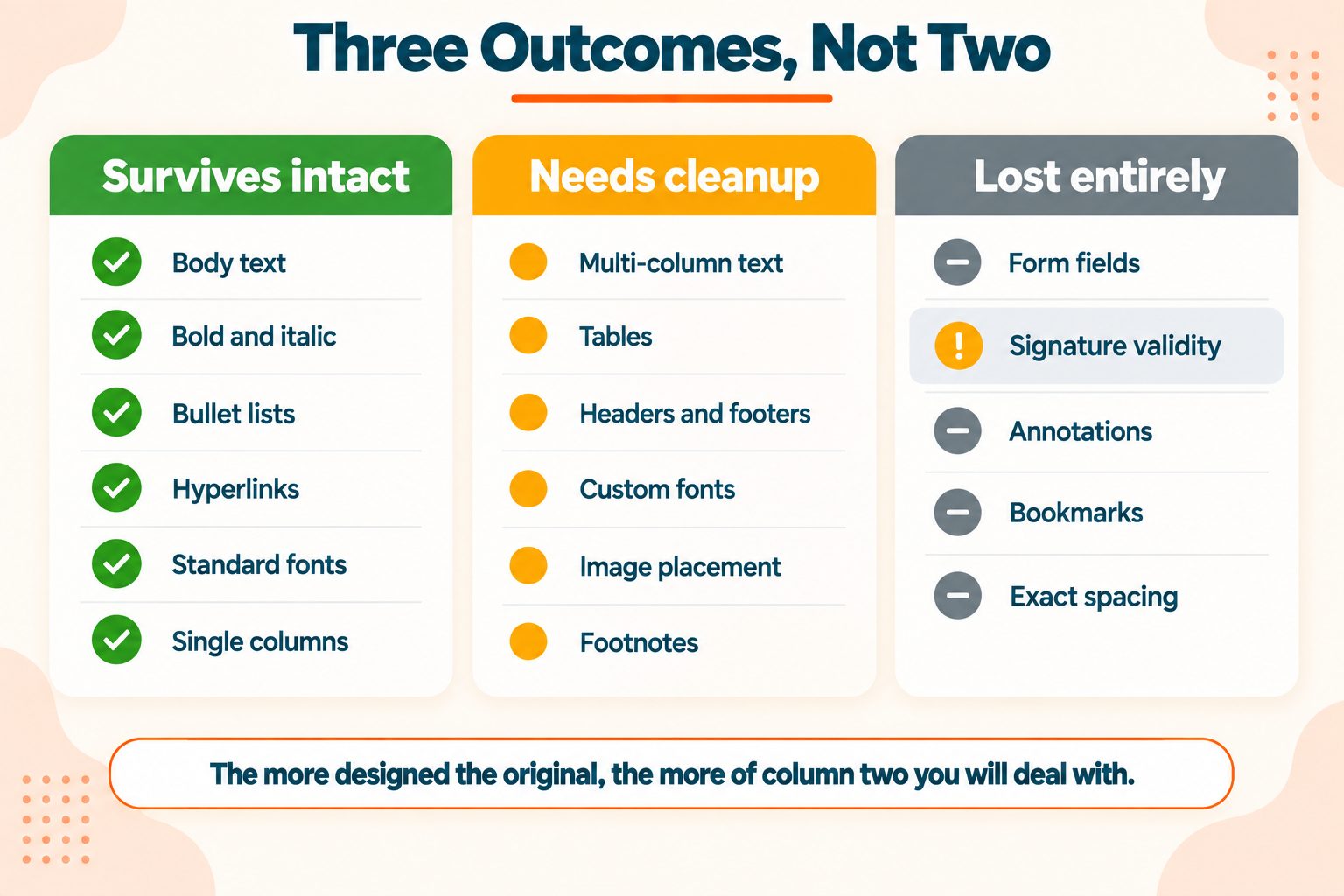
What Survives and What Breaks
Usually survives intact:
- Body text and paragraph breaks
- Bold, italic and underline
- Simple bullet and numbered lists
- Hyperlinks
- Standard fonts
- Single-column layouts
- Images, though not always positioned exactly
Usually needs cleanup:
- Multi-column text
- Tables
- Headers and footers
- Custom or embedded fonts
- Exact image placement
- Footnotes
- Anything that breaks across a page
Usually lost entirely:
- Form fields
- Digital signature validity
- PDF annotations and comments
- Precise typographic spacing
- Bookmarks and internal navigation
That signature point is worth pausing on. Converting a signed PDF destroys the signature's validity, in the same way merging one does. The signature covered the original document, and a converted Word file is not that document.
Two Free Tools Already on Your Computer
This is the right place to start for a lot of documents.
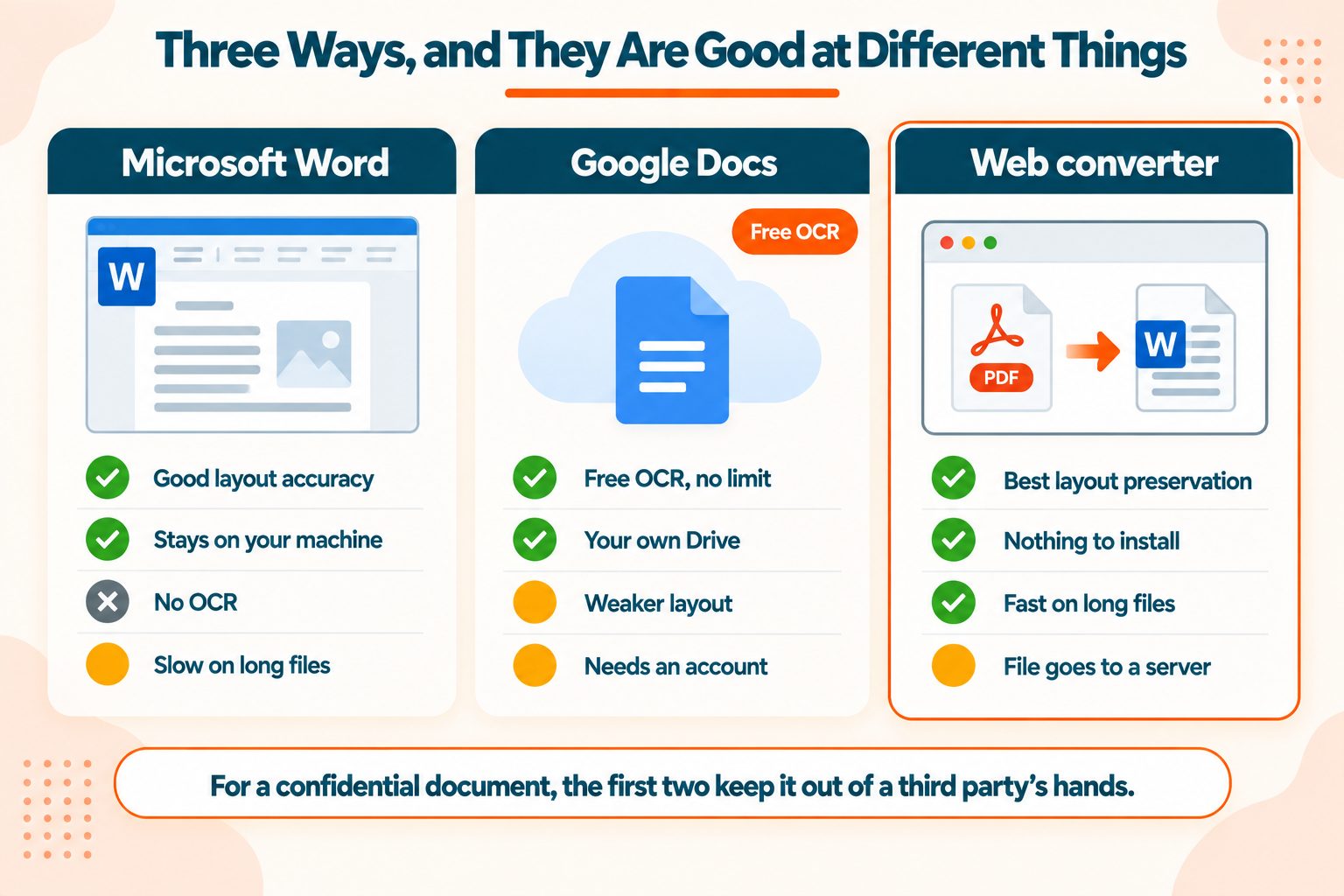
Microsoft Word opens PDFs directly
File, then Open, then select your PDF. Word converts it on the fly and shows a warning that the result may differ from the original.
Quality is genuinely good on native PDFs, and sometimes better than a web converter, because Word is doing the structure inference with complete knowledge of its own format. It knows what a Word table needs to look like because it invented the format.
Two limitations worth knowing: it can be slow on long documents, and it does not OCR scanned PDFs. Feed it a scan and you get a picture in a Word file.
Microsoft's guidance on opening PDFs in Word covers the process and its caveats.
Google Docs converts PDFs, including scans
Upload the PDF to Google Drive, right-click it, and choose Open with Google Docs.
It runs OCR automatically on scanned PDFs, free. Google Drive's help on converting PDF and photo files to text covers the supported cases, including a 2 MB file size limit, so a large scan will not fit.
The trade-off is layout. Google Docs is worse at preserving formatting than Word or a dedicated converter. You reliably get the text and you lose more of the design, which is fine if you wanted the text and frustrating if you wanted the document.
Why this matters beyond saving a step
The difference is where the file goes. Desktop Word converts the PDF on your own computer. Google Docs uploads it to your own Google Drive. A web converter, ours included, runs the conversion on its own server.
That is worth knowing before you upload a contract, a CV or an invoice.
When a web converter still wins
Better layout preservation than Google Docs. Nothing to install, which matters on a borrowed or locked-down machine. And OCR without a Google account.
All three routes are legitimate. The right one depends on the document and on how much it matters where the file goes.
Check These Before You Convert
Four questions worth asking, and the last one saves more time than any tool.
Do you actually need Word? If you only want to copy some text, select it in the PDF and copy it. If you want to make a small edit, a PDF editor is often less work than converting, cleaning up, and converting back.
Is the PDF password protected? Our converter has no password field, so remove the protection first with the unlock PDF tool if you know the password.
How long is the document? Long files take longer and produce proportionally more cleanup. If you only need part of it, splitting it first means converting less and fixing less.
Do you have the original? If a colleague made this in Word and sent you a PDF, asking for the DOCX takes thirty seconds and gives you a perfect file. No conversion, no cleanup, no OCR errors.
Asking for the original is frequently the right answer.
Where Your File Goes
Every route above puts your file in a different place.
The usual three checks: whether processing happens on a server or locally, what the stated retention period is, and whether your workplace has rules covering the documents you handle.
The consideration specific to this conversion is the document type. People often convert contracts, CVs, invoices, medical letters and legal correspondence, so it is worth checking those three points before you upload anything.
How our converter handles your file. The PDF is uploaded over HTTPS and converted on our server. The upload is deleted as soon as the conversion job ends, whether it succeeds or fails. The Word file is placed in a randomly named folder, stays available to download for about two hours, and is then deleted automatically. If your PDF is a scan and the converter asks about OCR, the upload waits on the server while you decide, and a cleanup job removes it after roughly an hour if you never answer.
Wrapping Up
Three things worth remembering.
Check whether your text is selectable first. That single test tells you whether you need a straightforward conversion or OCR, and they behave very differently.
Expect cleanup on anything designed. A PDF stores positions, not structure, so the converter is inferring what your document meant. Plain reports come through cleanly. Brochures do not.
Ask for the original before converting anything complex. If someone made it in Word, the DOCX already exists, and thirty seconds of asking beats an hour of fixing tables.
Frequently Asked Questions
Frequently Asked Questions (FAQs) is a list of common questions and answers provided to quickly address common concerns or inquiries.
How do I convert PDF to Word for free?
Upload the PDF to our free converter, select Convert to Word and download the .docx file. No account is needed for a PDF with selectable text. Microsoft Word can also open a PDF directly, and Google Docs can convert one from your Drive.
Can I convert PDF to Word without losing formatting?
Simple documents convert almost perfectly. Multi-column layouts, tables and custom fonts usually need cleanup, because a PDF stores positions rather than structure.
How do I convert a scanned PDF to Word?
You need OCR, which recognizes the characters visually. Our converter detects a scanned PDF and offers OCR, free with a free account, with 14 language options. Google Docs also applies OCR when it opens a scan.
Can Microsoft Word open a PDF directly?
Yes. File, then Open, then select the PDF. Word converts it locally, though it does not handle scanned documents.
Can Google Docs convert a PDF?
Yes, and it applies OCR to scans automatically. Layout preservation is weaker than Word or a dedicated converter.
Why does my converted document look wrong?
Because a PDF has no paragraph structure. The converter infers where headings, columns and tables were, and on designed layouts it guesses wrong.
Why is my converted text not editable?
Your PDF is a scan, so the converter produced a picture rather than text. You need OCR to get editable words. With a free account on our converter, choose Apply OCR when it asks, because Continue without OCR places each page as an image.
What happens to my file when I convert PDF to Word online?
It depends on the converter, so check where processing happens and how long files are kept. On ours, the PDF is converted on our server, the upload is deleted as soon as the job ends, and the Word file is deleted after about two hours. Word on your own computer and Google Docs on your own Drive are the other routes.
Can I convert a password-protected PDF?
Our converter has no password field, so a protected PDF has to be unlocked first. If you know the password, the unlock PDF tool on this site removes the protection, and then you can convert the file.
What is OCR and do I need it?
Optical character recognition reads text from images. You need it only if your PDF's text cannot be selected.