
Most people arrive at this topic one of two ways. Either you read somewhere that your site needs a robots.txt file and you want to know what it actually does, or something is crawling your site and you want it to stop.
Before anything else, one thing worth knowing, because getting it wrong causes real damage: robots.txt controls crawling, not indexing. Blocking a page in robots.txt does not reliably keep it out of search results, and using it that way is the most common and most expensive mistake with this file.
This guide covers what the file does, where it goes, the syntax, how to create one, how to handle AI crawlers, and how to test it before you break something.
What Is a robots.txt File and How to Create One
A robots.txt file is a plain text file that sits at the root of your domain and tells automated visitors which parts of your site they may request. It is usually the first thing a crawler asks for, before it looks at a single page.
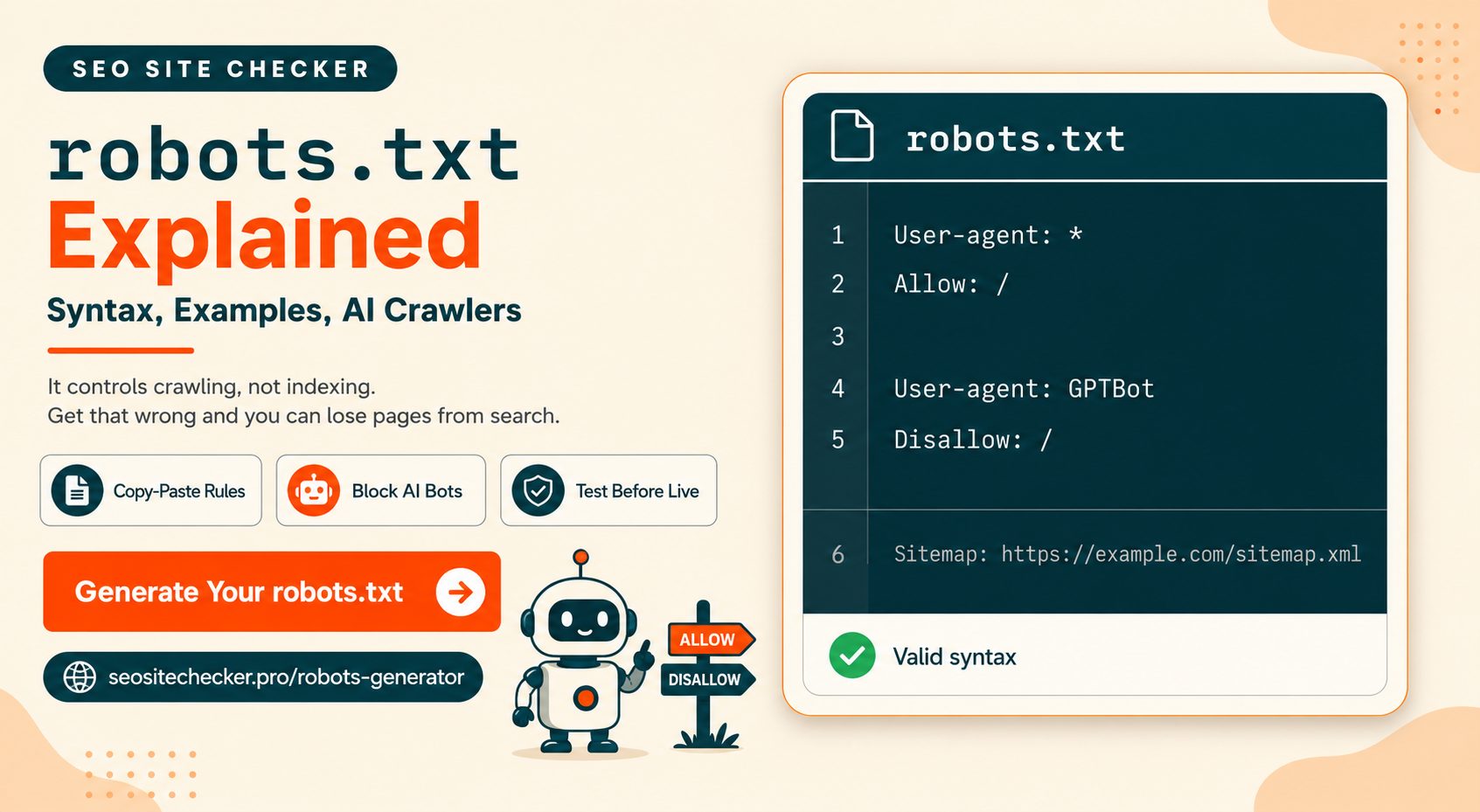
Here is a complete, working file:
User-agent: *
        Allow: /
        Sitemap: https://example.com/sitemap.xml
That says every crawler may access everything, and here is where the sitemap lives. For a great many websites, that is the correct robots.txt file and nothing more is needed.
Three things frame everything else in this guide.
It is a request, not enforcement. Well-behaved crawlers read it and follow it. Badly behaved ones ignore it completely. Think of it as a sign on a door rather than a lock. It has no security value whatsoever.
It is public. Anyone can read yours by adding /robots.txt to your domain. You can read anyone else's the same way.
It manages crawl traffic, not search visibility. This is the distinction that catches people out, and it gets a full section below.
Worth a sentence of history, because it explains something useful. The convention dates to 1994 and ran informally for nearly three decades. In 2022 it was formalised as an IETF standard, RFC 9309, the formal Robots Exclusion Protocol standard. That is why crawler behaviour is more consistent now than it used to be, and why syntax that once varied between search engines is now largely settled.
Where the File Lives and How Crawlers Find It
Placement is not flexible. Get it wrong and the file simply does not exist as far as crawlers are concerned.
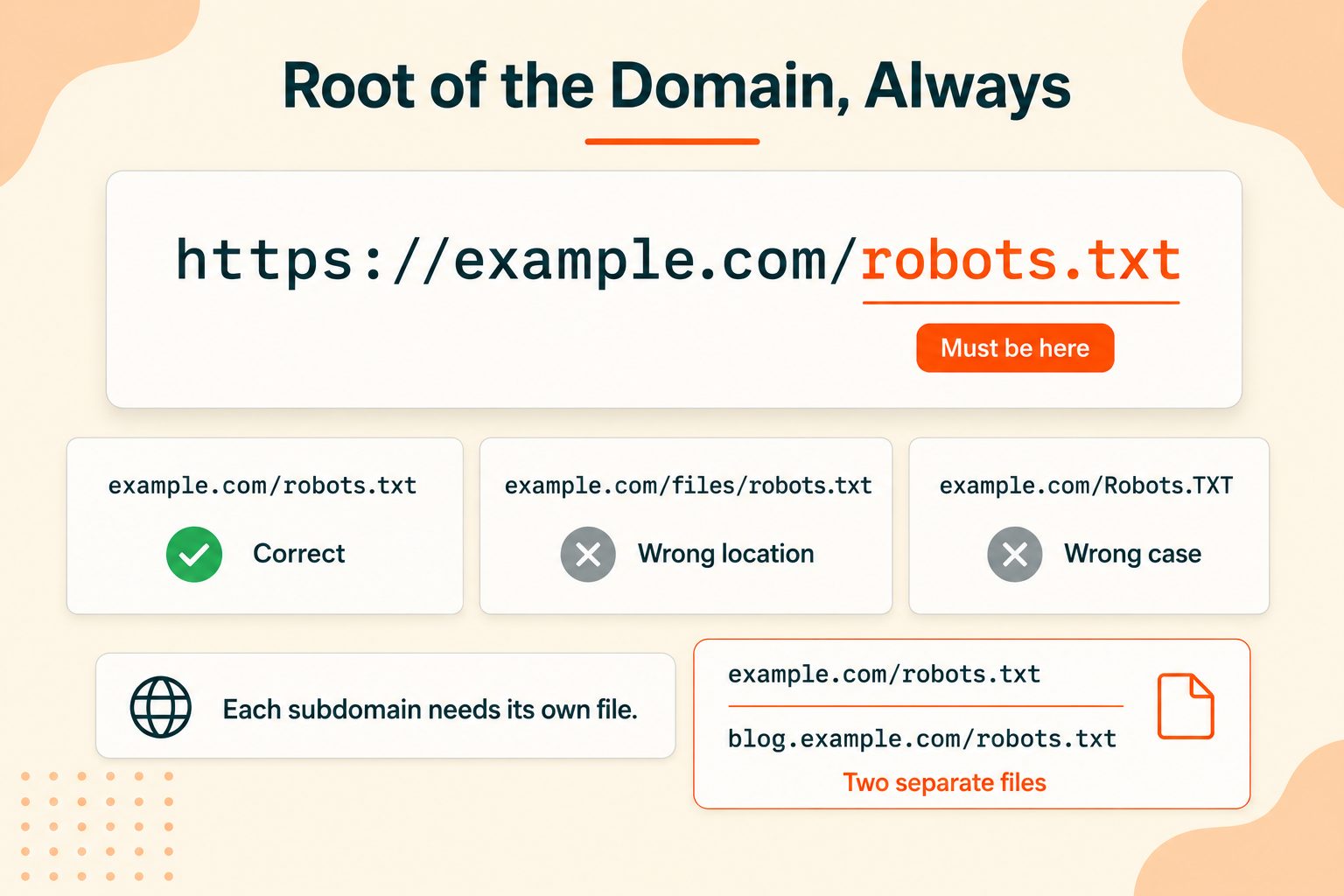
Root of the domain, always. https://example.com/robots.txt. Not in a subfolder. Not renamed.
Lowercase filename. The protocol is case sensitive. Robots.TXT will not be found.
One file per host. Each subdomain needs its own. blog.example.com/robots.txt is a completely separate file from example.com/robots.txt, and rules in one have no effect on the other. The same applies to http versus https, and to different port numbers.
The mechanism behind that rule is simple once you see it. A crawler takes any URL on your site, strips off everything after the domain, and appends /robots.txt. Given https://example.com/blog/my-post, it will request https://example.com/robots.txt. If nothing is there, it assumes there are no restrictions and crawls freely.
That last point is worth pausing on. No robots.txt file means everything is allowed. An empty file means the same thing. Neither is an error.
If your site runs on a hosted platform like Wix or Blogger, you may not be able to edit the file directly. Look for a search or crawling setting in the platform's admin instead.
robots.txt Syntax and Directives
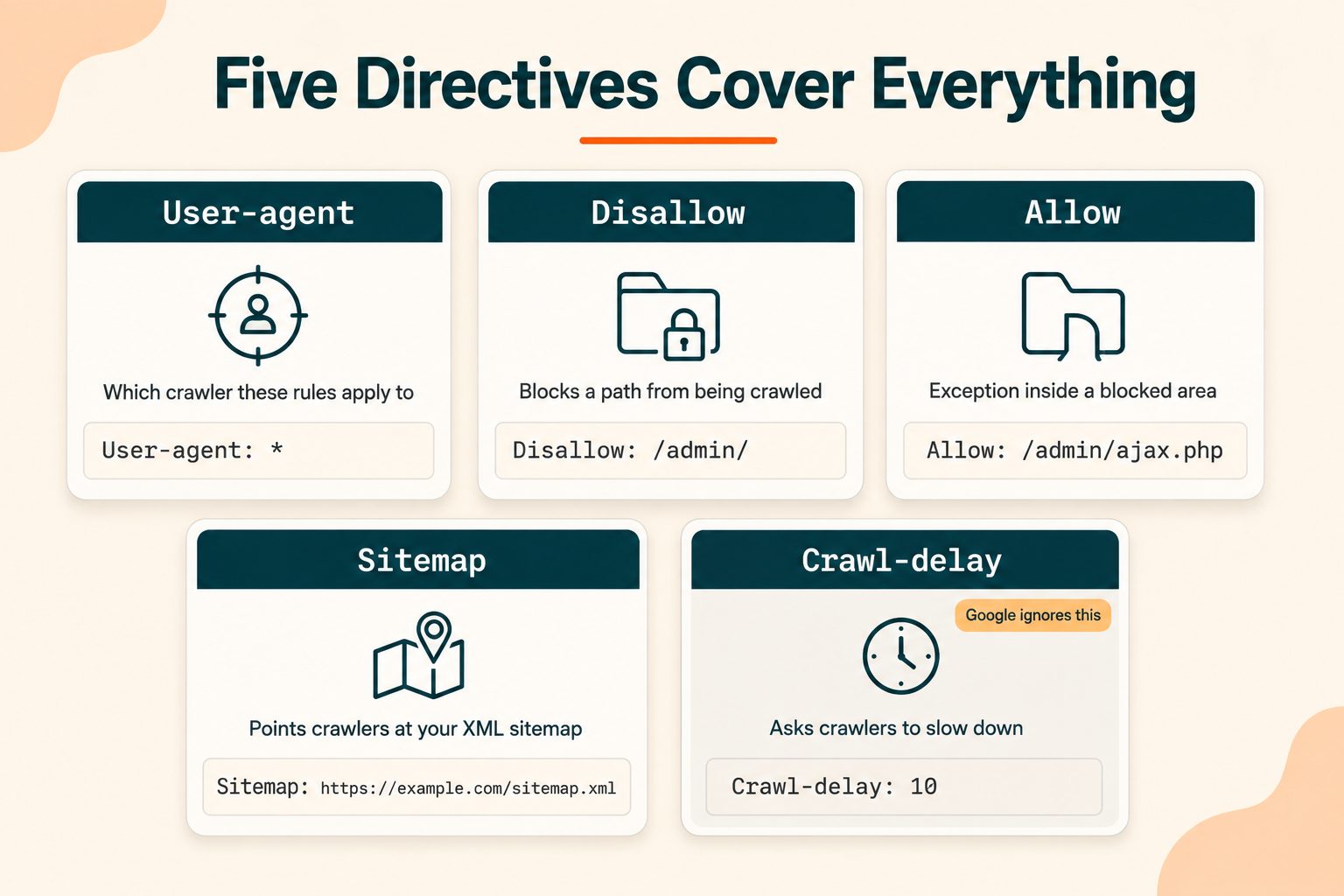
The syntax is small. Five directives cover nearly everything.
User-agent
Names which crawler the following rules apply to.
User-agent: *The asterisk means all crawlers. You can also target specific ones by name:
User-agent: GooglebotRules apply to the user-agent line above them, and keep applying until the next user-agent line or the end of the file. Blank lines do not end a group, so a rule placed after one still belongs to the group above it. Use them for readability only.
Disallow
Blocks a path.
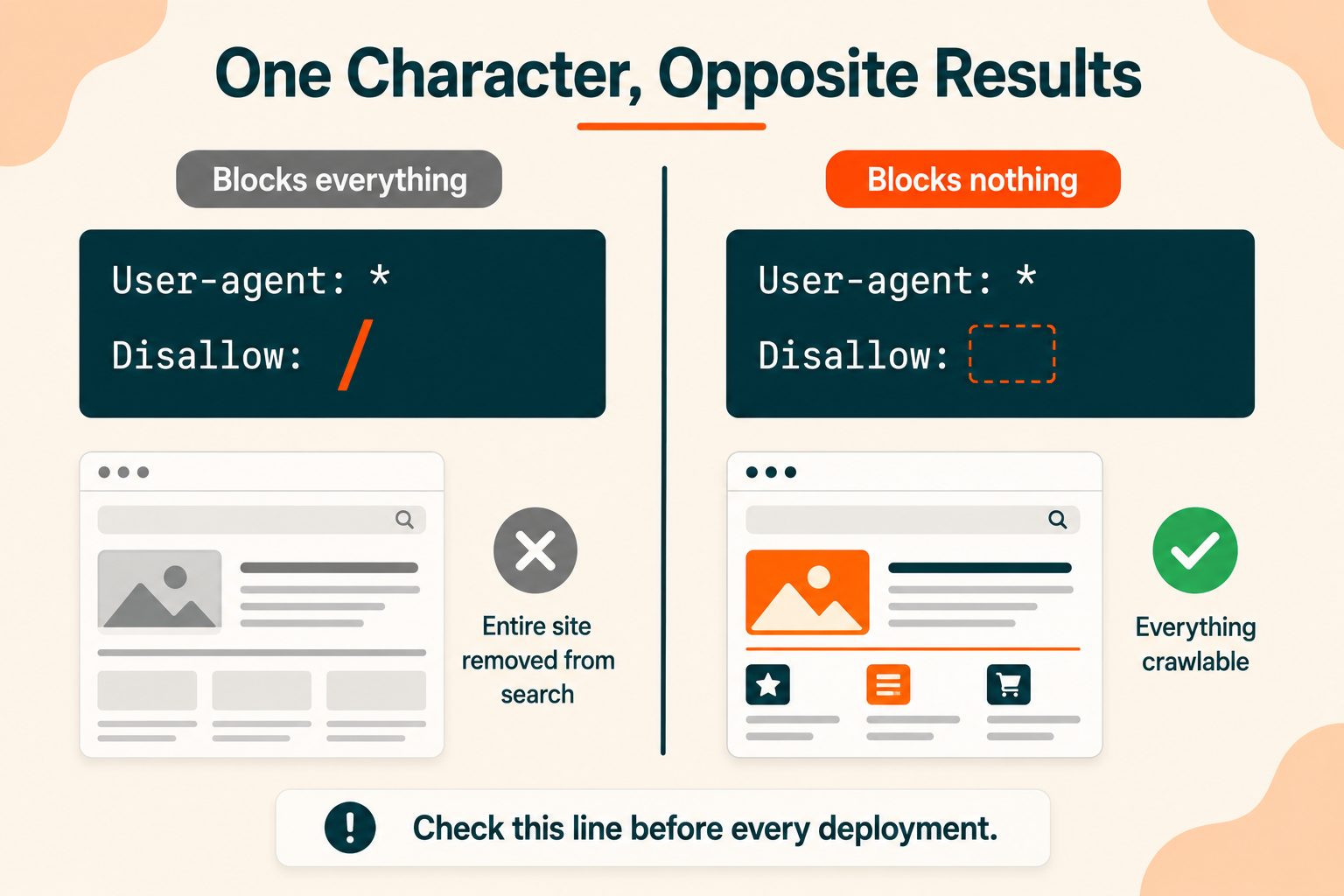
Disallow: /admin/Two special cases worth knowing:
Disallow: /blocks the entire siteDisallow:with nothing after it blocks nothing
Those two lines look almost identical and do opposite things. This is the single most dangerous pair of characters in the file.
Allow
Creates an exception inside a disallowed area.
User-agent: *
        Disallow: /wp-admin/
        Allow: /wp-admin/admin-ajax.php
That blocks the admin directory but permits one specific file inside it.
Sitemap
Points crawlers at your XML sitemap.
Sitemap: https://example.com/sitemap.xmlIt must be a full absolute URL, not a relative path. It is not tied to any user-agent group, so it can sit anywhere in the file. This is a free, easy win that plenty of sites skip. If you do not have a sitemap yet, generate an XML sitemap first and then add the line.
Crawl-delay
Asks crawlers to slow down between requests.
Crawl-delay: 10Be aware that Google ignores this directive entirely. Bing's webmaster blog says BingBot honors it. If Googlebot is overwhelming your server, Google's current crawl rate guidance no longer mentions a Search Console setting. It says to return 500, 503 or 429 responses for a day or two at most in an emergency, or to file a special request if the crawl rate is unusually high.
Wildcards and pattern matching
Two characters give you pattern matching:
*matches any sequence of characters$marks the end of a URL
Disallow: /*?          # blocks any URL containing a question mark
        Disallow: /*.pdf$      # blocks URLs ending in .pdf
The first is useful for parameter-heavy URLs, faceted navigation, and internal search results. If you work with encoded URLs regularly, the URL Encoder/Decoder helps when you are checking exactly what path a crawler will see.
One rule on precedence that surprises people: the most specific matching rule wins, not the first one listed. Order in the file does not determine priority. Path length does.
The robotstxt.org original protocol reference has been documenting this syntax since 1994 and remains a useful plain reference.
Why a Correct-Looking Rule Still Fails
A named group replaces the * group instead of adding to it. Each crawler follows only the one group that matches its name most specifically. This file looks careful:
User-agent: *
Disallow: /cart/
Disallow: /search/

User-agent: Googlebot
Disallow: /beta/
Googlebot has its own group, so it never reads the * group. That reopens /cart/ and /search/ for it and blocks only /beta/. In a parser test, Googlebot could fetch /cart/ and /search/x, while a crawler with no group of its own was blocked from both. Repeat the shared rules inside every named group.
Ties go to the less restrictive rule. Path length decides, but when an Allow and a Disallow tie on length, Google uses the Allow.
Paths are case sensitive. Disallow: /Admin/ leaves /admin/ crawlable. The robots.txt Disallow guide has more matching examples.
How to Create Your robots.txt File
Method 1: Use a generator
The fastest route, and the one that avoids syntax errors. Specify what you want blocked, copy the output, and upload it.
The free Robots.txt Generator builds the file from your inputs with no signup. The advantage over hand-writing is not speed so much as correctness, since a missing slash or a stray character produces a rule that silently does nothing or, worse, does something you did not intend.
Method 2: Write it by hand
Open a plain text editor, write your rules, and save the file as robots.txt with UTF-8 encoding. Upload it to your web root using FTP or your host's file manager.
Do not use a word processor. Word and similar applications add formatting and smart quotes that will break the file, and the damage is not visible when you look at it.
Method 3: Through your CMS
Most SEO plugins include a robots.txt editor that generates a virtual file rather than a physical one. Convenient, but know which file you are editing. On a standard WordPress setup the virtual file is served only when no physical robots.txt sits in the web root, so if you uploaded a file earlier, edits made in the plugin never show up, which is a confusing thing to debug if you do not know it is happening.
Verify it is live
Visit yourdomain.com/robots.txt in a browser. If your rules are not there, something went wrong with placement, permissions, or caching. Fix that before moving on, because everything downstream assumes the file is being served.
What Google Does When the robots.txt Request Fails
The HTTP status of the request decides how Google uses the file. A missing file is harmless, but a failing one can stall a whole site. This is how Google's robots.txt specification treats each response. For the wider picture, see how Google crawls pages.
| Response | What Google does |
|---|---|
| 200 or any 2xx | Reads the file and applies its rules. |
| 3xx redirect | Follows at least five hops, then treats the file as a 404. |
| 4xx except 429 (404, 403, 401, 410) | Treats the file as missing and applies no crawl restrictions. |
| 5xx, timeouts, DNS or network errors | Stops crawling the whole site for the first 12 hours while it retries, then uses the last good copy for up to 30 days, or assumes no restrictions without one. After 30 days it acts as if there were no file, if the site is otherwise reachable. |
If a login wall or firewall rule answers 401 or 403 for /robots.txt, Google does not stay out. It reads those codes as no file, so none of your rules apply. RFC 9309 is stricter and tells crawlers to assume everything is disallowed when the file is unreachable, so serve it as a small static file. Google's specification does not say how it handles 429 for this file, so keep rate limiting away from it. Google reads only the first 500 KiB.
robots.txt Examples for Common Situations
Allow everything, and point to the sitemap. The right file for most sites.
User-agent: *
        Allow: /
        Sitemap: https://example.com/sitemap.xml
Block one directory.
User-agent: *
        Disallow: /private/
Block one specific crawler entirely.
User-agent: BadBot
        Disallow: /
Block parameter URLs and internal search results.
User-agent: *
        Disallow: /*?
        Disallow: /search/
Block an entire staging site.
User-agent: *
        Disallow: /
Those two lines must never reach production. Copying a staging robots.txt to a live server is one of the fastest ways to remove a website from search results entirely, and it happens more often than you would think.
A WordPress starting point.
User-agent: *
        Disallow: /wp-admin/
        Allow: /wp-admin/admin-ajax.php
        Sitemap: https://example.com/sitemap_index.xml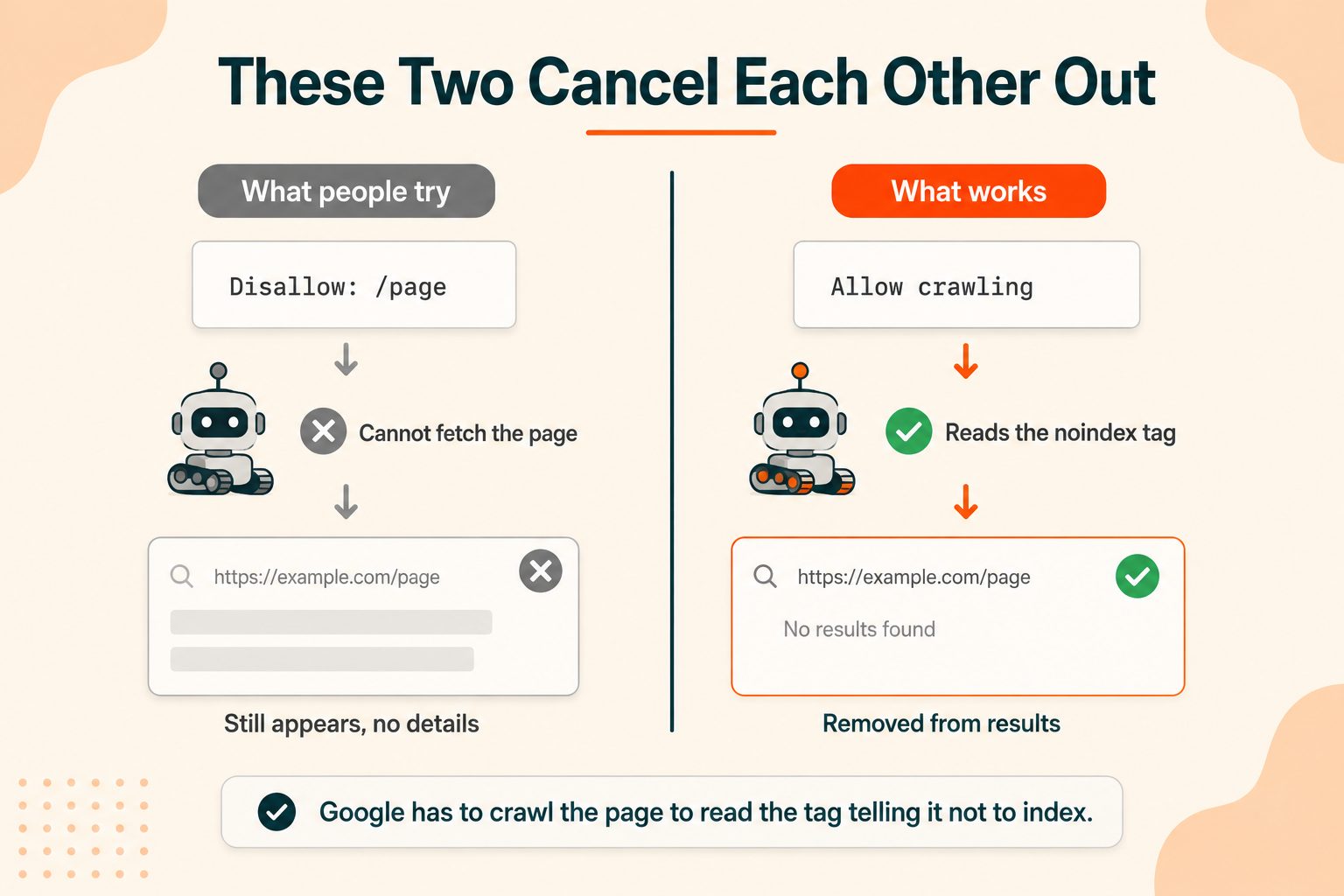
The Most Expensive Mistake: robots.txt Is Not noindex
This is the part to read carefully, because it causes more damage than everything else in this guide combined.
Blocking a page in robots.txt stops crawlers from reading it. It does not stop the URL from appearing in search results.
If other pages link to a blocked URL, Google can index that URL without ever seeing its content. You get a search result with no description that shows little more than the address and public information such as the link text pointing at it, which is worse than either outcome you were aiming for.
Then there is the part that genuinely traps people. If you block a page in robots.txt, Google cannot see the noindex tag on it. To honour a noindex, a crawler has to fetch the page and read the tag. Block the page and you have hidden your own instruction. The two directives cancel each other out.
So if a page is already indexed and you want it gone, blocking it in robots.txt is exactly the wrong move. Let Google crawl it, let it read the noindex, wait for it to drop out, and only then consider blocking it.
Here is the right tool for each job:
| What you want | What to use |
|---|---|
| Reduce crawl load on unimportant pages | robots.txt |
| Keep a page out of search results | noindex meta tag, page must stay crawlable |
| Keep content genuinely private | Password protection or authentication |
Google's own robots.txt documentation states this directly: robots.txt is not a mechanism for keeping a web page out of Google.
robots.txt and AI Crawlers
This is now the most common reason people edit robots.txt, and most guides on this topic were written before it mattered.
AI companies run crawlers that collect content for training models and for answering questions inside AI products. Most of them respect robots.txt. Blocking them is a business decision rather than a technical one, and it is worth understanding what you are choosing between.
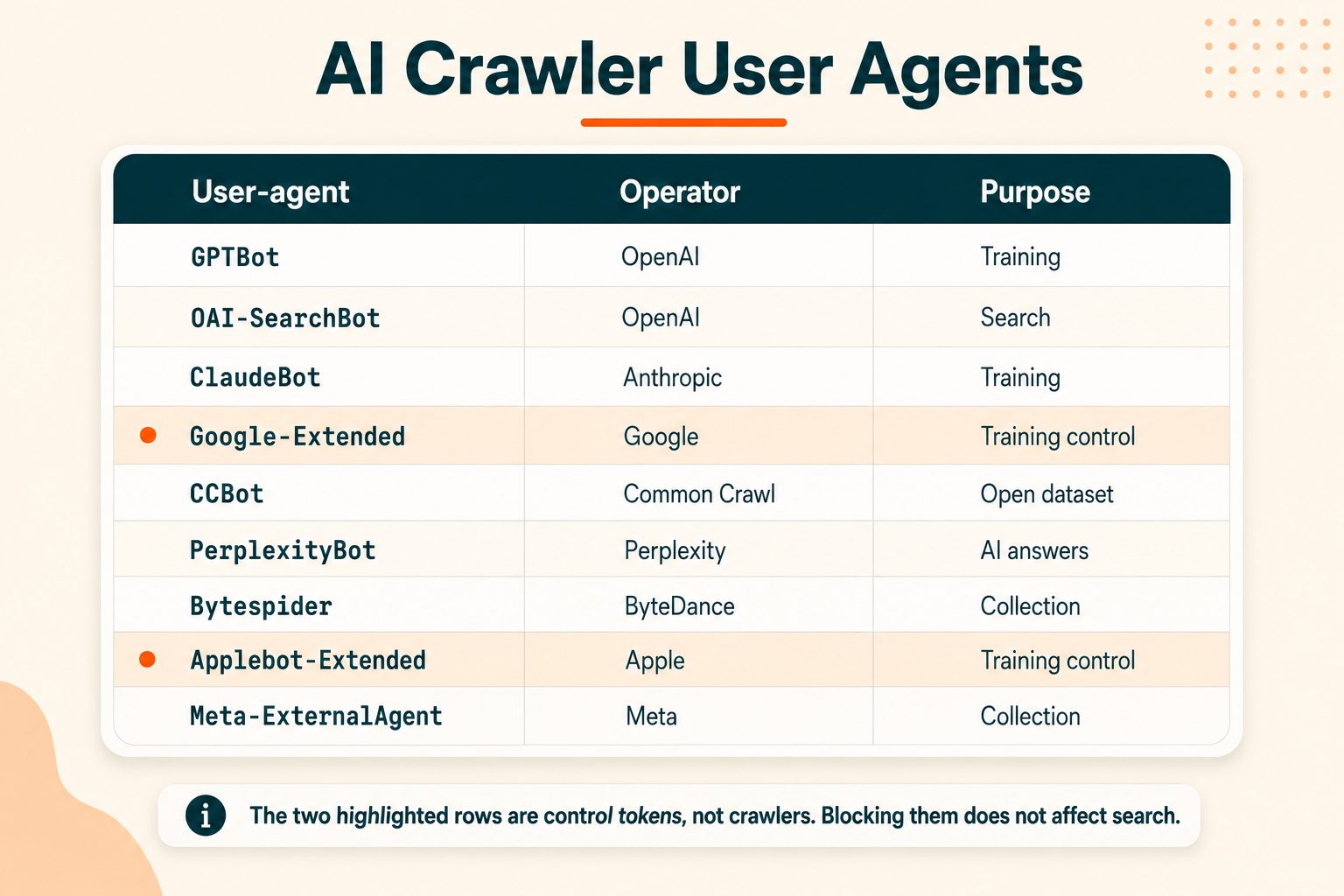
Here are the user agents worth knowing:
| User-agent | Operator | What it does |
|---|---|---|
GPTBot | OpenAI | Collects content for model training |
OAI-SearchBot | OpenAI | Indexes content for search features |
ChatGPT-User | OpenAI | Fetches pages when a user asks about a link |
ClaudeBot | Anthropic | Collects content for model training |
Google-Extended | Controls AI training use, separate from Search | |
CCBot | Common Crawl | Open dataset used by many AI trainers |
PerplexityBot | Perplexity | Indexes content for AI answers |
Bytespider | ByteDance | Collects content |
Applebot-Extended | Apple | Controls AI training use |
Meta-ExternalAgent | Meta | Collects content |
To block the main training crawlers while leaving search crawling untouched:
User-agent: GPTBot
        Disallow: /
        User-agent: ClaudeBot
        Disallow: /
        User-agent: CCBot
        Disallow: /
        User-agent: Google-Extended
        Disallow: /
        User-agent: Applebot-Extended
        Disallow: /
        User-agent: Bytespider
        Disallow: /
Two of those deserve a closer look. Google-Extended and Applebot-Extended are not crawlers. They are control tokens. Blocking them opts your content out of AI training without affecting how Googlebot or Applebot crawl your site for search. That separation is deliberate and genuinely useful, because it lets you decline training without losing search visibility.
The trade-off is real, and worth thinking about rather than reflexively blocking everything. Search crawlers like OAI-SearchBot and PerplexityBot are how your content appears in AI answer products, which is a growing traffic source. Blocking those is different from blocking training crawlers, and you may want one without the other.
A reasonable middle position for most publishers: block the pure training crawlers, allow the ones that surface your content with attribution and a link.
New AI crawlers appear regularly. Check your server logs occasionally for user agents you do not recognise, and revisit this section of your file every few months.
Remember That Anyone Can Read Your File
Because robots.txt is publicly accessible, listing a sensitive path tells everyone exactly where to look.
Disallow: /internal-admin-portal/That line does not protect anything. It advertises. Anyone curious about your site can read your robots.txt in two seconds and now knows a directory exists that you would rather they did not visit.
The working rule: never put anything in robots.txt that you would not want a stranger to know exists. If a directory genuinely needs protecting, use authentication, and leave it out of the file entirely.
The same visibility works in your favour when you are researching. You can read any site's robots.txt the same way, and it sometimes reveals staging environments, internal tools, or site structure that was not meant to be advertised.
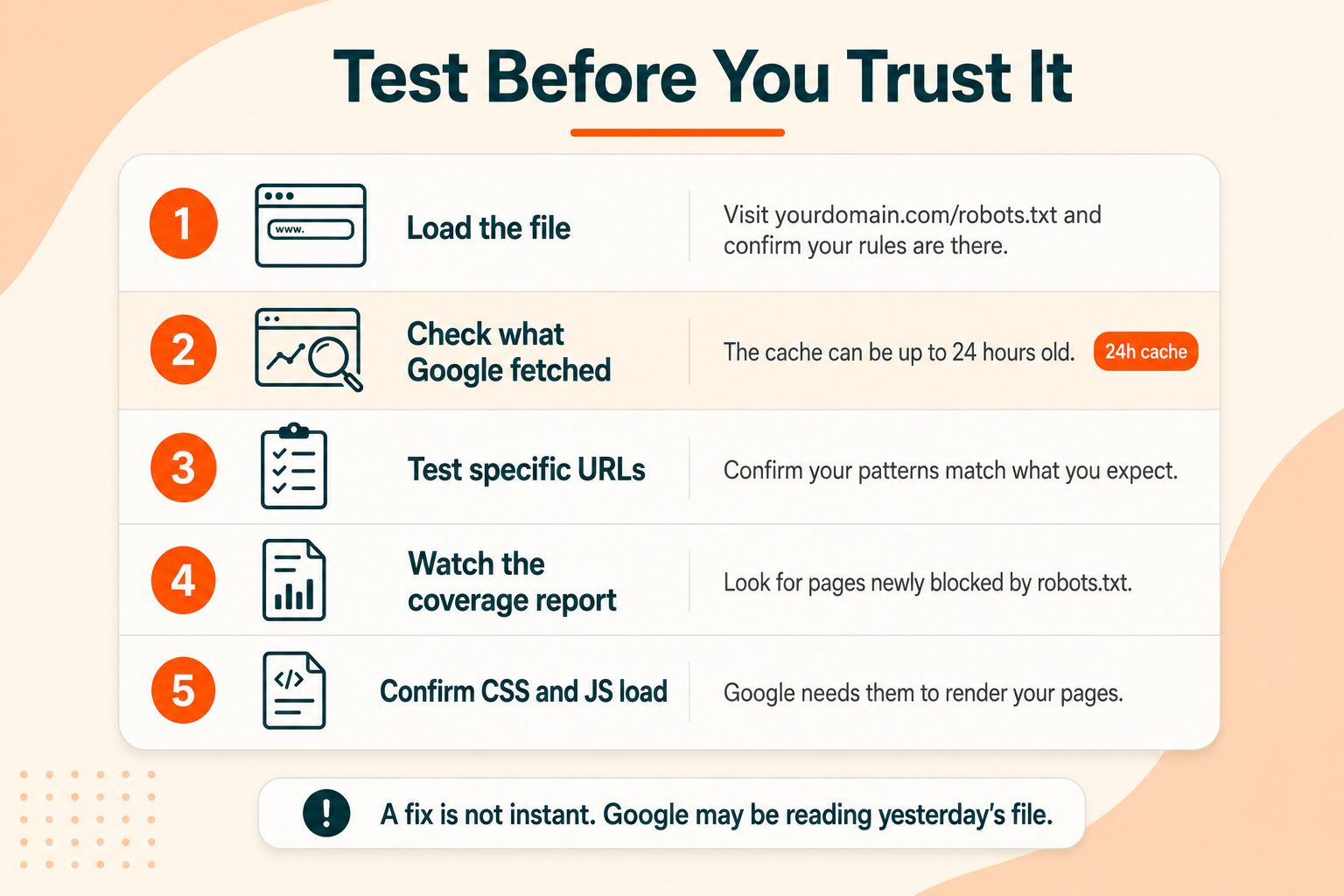
How to Test Your robots.txt File
- Visit
yourdomain.com/robots.txtand confirm the file loads with your rules in it. - Check Search Console's robots.txt report to see what Google actually fetched. This matters because Google caches robots.txt for up to 24 hours, so it may be working from an older version than the one you just uploaded.
- Test specific URLs against your rules with a validator before assuming a pattern does what you think.
- Check the Page indexing report in Search Console a few days later for pages newly marked as blocked by robots.txt. If pages you care about appear there, something is wrong.
- Confirm your CSS and JavaScript are not blocked. Google needs them to render your pages properly, and blocking them can affect how your pages are assessed.
To see exactly what your server returns for the file, run curl -I with your robots.txt address, or reload the file with the Network tab of your browser's developer tools open. You want a 200 status and a plain text body.
Once the file is correct, run a full site audit to catch anything else affecting how your site gets crawled. Crawl issues rarely travel alone, and robots.txt problems often sit alongside sitemap or canonical problems worth fixing in the same pass.
One more consideration. Faster pages let crawlers fetch more within the same crawl budget, so on a large site crawl efficiency affects how much of your site gets discovered as much as your robots.txt rules do.
What Our SEO Report Checks in robots.txt, and What It Misses
The SEO Site Checker report has two rows that touch this file. They are quick signals, not a review of your rules.
- The robots.txt row passes on a 200 response, warns on a 401 or 403 and fails on anything else, including a 404, a server error or a request that times out after 3 seconds.
- The Disallow Directive row passes when the file loads and has at least one line starting with Disallow, warns when it has none and fails when the file does not load.
The limits matter more than the passes. Neither row evaluates your rules, so neither can tell you whether they block pages you care about. A file holding only Disallow: / blocks the entire site and still passes both, and a missing file fails the first row even though Google treats it as no restrictions at all. Use the report to confirm the file exists and loads, then read the rules yourself. For one address, Google points to the URL Inspection tool on its robots.txt report help page. A separate guide explains how our report grades robots.txt in full.
Common robots.txt Mistakes
- Leaving
Disallow: /in production. Blocks your entire site. Usually a staging file copied across, and it is the most damaging error possible with this file. - Using robots.txt to hide pages from search. Wrong tool. Use noindex.
- Blocking CSS and JavaScript. Google cannot render your pages properly without them.
- Wrong filename or location. Must be lowercase
robots.txtat the domain root. - Blocking a page that has a noindex tag. The two cancel each other out.
- Missing the leading slash.
Disallow: admin/does not work.Disallow: /admin/does. - Listing sensitive paths. Publicly advertising exactly what you wanted hidden.
- Forgetting the sitemap line. Free, easy, and frequently skipped.
- Assuming it blocks bad bots. Malicious crawlers and scrapers ignore it entirely.
- Not testing after editing. One typo can remove a site from search results.
What Went Wrong on Our Own robots.txt
A stray Disallow line for /public/. Our CSS, JavaScript and images load from paths starting with /public/, so one line blocked everything Googlebot needed to render a page. Search Console's live test showed our pages as plain unstyled HTML. We removed the line on August 25, 2026, and we do not know how long it had been there.
Disallowing pages that carry noindex. Our login, register and forgot-password pages send a noindex header, yet robots.txt also disallowed them, so crawlers could never fetch them to read it. We opened them up in our audit of October 20, 2026. For the same reason, /arrilot/ and the retired /products/ and /shop/ addresses stay out of the file, since Google can only see a noindex or a 410 Gone by fetching the page. We have not confirmed that they have left the index. Google's noindex documentation explains the mechanism, and our noindex tag guide shows how to check a page.
A robots.txt Checklist for Every Release
Run this list after every deploy, migration or redesign.
- Fetch the live /robots.txt and confirm it is the production file, not the staging one.
- Confirm a 200 response with UTF-8 plain text, no long redirect chain and no login or challenge in front.
- Compare it with the previous version in the Search Console robots.txt report (domain-level properties only), which lists earlier versions from the last 30 days.
- Check that no page with a noindex tag is also disallowed, using the Meta Tag Analyzer, which reads a page's robots meta tag but not an X-Robots-Tag header.
- Run one key page through the URL Inspection live test and confirm its CSS, JavaScript and images load.
The Technical SEO Checklist covers the other crawling and indexing checks to run alongside it.
Wrapping Up
Two rules cover most of what matters here.
robots.txt controls crawling, not indexing. If you want something out of search results, use noindex and leave the page crawlable so Google can actually read that instruction.
Everything in the file is public. Never list a path you would not want a stranger to know about.
Beyond that, most sites need very little. A file that allows everything and points to the sitemap is correct for the majority of websites, and complexity in this file creates risk without much upside. Add rules when you have a specific reason, test after every edit, and revisit your AI crawler rules every few months as new bots appear.
Frequently Asked Questions
Frequently Asked Questions (FAQs) is a list of common questions and answers provided to quickly address common concerns or inquiries.
What is a robots.txt file?
A plain text file at the root of your domain that tells web crawlers which parts of your site they may request. It manages crawl traffic, not search visibility.
Do I need a robots.txt file?
Not strictly. Without one, crawlers assume everything is allowed. Most sites benefit from having a simple file that permits crawling and points to the XML sitemap.
Where is the robots.txt file located?
At the root of your domain, as https://yourdomain.com/robots.txt. The filename must be lowercase, and each subdomain needs its own separate file.
How do I create a robots.txt file?
Write the rules in a plain text editor and upload the file to your web root, use a robots.txt generator, or edit it through your CMS SEO settings.
What happens if you do not have a robots.txt file?
Crawlers assume there are no restrictions and crawl your whole site. That is fine for most sites, though you lose the chance to point crawlers at your sitemap.
What is the difference between robots.txt and noindex?
robots.txt stops crawlers reading a page. noindex stops a page appearing in search results. A page blocked by robots.txt cannot have its noindex tag read.
How do I block a page in robots.txt?
Add a Disallow line with the path, such as Disallow: /private-page/. Remember this blocks crawling, not indexing, so the URL can still appear in results.
Can robots.txt be ignored?
Yes. It is a request rather than enforcement. Major search engines follow it, but malicious bots and scrapers routinely ignore it. It offers no security.
How do I check my robots.txt file?
Visit yourdomain.com/robots.txt in a browser, then use Search Console's robots.txt report to confirm what Google actually fetched, since it caches for up to 24 hours.
How do I block AI crawlers with robots.txt?
Add Disallow rules for their user agents, such as GPTBot, ClaudeBot, CCBot and Google-Extended. Google-Extended and Applebot-Extended block AI training without affecting search crawling.
What happens if my robots.txt file returns a server error?
Google pauses crawling of your whole site for the first 12 hours while it keeps trying to fetch the file. After that it uses the last good copy for up to 30 days, or assumes no restrictions if it has none. If the errors continue beyond 30 days and the rest of the site is reachable, it behaves as if there were no file. A plain 404 is different, because it means no restrictions.
Does robots.txt help SEO?
Mostly on large or fast-changing sites. The file manages which URLs crawlers request, so it can keep requests away from internal search pages, endless filter combinations and utility URLs. Google describes it as a way to manage crawler traffic and says it is not a mechanism for keeping a page out of Google. Its crawl budget guide is aimed mainly at very large or fast-changing sites, so a small site often needs only a few lines.
How often does Google read my robots.txt file?
Google generally caches the file for up to 24 hours, so a change can take up to a day to be picked up. The cache can last longer when Google cannot refresh it because of timeouts or server errors. You rarely need to ask for a recrawl, but the robots.txt report in Search Console offers one for emergencies, such as an accidental block of important pages.