
Free AI Object Remover
Upload a photo, brush over the person or object you want gone, and the AI fills in a new background behind it. Free, with no account needed.
Removing the object...
A small area usually takes 10 to 40 seconds. A large painted area can take a minute or more, and longer when others are using the AI tools. Please keep this page open.
Elapsed: 0s
Your result
Drag across the picture to compare it with your original.
Your result is kept for about two hours, then it is deleted automatically. A photo larger than 4,096 px on its long side is scaled down before the AI step, and the download has that smaller size.
Need a different format? PNG to JPG, JPG to PNG or WebP converter.
What Is an AI Object Remover?
Quick answer: A free AI object remover turns the area you brush over into a mask, then generates new pixels from the ones around it. Paint out tourists, street signs, cables or other distractions, download the result with no sign-up, and try it on your own photo above.
No automatic detection or prompt box: you mark the object, and the fill is invented.
How to Remove an Object From a Photo
- Upload a photo. Click the drop zone, drop a file on it, or paste with Ctrl+V.
- Paint over the object. Take the brush tool, set Brush size from 4 to 120 and cover the object, any shadows and a few pixels beyond. Eraser and Undo fix mistakes.
- Press Remove Object. In our tests a small object usually finished in under a minute once started, though a job can wait behind others, so keep this tab open.
- Compare and download. Drag across the picture to check it against your original, then click Download JPG (or PNG or WEBP). "Keep editing this result" starts another pass.
Tip: Zoom shows an edge, but only Brush size makes the brush finer. Lower it, then paint the object in the tool above.
See It on Real Photos
These before and after pairs are public domain (CC0) photos from Wikimedia Commons, run through this tool, cropped and unretouched.
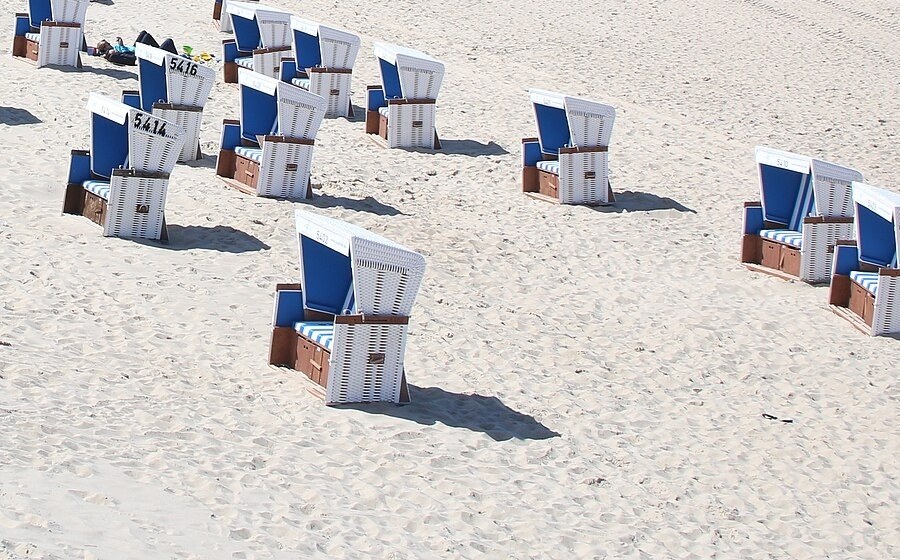
Before: photo by Michael Kleinjohann, CC0.
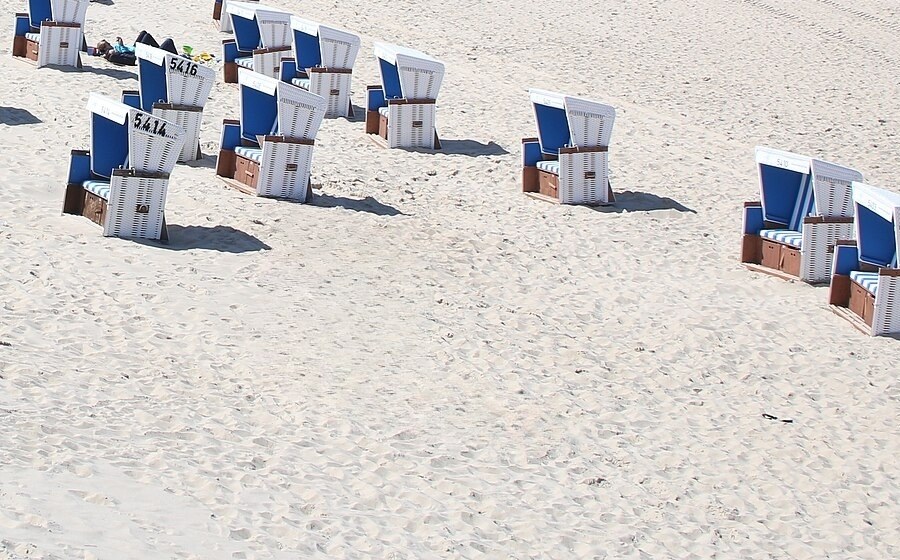
After: chair and shadow gone, other chairs untouched because we never painted them.
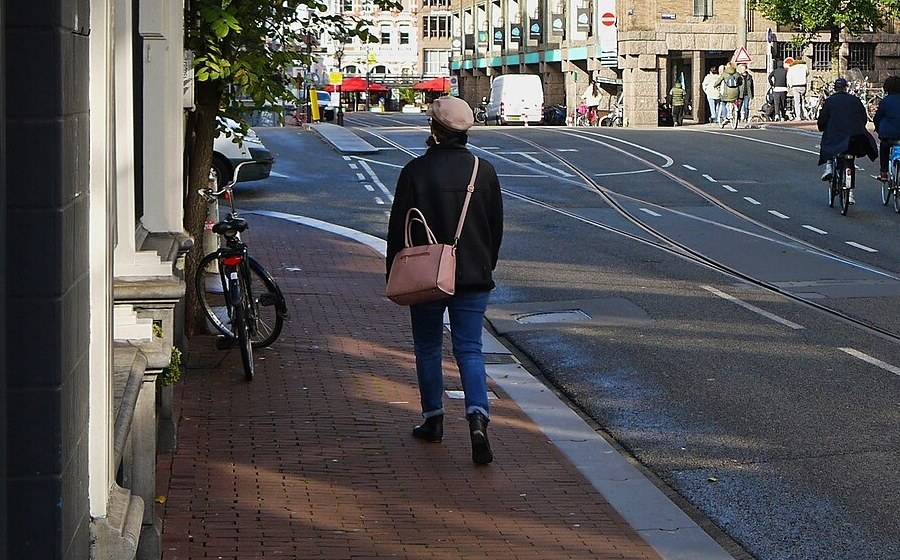
Before: photo by Fons Heijnsbroek, CC0.
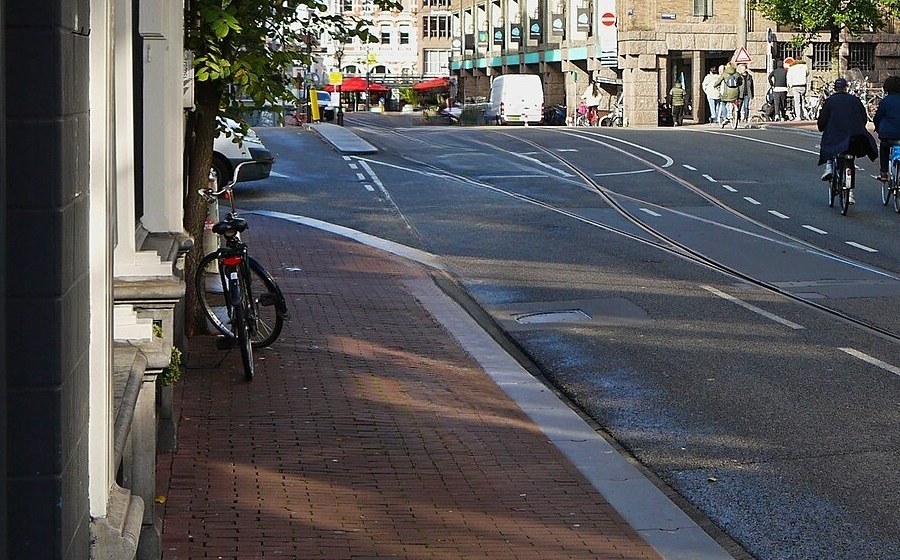
After: curb, rails and bricks continue. Our first mask missed the boots, so this is run two.
Remove People, Signs, Wires and Clutter From Photos
| What you remove | Background | What to expect | What to do |
|---|---|---|---|
| Pedestrian (real photo) | Brick street | Gone, curb continues | Paint head to toe |
| Beach chair (real photo) | Sand | Gone, footprints look natural | Paint the shadow too |
| Exit sign (real photo) | Plain dark wall | No visible trace | Overshoot the edge |
| Power wires (real photo) | Blue sky | Mostly gone, faint ghost line | Paint end to end |
| Mug (generated test scene) | Wood grain table | Gone, grain smoothed flat | Check the compare slider |
Each real photo mask covered under 3 percent of the frame, but the wires still took longest.
Paint the Shadow Too: Tips for a Cleaner Fill
- Paint the shadow too. To the model a shadow is just darker sand, so our beach chair left its whole shadow behind when the mask skipped it, as did a lamp and a person in generated test scenes.
- Keep marks apart. On bigger photos each painted region is repaired separately, so small marks stay cheap, but a stroke linking two objects makes one big region.
- Compress last. A JPG is re-saved on every pass, so use the image compressor once, at the end.
How the AI Fills In the Background
Called an object eraser or photo eraser, this is image inpainting: the model draws a background fill from the surrounding pixels, continuing edges, shading and repeating patterns.
This AI object remover runs LaMa (Large Mask Inpainting) through IOPaint on a CPU on our own server, so big areas take a while. The LaMa paper builds on Fourier convolutions, which let early layers see the whole patch.
The fill is invented. In a poster scene we generated, the text bars behind a person came back redrawn, so the tool cannot bring back hidden detail.
Before You Start: What This Tool Cannot Do
- Big photos shrink. Past 4,096 px on the long side, your browser scales the photo down first.
- Big areas go flat. A bike and a barrel, each over a third of the frame, came back with flat texture, a smeared band and a dark slab, and three passes on the bike did not help.
- Edit honestly. Tidy a photobomber out of your own travel photos, but leave news, evidence and flaws a buyer should see in real estate photos alone. The NPPA Code of Ethics for Visual Journalists says not to manipulate images in ways that can mislead viewers. This is not legal advice.
What to Use After the Cleanup
Cleaned the photo? Try these next.
- AI Watermark Remover: for text, logos and date stamps.
- AI Background Remover: cuts the subject out. See the step by step guide to removing a background.
- Image Resizer: size it for your page.
- PNG to JPG Converter: a different format.
- more free image tools for web work: a guide.
- all free AI tools: the full list.
Frequently Asked Questions
Frequently Asked Questions (FAQs) is a list of common questions and answers provided to quickly address common concerns or inquiries.
How can I remove an unwanted object from a photo for free?
Can it remove a person from a photo?
Should I paint the shadow too when I remove an object?
Will removing an object leave a blurry patch?
Can I remove power lines or wires from a photo?
What image formats and sizes does it accept?
How long does it take to remove an object?
Can I remove several objects at once, or edit many photos?
