
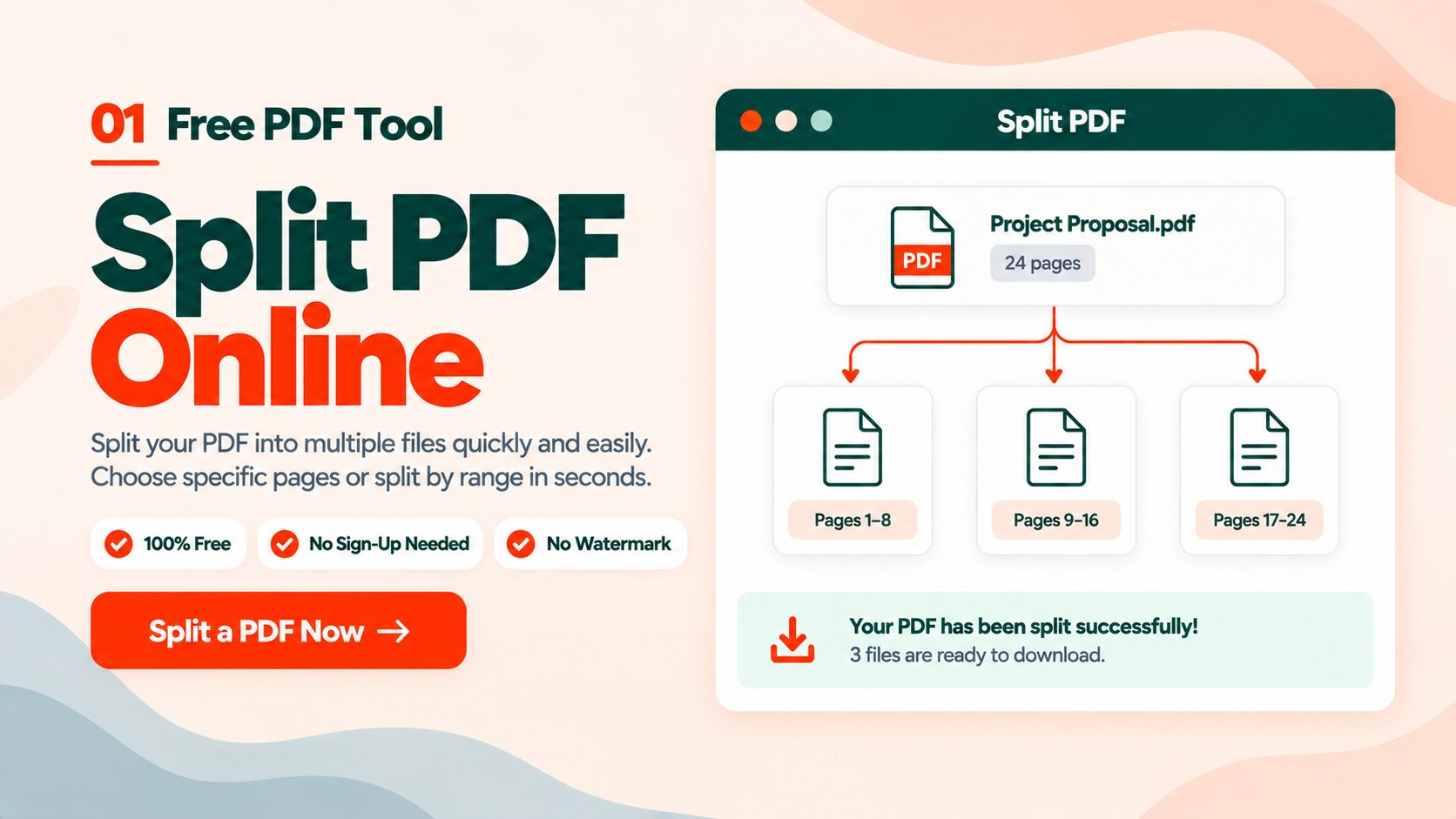
Split any PDF into separate files in your browser, with no account, no watermark and no software to install. You can break a document into single pages, or pull out custom page ranges so each chapter or section becomes its own file. Everything downloads together in a single ZIP, and your upload is deleted automatically after two hours.
Drop your file into the splitter above to start, or read on for the page range syntax, the two split modes, and one thing about file sizes that catches almost everyone out.
How to Split a PDF for Free Online
Step 1. Upload your PDF. Drag the file onto the upload area, or click to browse your device. Files up to 60 MB work without an account, and a free account raises that to 500 MB. If your file is larger than the limit, run it through Compress PDF first.
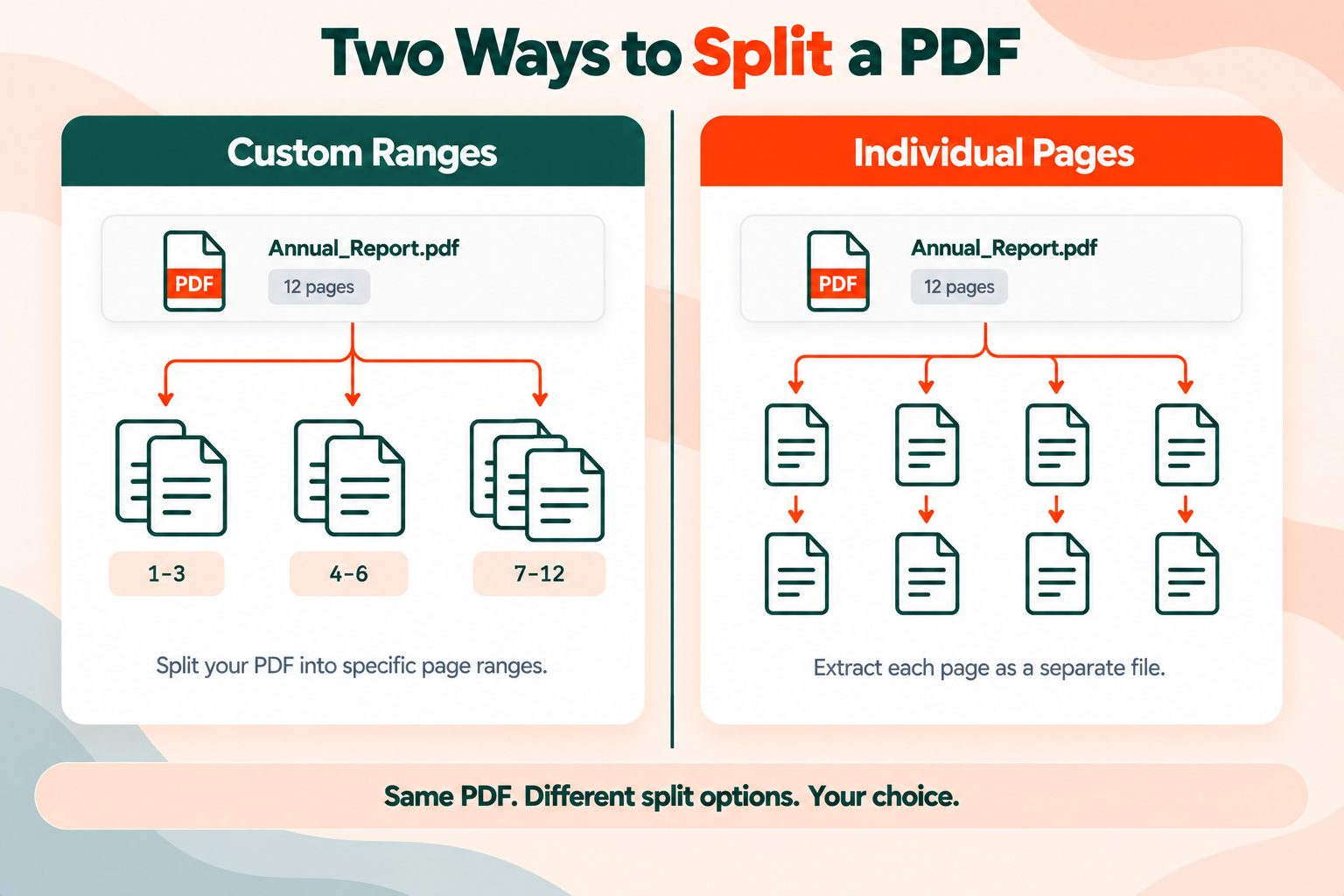
Step 2. Choose your split mode. You have two options. Individual pages turns every page into its own separate PDF, so a 12-page file gives you 12 files. Custom ranges lets you define the groups yourself, so you decide where each new document starts and ends.
Step 3. Set your page ranges. If you picked custom ranges, enter them using simple number pairs: 1-3, 4-6, 7-12. Each range becomes one output file. Pages you do not include in any range are simply left out of the results, and the original file on your device is never changed, so nothing is lost if you get the ranges wrong on the first try.
Step 4. Run the split. Click the split button. Most documents finish in a few seconds, and a long scanned file with hundreds of pages may take a little longer while it processes.
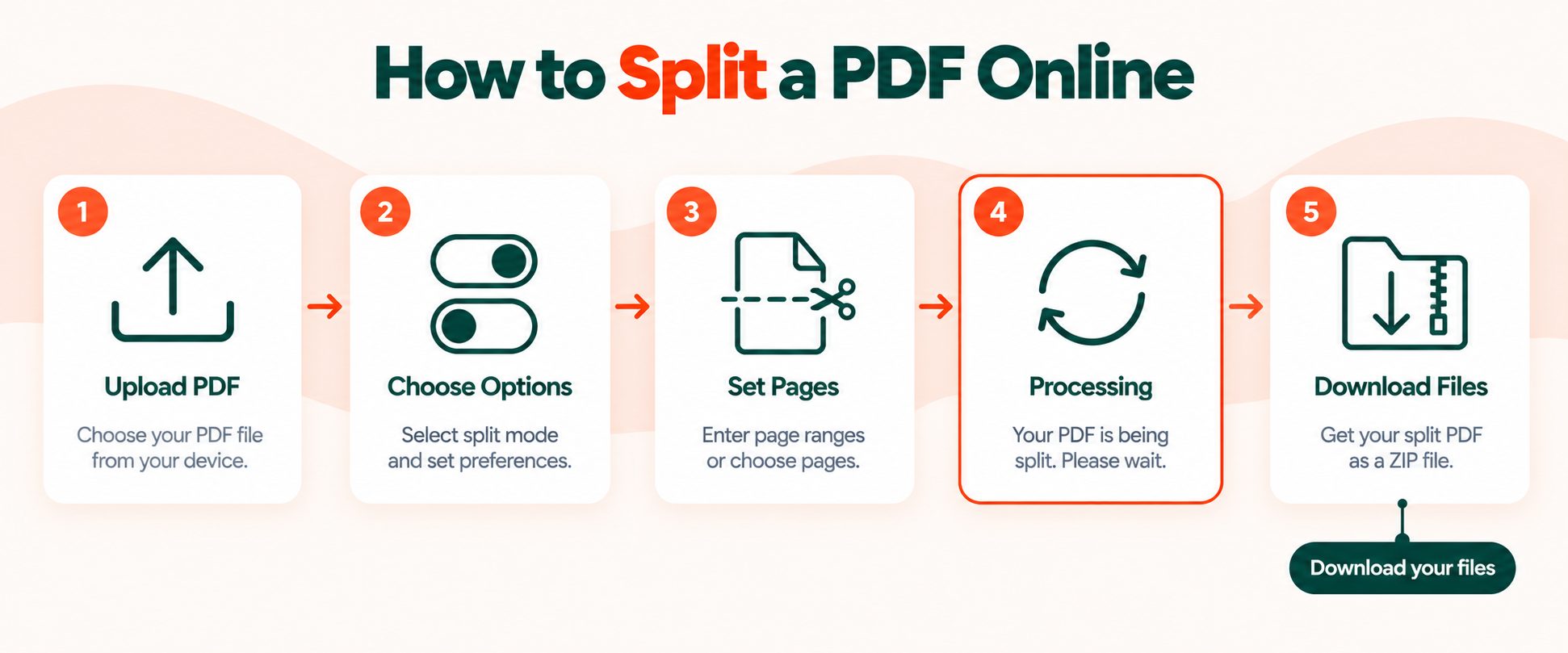
Step 5. Download your ZIP. Because splitting produces more than one file, the results arrive as a single ZIP archive. On Windows, right-click the archive and choose Extract All. On a Mac, double-click it and the folder opens on its own. Your files are then ready to use, with no watermark and no quality loss.
The process is identical on a phone or tablet, since the tool runs entirely in the browser. Use the Split PDF tool whenever you need it, and remember that uploads clear themselves after two hours.
Split by Range or Split into Single Pages
The mode you pick decides what you end up with, so it is worth thirty seconds of thought before you click.
| Custom ranges | Individual pages | |
|---|---|---|
| Output | One file per range you define | One file per page |
| Use it when | Pulling out chapters, sections or invoices | Sending pages separately or reordering later |
| A 20-page file becomes | However many ranges you set | 20 separate files |
| Control | You choose exactly where the breaks fall | No choices, every page splits |
There is one trap worth naming. Choosing individual pages on a long document does exactly what it says, so a 200-page report becomes 200 files inside your ZIP. That is almost never what someone actually wanted, and it is a slow thing to undo by hand. If you are working with anything longer than about twenty pages, ranges are nearly always the better choice.
Split, Extract, Remove or Organize, Which One You Actually Need
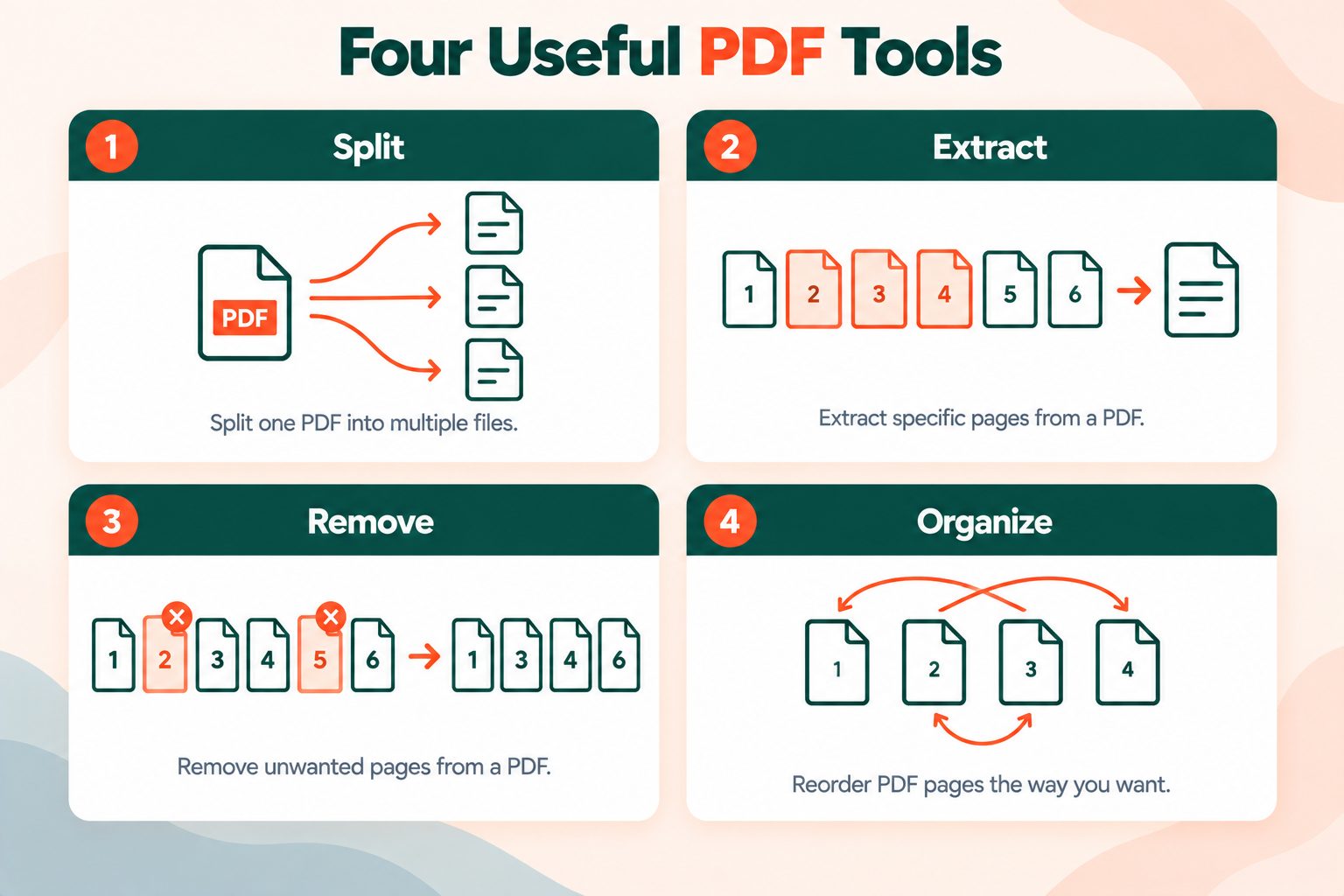
These four operations get used interchangeably in everyday conversation, and they produce completely different results. Picking the wrong one is the most common reason people end up repeating the job.
| You want to | Use | What you get |
|---|---|---|
| Break one PDF into several files | Split PDF | Multiple files, original untouched |
| Pull specific pages into one new file | Extract PDF Pages | One file containing only those pages |
| Delete pages you do not want | Remove Pages | One file, shorter than the original |
| Reorder or rearrange pages | Organize PDF | One file, same pages, new order |
| Combine files back into one | Merge PDF | One file built from many |
The mix-up that costs people the most time is splitting when they meant to extract. If you need pages 4, 9 and 15 to live together in a single document, splitting hands you three separate files that you then have to merge back together. Extracting gives you the one file you wanted in a single step.
Why Your Split Files Add Up to More Than the Original
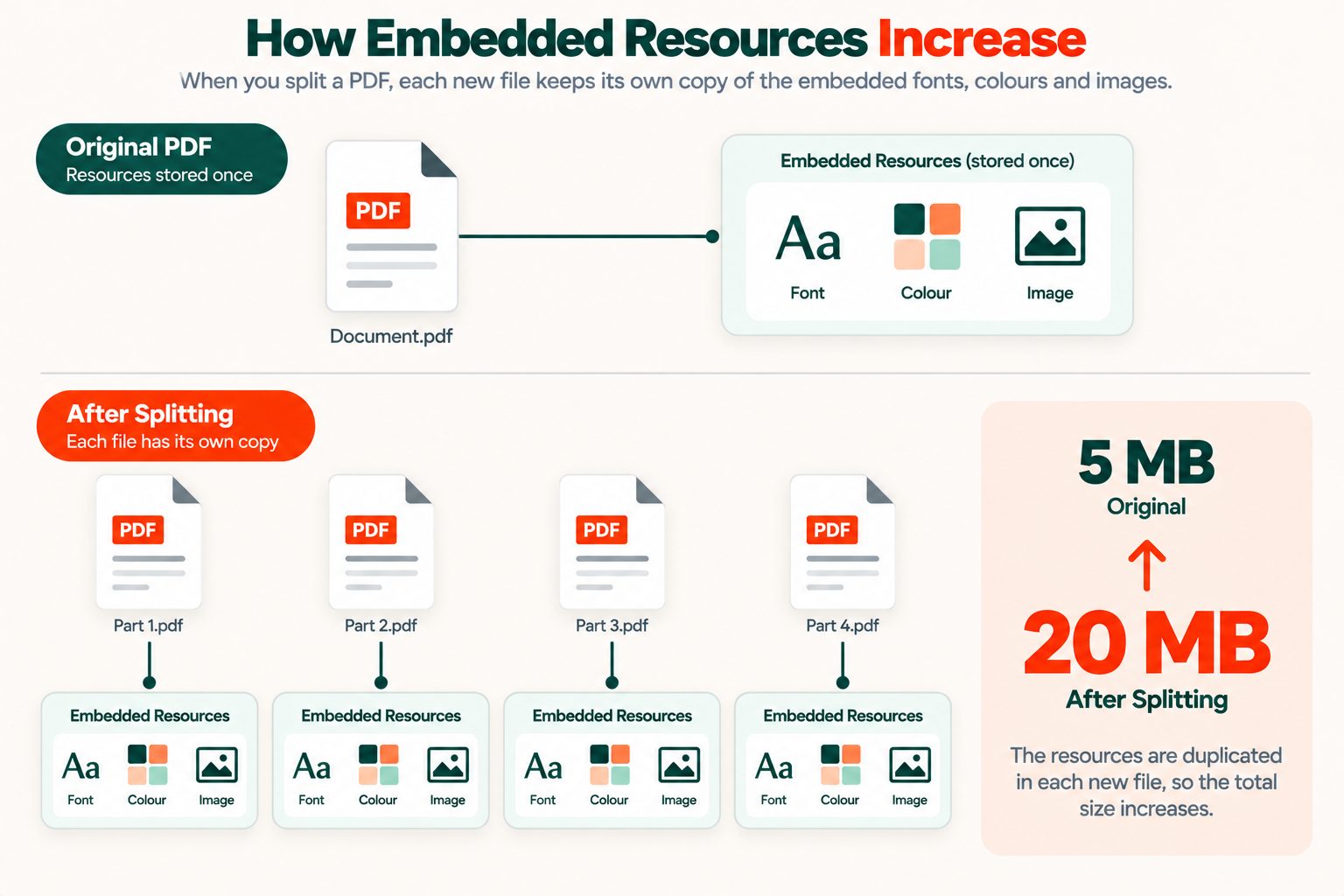
Most people arrive expecting that a 10 MB file split ten ways will produce ten files of about 1 MB each. That is not what happens. The total size of your split files is always larger than the original, and it is often dramatically larger.
Here is why. A PDF stores its fonts, colour profiles and repeated images once, and every page that needs them simply points at that single stored copy. It is an efficient arrangement, and it is a big part of why PDFs stay reasonably small. The moment you split the document, that arrangement breaks. Each new file has to be independently valid, which means it has to carry its own complete copy of every resource its pages use. Split into forty files and you have forty copies of the same embedded font.
We tested this on a 40-page document to see how far the effect actually goes:
| Document | Original size | 40 split files, combined | Result |
|---|---|---|---|
| No embedded fonts | 26.4 KB | 44.3 KB | 1.68x larger |
| One embedded TrueType font | 47.7 KB | 868.9 KB | 18.2x larger |
The quality of every page is identical, so nothing has been degraded. There is simply far more duplicated structure across the set than there was in the single file.
This matters most when file size was the reason you split in the first place, usually to get under an email attachment limit. If that is your situation, run each output through Compress PDF after splitting, and read how to compress a PDF for free for the settings that preserve readable text. The Library of Congress format registry documents how PDF handles these shared resources if you want the underlying detail.
What Splitting Does Not Carry Over
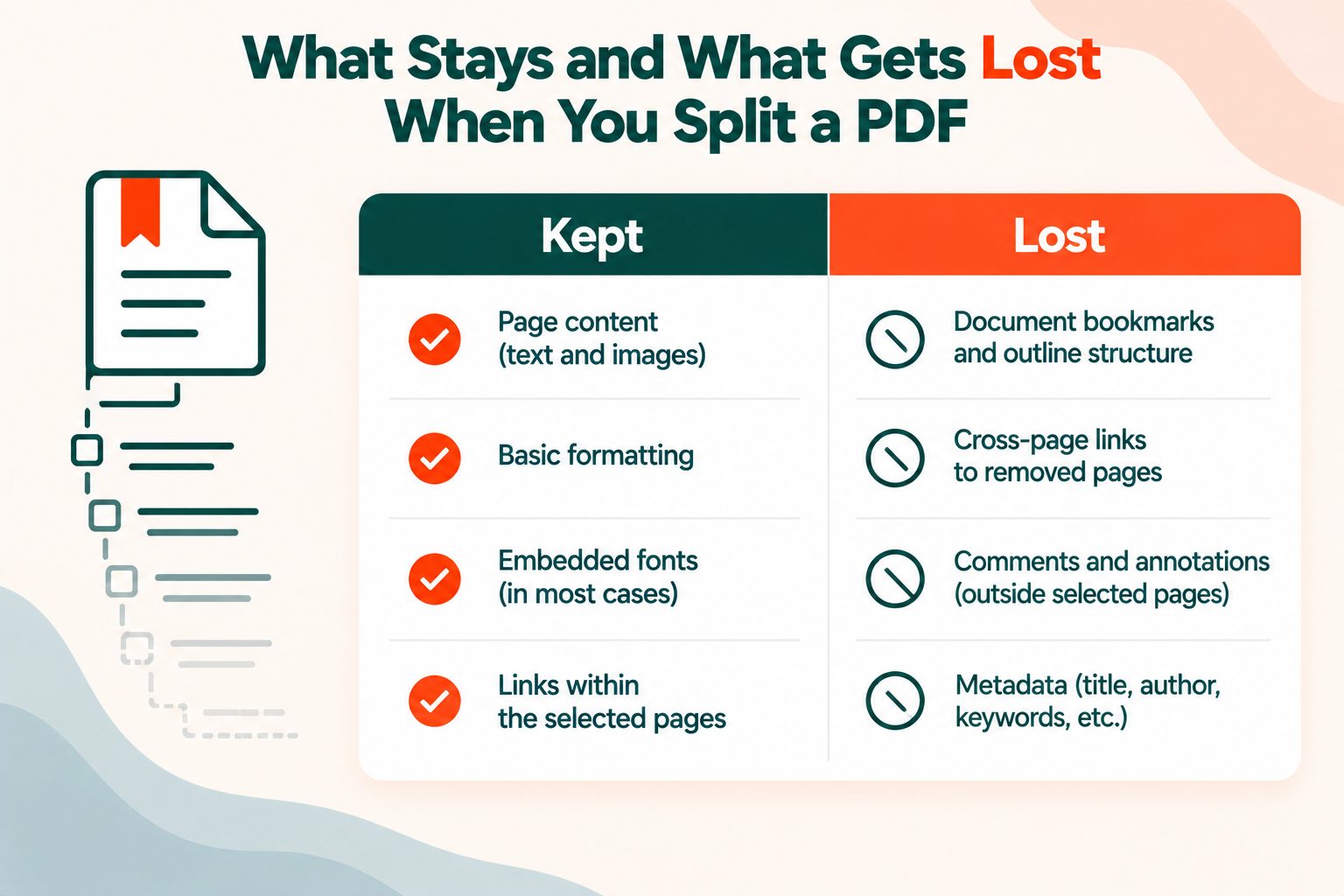
Every page in your split files keeps its text, images and layout exactly as they were. Some things that belonged to the document as a whole, rather than to any single page, do not survive the split.
Bookmarks. The outline tree is a property of the document, not of individual pages, so split files lose navigation entirely. On a long report or manual this is the loss people notice first, because a 40-page section with no bookmarks is much harder to move around than it was inside the original. The W3C guidance on PDF bookmarks explains what that structure was doing for readers.
Internal links. A cross-reference on page 3 pointing to page 40 has nothing to point at once those pages are in separate files, so it becomes a dead link.
Form fields. Fields that were part of one form can behave unpredictably once separated, particularly if they involved calculations or depended on values entered elsewhere in the document.
Tagged structure. The accessibility tags that made the original readable by screen readers do not reliably carry through, which matters if you have compliance obligations. The PDF Association covers what tags do and why losing them is a real cost rather than a cosmetic one.
None of this is a reason to avoid splitting. It is a reason to keep your unsplit original, because rebuilding a bookmark tree by hand is genuinely tedious work.
Splitting Password-Protected and Scanned PDFs
Password-protected files. PDFs use two different kinds of password and people regularly confuse them. An open password stops the file being opened at all, and a permissions password allows opening but restricts things like printing or editing. A file you cannot open cannot be split, so the password has to come off first with Unlock PDF. Once you have your split files, Protect PDF will secure each one again.
One honest note: these tools are for documents you already have the right to access. They are not a way around protection on a file that was not meant for you.
Scanned PDFs. These split perfectly well, because splitting works on pages regardless of what is printed on them. What they do not become is searchable. A scan is a picture of a page, so the split outputs are still pictures. If you need to search or copy text from the results, run OCR PDF first. Doing it before the split saves you running it separately on every output file afterward.
File Size Limits and What Happens to Your File
Uploads are capped at 60 MB without an account, and a free account raises the ceiling to 500 MB. There is no cap on how many times you can use the tool.
Every upload travels over HTTPS, and every file is deleted automatically from the server two hours after processing. Nothing is retained, nothing is shared with anyone, and nothing is indexed or made public. Your split files carry no watermark and no branding of any kind, so they are yours to use as they are.
When Splitting Is the Right Move
- Sending one chapter of a long report to someone who does not need the rest of it
- Separating a batch of documents that went through a scanner feeder as one continuous file
- Pulling individual invoices out of a combined monthly statement
- Isolating a handful of pages for a client review round
- Getting under an email attachment limit, keeping the size point above in mind
- Breaking a large scan into smaller pieces before running PDF to Word, which tends to be more accurate on shorter files
Quick Reference
| I want to | Tool |
|---|---|
| Break a PDF into several files | Split PDF |
| Pull out specific pages as one file | Extract PDF Pages |
| Delete unwanted pages | Remove Pages |
| Reorder pages | Organize PDF |
| Join files back together | Merge PDF |
| Shrink the outputs | Compress PDF |
Frequently Asked Questions
Frequently Asked Questions (FAQs) is a list of common questions and answers provided to quickly address common concerns or inquiries.
How do I split a PDF into separate pages?
Upload your file, choose individual pages mode, and run the split. Each page becomes its own PDF, and all of them download together in a single ZIP archive.
How can I split one PDF into multiple documents?
Use custom ranges mode and define each range, for example 1-5, 6-10 and 11-20. Every range you set becomes one separate document in your results.
Can I split a PDF for free without Adobe?
Yes. This splitter is completely free with no account required and no watermark on the output. It runs in your browser, so there is nothing to download or install.
What is the maximum file size I can split?
60 MB without an account, and 500 MB with a free account. If your file is larger, compress it first and then split the smaller version.
How do I save the files after splitting?
Split results arrive as one ZIP archive. Download it, then right-click and choose Extract All on Windows, or double-click it on a Mac to open the folder.
Does splitting a PDF reduce file size?
No, and the combined total usually grows. Each output file carries its own copy of the fonts and images the original stored only once. Compress afterward if size is your goal.
Will splitting reduce the quality of my PDF?
No. Splitting copies pages exactly as they are, so text stays selectable and images keep their original resolution. Nothing is re-rendered or re-compressed.
Can I split a password-protected PDF?
Not while it is locked. Remove the password first using the Unlock PDF tool, then split the file, and protect each output again afterward if you need to.
Do split PDFs keep their bookmarks?
No. Bookmarks belong to the document as a whole, so split files lose the outline tree along with any internal links that pointed across pages.
Are my files safe when splitting online?
Uploads use HTTPS and every file is deleted automatically after two hours. Nothing is stored long term, shared with third parties or indexed anywhere.